For the complete documentation index, see llms.txt
For the complete documentation index, see llms.txt
How to Complete a Professional Qualification Check: Step-by-Step Guide
If you have been asked to complete a **Professional Qualification Check**, you will see a **Professional Qualification Check** card. This check has up to four steps — the last step only appears if your check needs it.
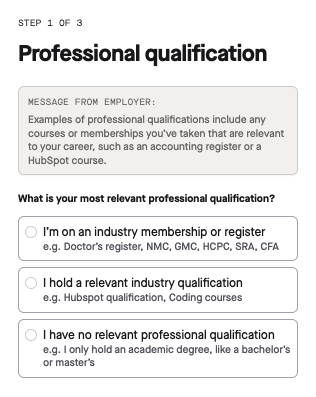
You may also see a message from your employer above the options with examples of what counts as a professional qualification for this check, such as a register, membership, or course relevant to your career.
## Page 1: Professional Qualification Details
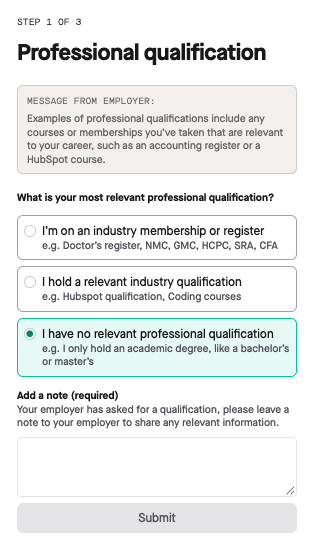
Choose the option that best describes your situation:
- **I'm on an industry membership or register** — for example, Doctor's register, NMC, GMC, HCPC, SRA, or CFA.
- **I hold a relevant industry qualification** — for example, a HubSpot qualification or a coding course.
- **I have no relevant professional qualification** — for example, an academic degree such as a bachelor's or master's.
### If you're on a membership or register
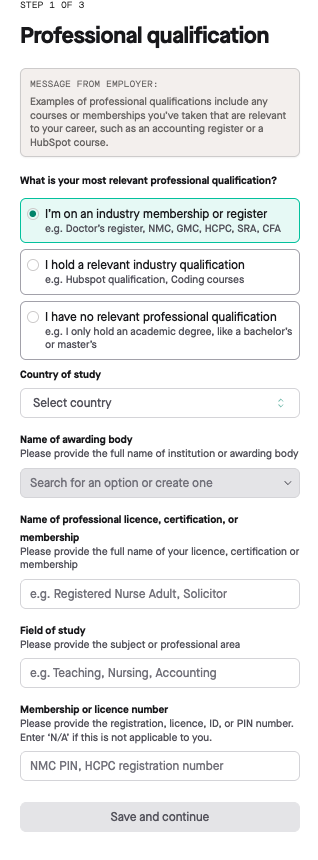
1. **Country of study:** Select the country where your institution or awarding body is located.
2. **Name of awarding body:** Enter the full name of the institution or awarding body. If you can't find it in the list, you can add it as a new entry.
3. **Name of professional licence, certification, or membership:** Enter the full name of your licence, certification, or membership — for example, Registered Nurse Adult or Solicitor.
4. **Field of study:** Enter the subject or professional area — for example, Teaching, Nursing, or Accounting.
5. **Membership or licence number:** Enter your registration, licence, ID, or PIN number — for example, an NMC PIN or HCPC registration number. If this doesn't apply to you, enter "N/A".
Select **Save and continue** once you've filled these in.
### If you hold an industry qualification
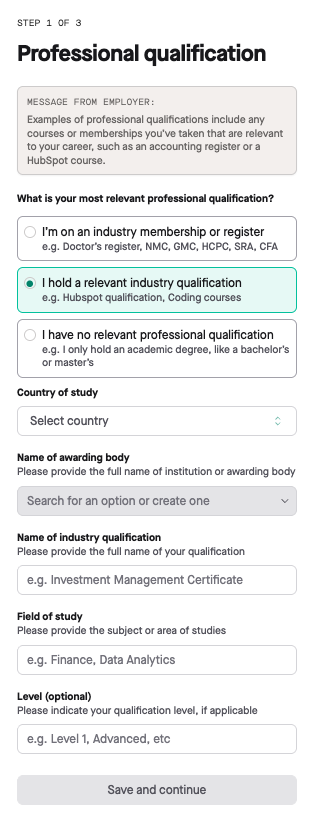
1. **Country of study:** Select the country where your institution or awarding body is located.
2. **Name of awarding body:** Enter the full name of the institution or awarding body. If you can't find it in the list, you can add it as a new entry.
3. **Name of industry qualification:** Enter the full name of your qualification — for example, Investment Management Certificate.
4. **Field of study:** Enter the subject or area of studies — for example, Finance or Data Analytics.
5. **Level (optional):** Enter your qualification level, if applicable — for example, Level 1 or Advanced.
Select **Save and continue** once you've filled these in.
### If you have no relevant professional qualification
Add a note explaining this to your employer — this field is required. Then select **Submit**.
Choosing this option finishes the check straight away — you won't need to complete the document upload or dates steps described below.
## Page 2: Document Proof
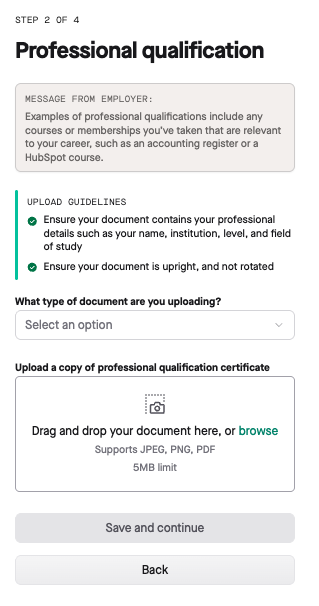
Before uploading, check that your document meets these guidelines:
- It shows your professional details, such as your name, institution, level, and field of study.
- It's upright and not rotated.
1. **What type of document are you uploading?** Choose from: Certificate, Transcript, Proof of membership, License, Other, or "I am unable to provide proof of studies" (if available).
- If you select "I am unable to provide proof of studies", the check will be delayed by 2–3 weeks. Where possible, we recommend requesting a replacement certificate or transcript from your institution in advance to avoid this.
2. **Upload a copy of your professional qualification certificate:** Drag and drop your document, or browse to select it. Supported formats are JPEG, PNG, and PDF, up to 5MB.
## Page 3: Dates
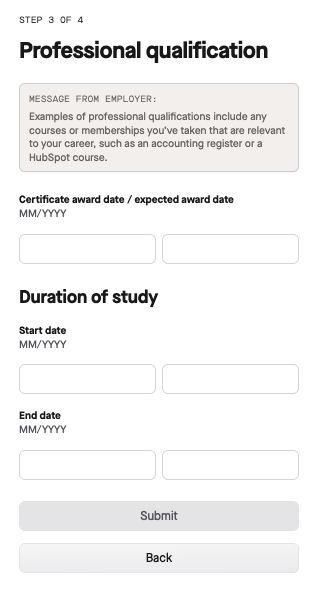
1. **Certificate award date / expected award date:** Enter the award date shown on your certificate (MM/YYYY). If you haven't been awarded it yet, enter the date you expect to receive it.
2. **Duration of study:** Enter the start and end dates of your studies (MM/YYYY).
- If you haven't completed your studies or are still studying, select the appropriate date accordingly. If you're unsure, check your certificate — the end date may be the same as the award date.
Select **Submit** once you've completed this page.
## Page 4: Additional Information (Optional)
Depending on your check, you may be asked to provide additional required information at this point — for example, membership or licence PIN numbers.
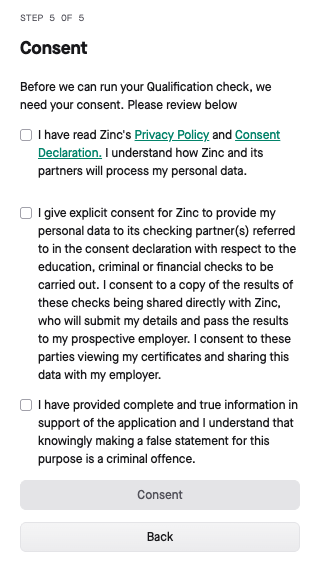
Before your check can be submitted, you'll also be asked to give your consent.