For the complete documentation index, see llms.txt
For the complete documentation index, see llms.txt
How to Create a Volunteer Enhanced DBS Job Role in Zinc
**Please note this flow will only be available to new customers who created a Zinc account after 16/03/2026**.
## Account Navigation
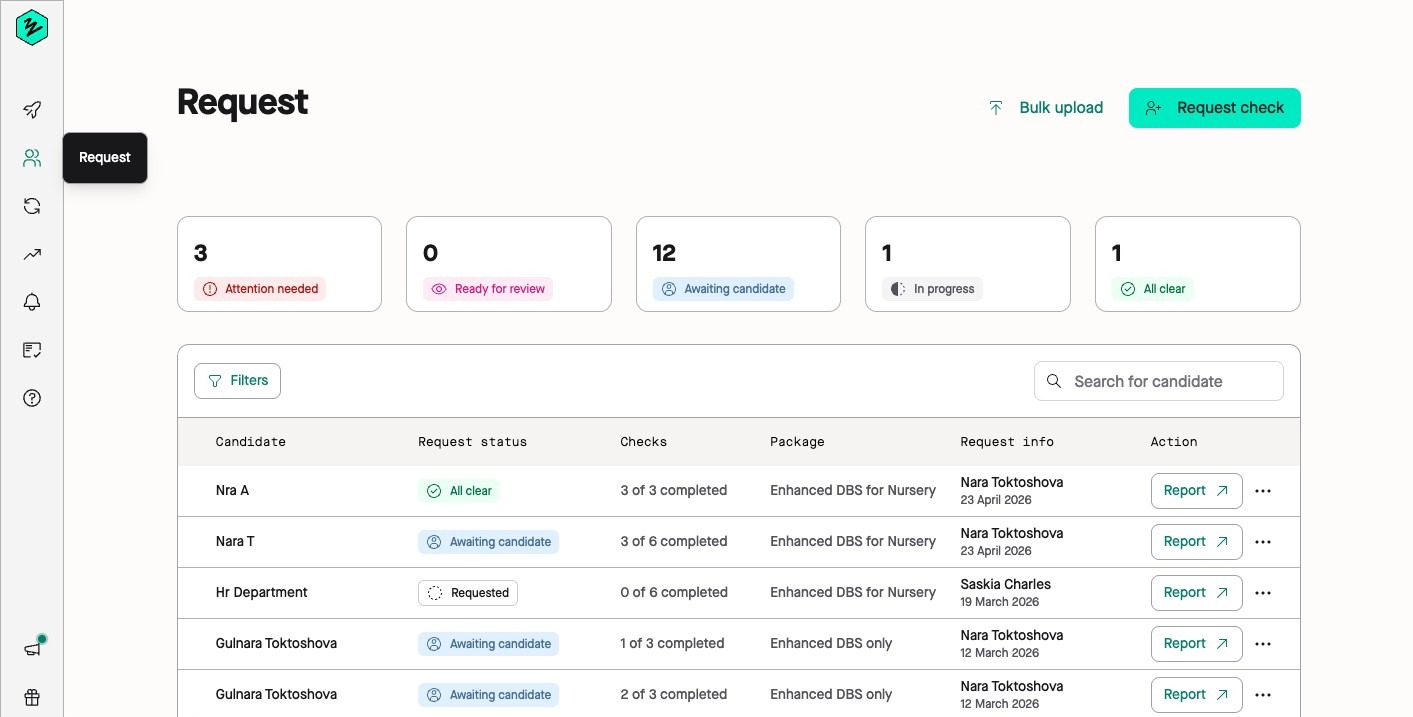
1\. Navigate to the Request Page and Click **Company Settings** under the cog icon.
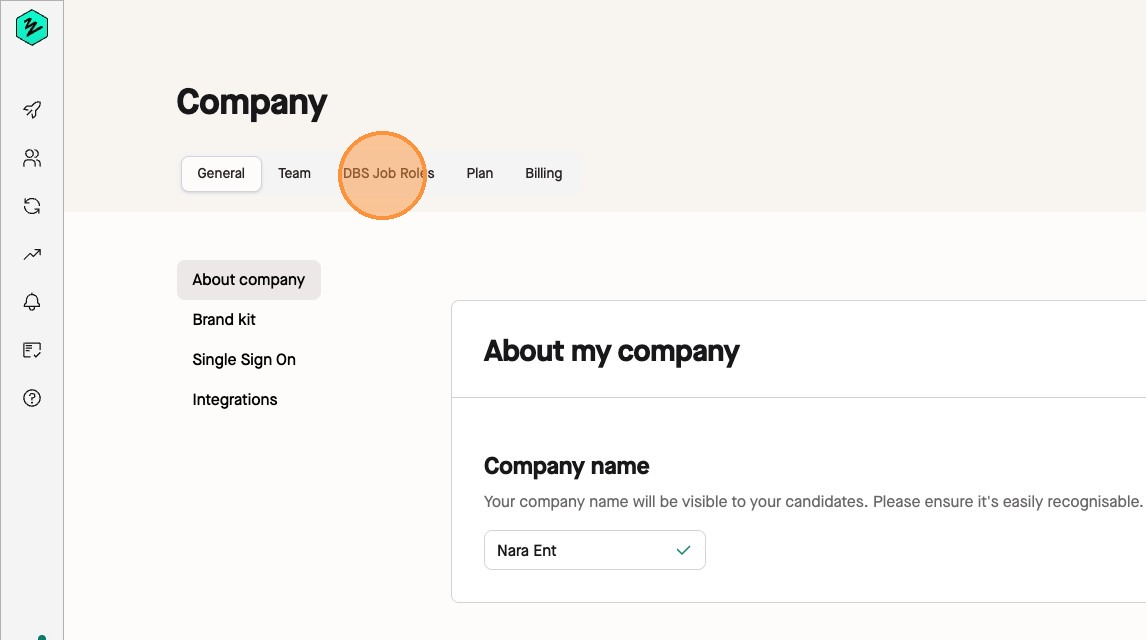
2\. Select **DBS Job Roles** tab
## Role Initialisation
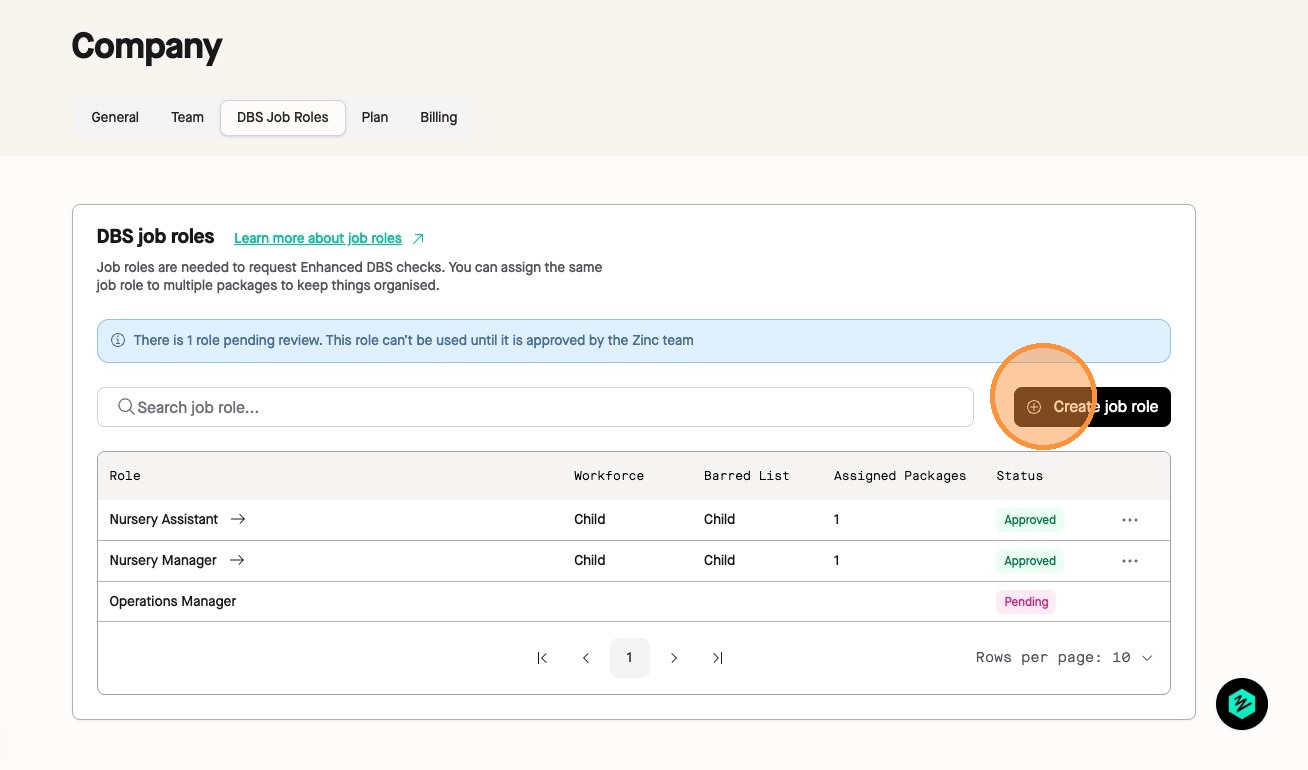
3\. Click **Create job role**
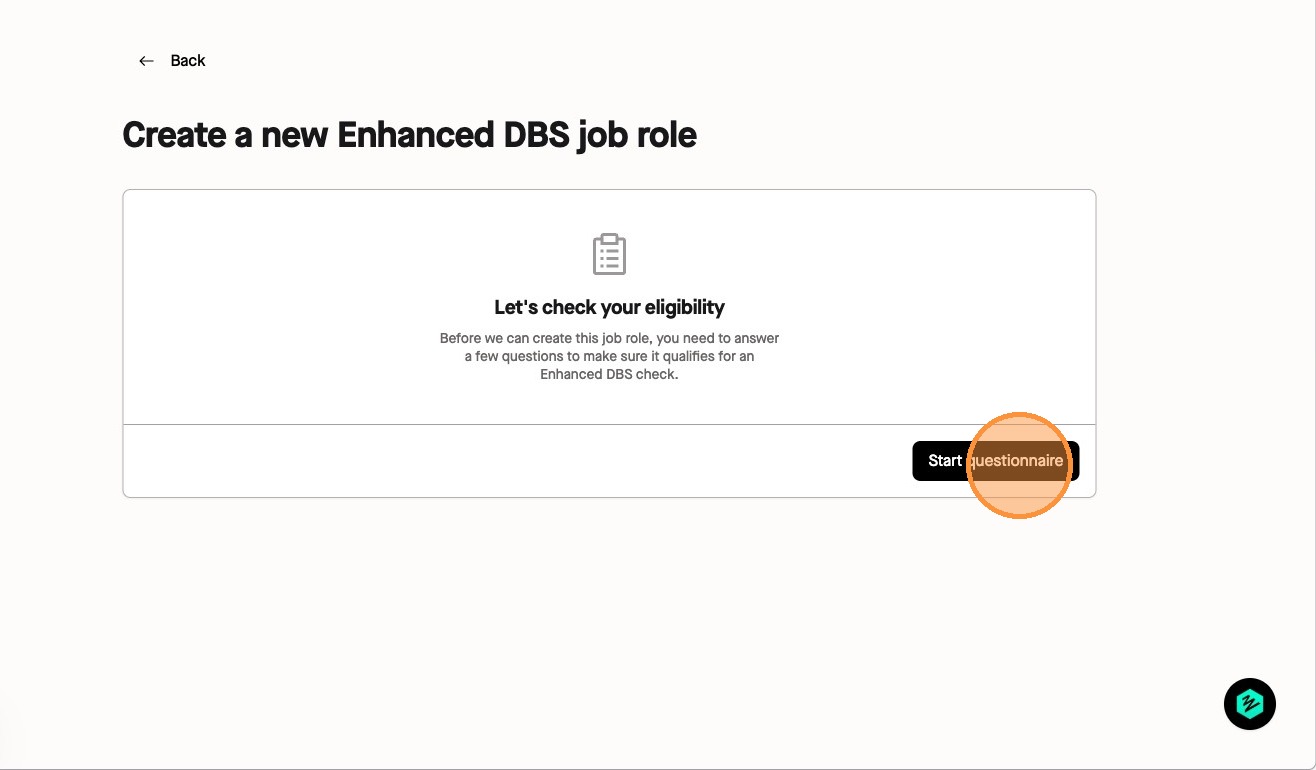
4\. Click **Start questionnaire**
## Eligibility Assessment
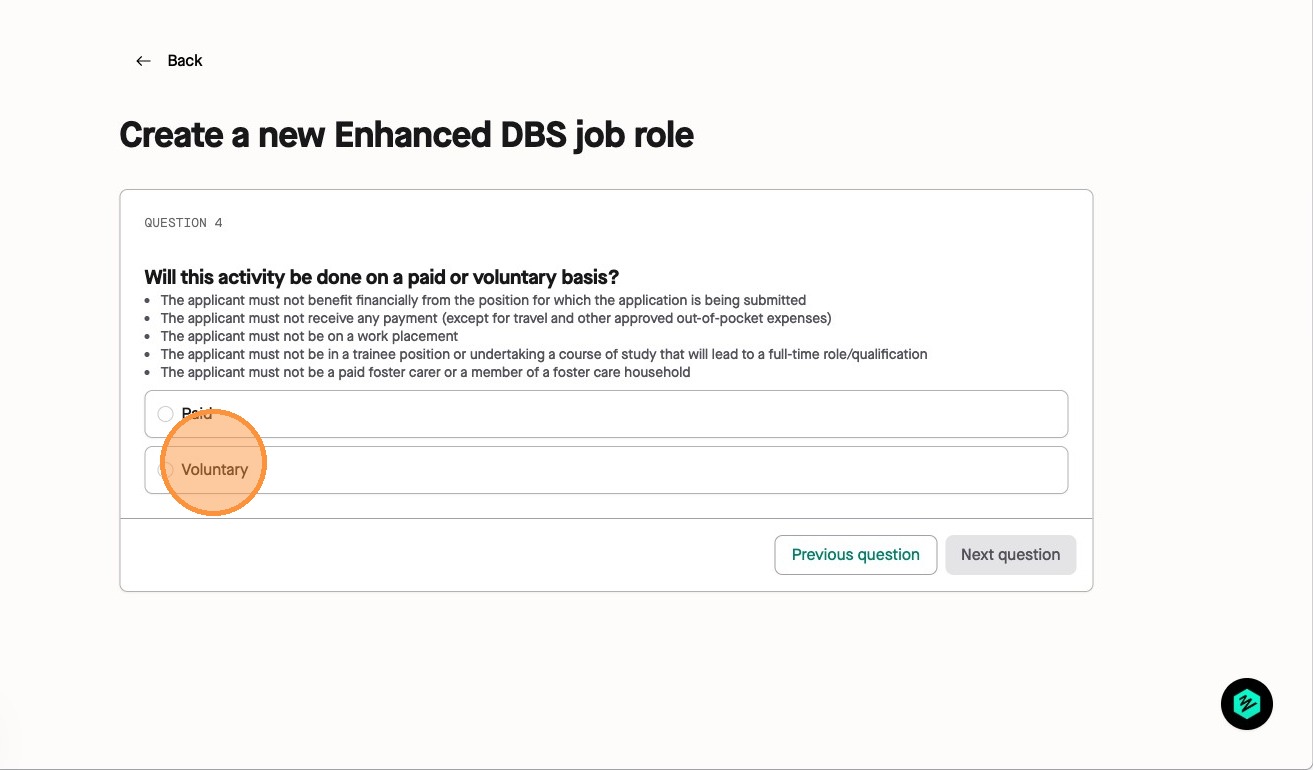
5\. You will then want to complete the questionnaire for the volunteer role you are creating in Zinc. To make it a volunteer role, select **Voluntary** as the basis for the role when asked.
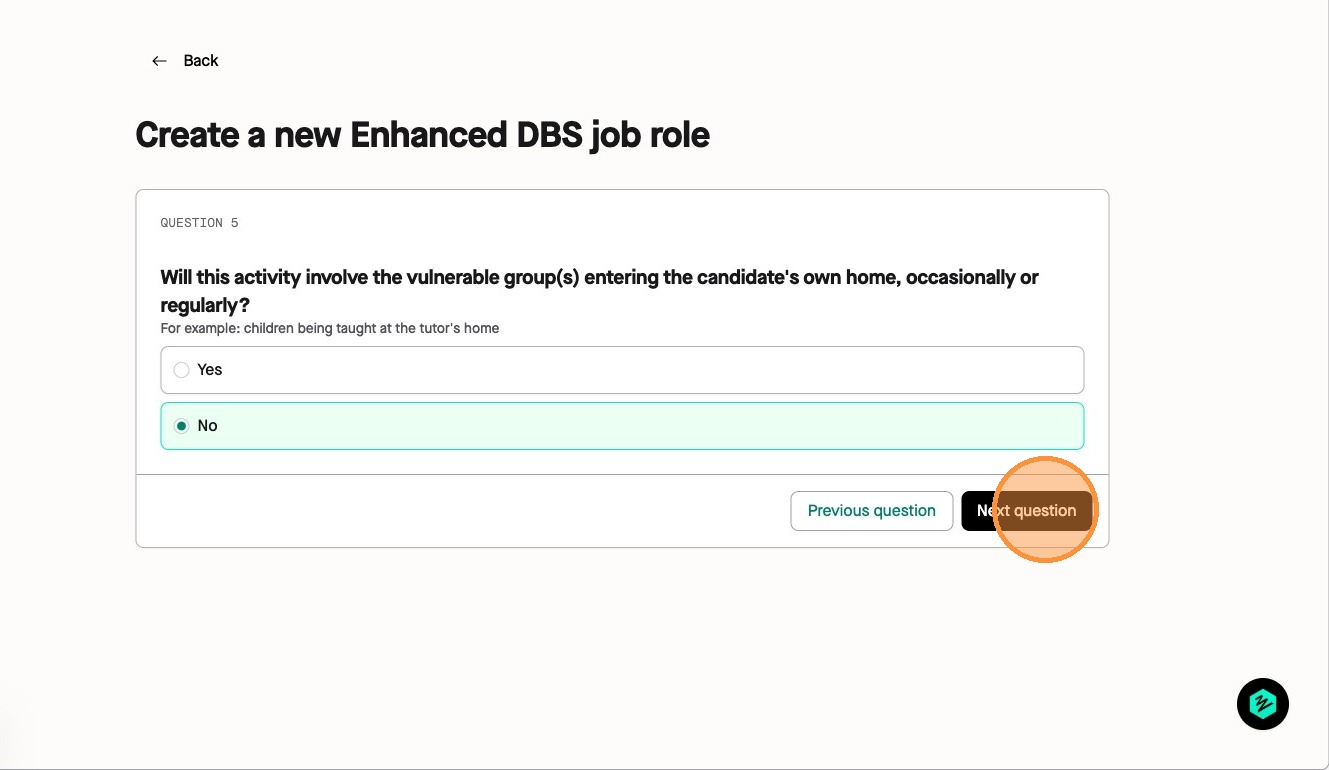
6\. If not required for your role, select **No** for vulnerable groups entering the candidate's home and click **Next question**.
## Review and Finalisation
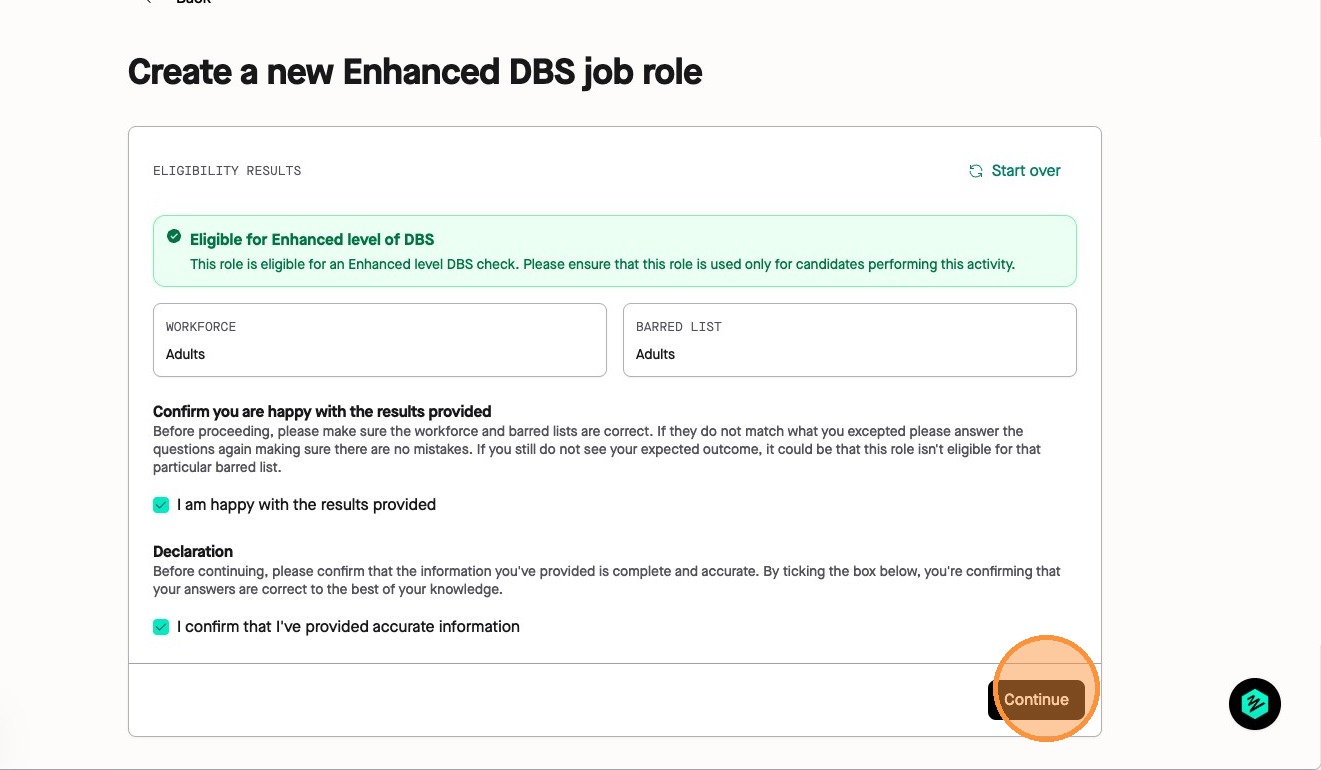
7\. Once you have completed the questionnaire, the eligibility results will be available. Check **I am happy with the results provided** and check **I confirm that I've provided accurate information**. After, click **Continue**.
8\. You will then need to add your job role title. We recommend adding in Volunteer so you can easily distinguish it from your other job titles in Zinc.
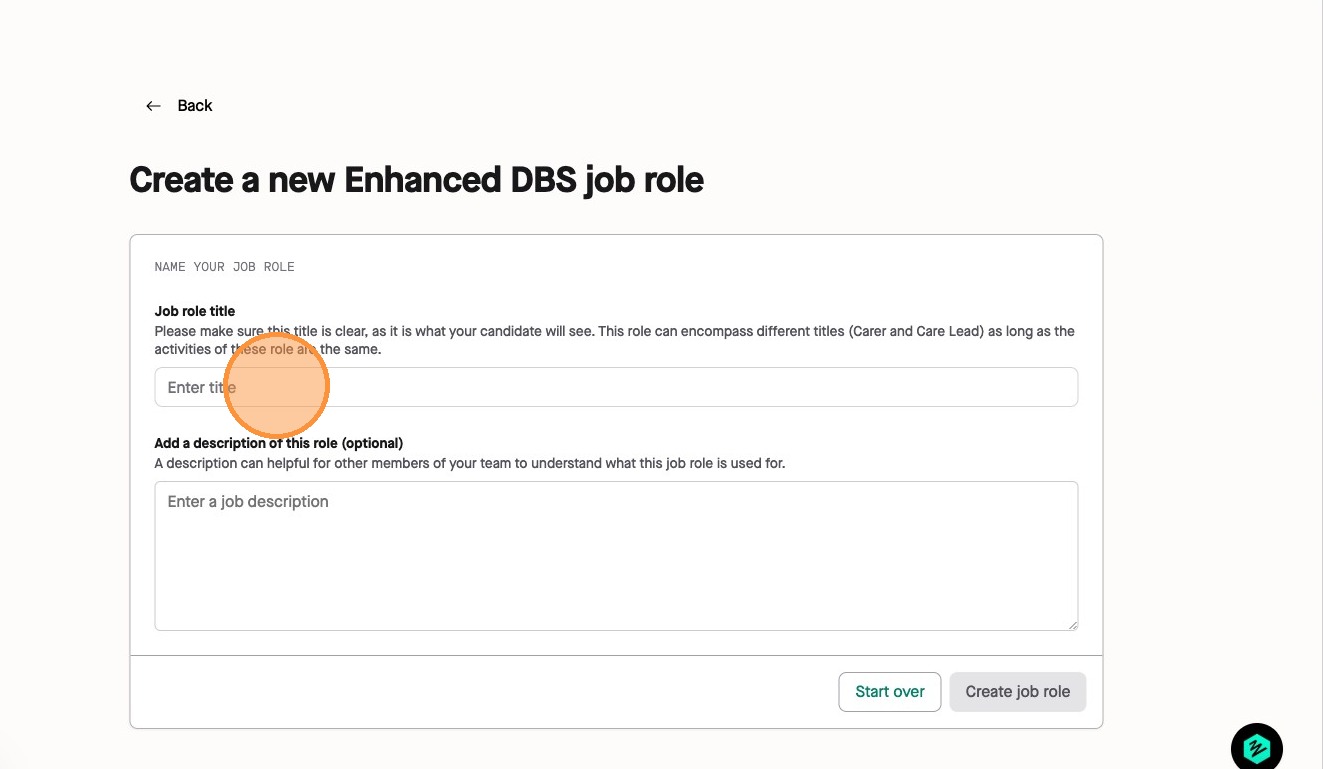
9\. You can then give the role a description and once completed click **Create job role**.
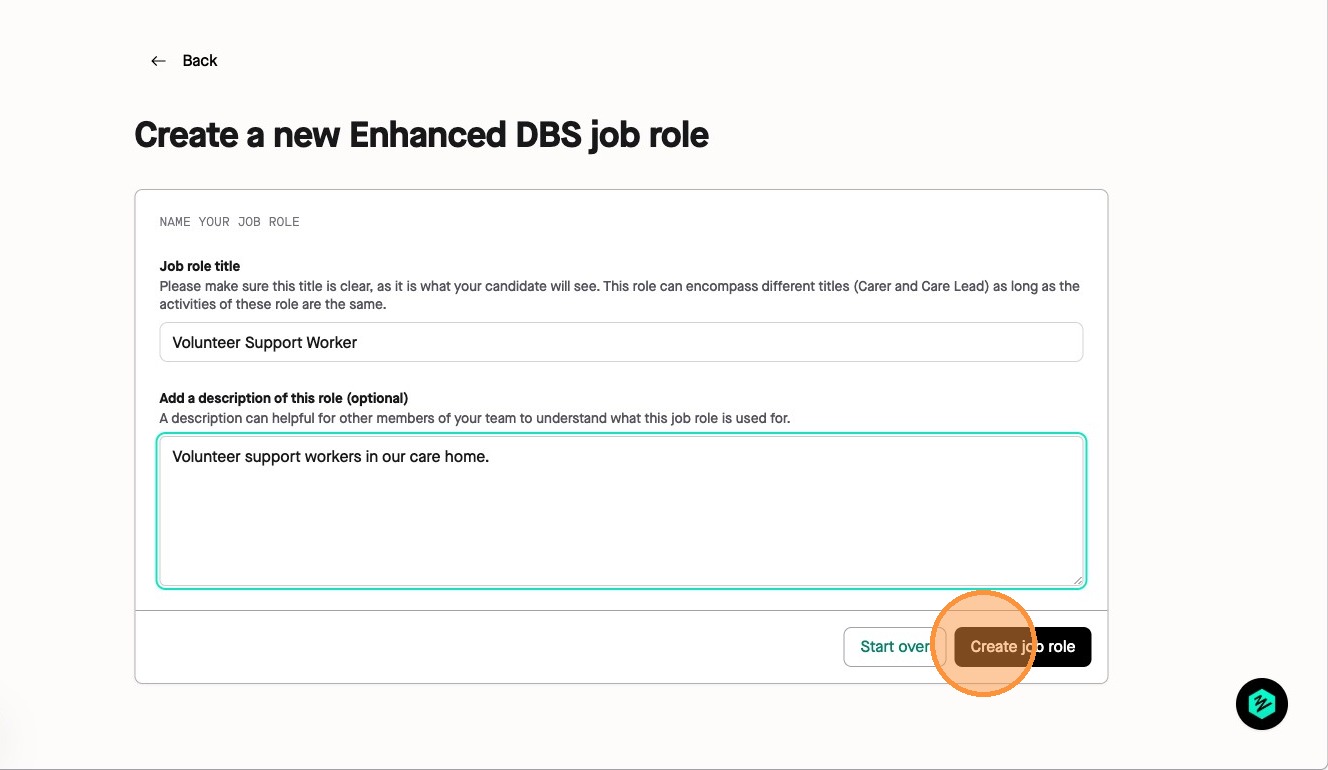
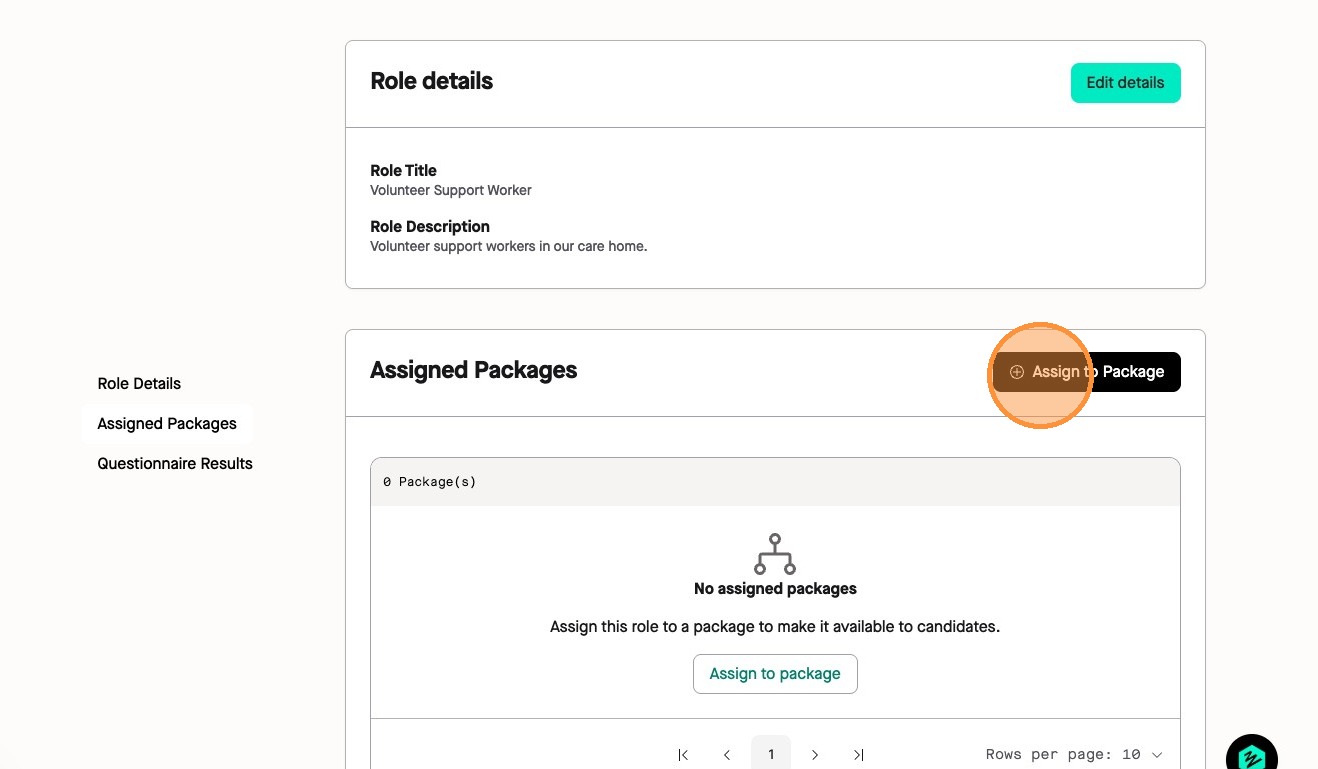
10\. That's it! You've now created a Volunteer DBS job role in Zinc. To use it, click **Assign to Package**. You can find out more on this step [here](https://help.zincwork.com/hc/hm54ky7yrc/article/a90b77f4-assign-dbs-job-roles-to-packages).