For the complete documentation index, see llms.txt
For the complete documentation index, see llms.txt
How Do I Edit or Remove a Reference?
You can't edit a reference request once it has been sent. If it hasn't been completed yet, you can cancel it and send a new one with the right details. This applies to all reference types, including character references for non-employment periods.
Whether you can cancel a reference depends on its status.
- **Not completed / unanswered:** if the trash can icon is visible, you can cancel the request yourself and add a new reference if needed.
- **Completed:** this cannot be removed unless Zinc has explicit consent from your employer. Your employer can archive it from your report so it no longer counts towards their criteria.
- **Bounced:** this cannot be deleted, edited, or resubmitted. Your employer must contact Zinc Support directly if it needs to be removed. See [What to Do If Your Reference Request Bounced .(https://help.zincwork.com/article/2bc0b2dc-what-to-do-if-your-reference-request-bounced)
- **Verified through Instant Employment Verification:** you can't edit or delete these, because the details come directly from a tax or government authority such as HMRC. Ask your employer to contact our Support Team if something needs to be removed. See [How to Delete or Edit a HMRC/Government Gateway Verified Reference.](https://help.zincwork.com/article/67fe2e60-how-to-delete-or-edit-a-hmrcgovernment-gateway-verified-reference)
If you can't see a trash can icon, the reference is one of the last three types above, or the removal option is restricted by your employer's set-up.
## How to cancel a reference request
1. Navigate to your reference submission page by clicking the **complete checks** button in the background check request email you were sent by Zinc and clicking on **References**.
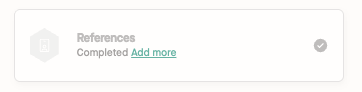
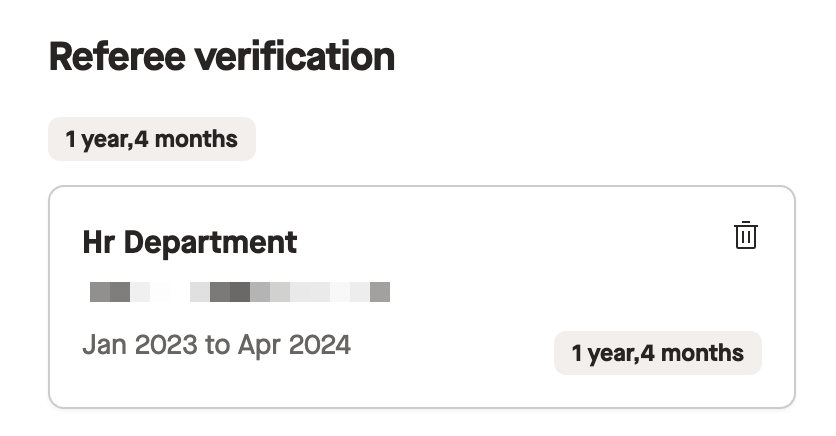
2. Find the referee you want to remove and click the **trash can** to the right of their name.
3. A pop up will appear asking if you would like to cancel the referee; click **Confirm**.
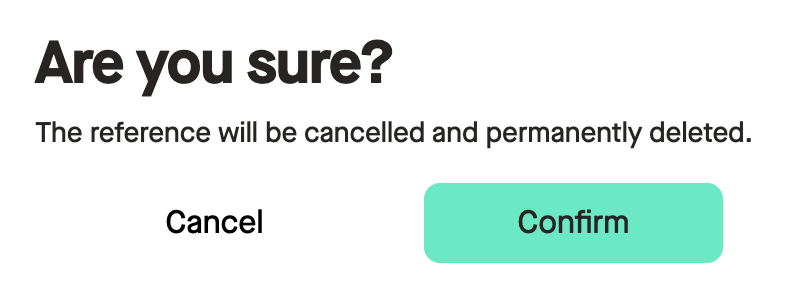
This reference has now been cancelled. See [How to Add a New Referee in Your Reference Requests](https://help.zincwork.com/article/248eee57-how-to-add-a-new-referee-in-your-reference-requests) to add a new one.
## If you cannot see the trash can icon
If you do not see a trash can icon, this is because the reference was verified with **Instant Employment Verification**, the reference has already been completed, the request has bounced, or the removal option is restricted for that flow.
With **Instant Employment Verification**, which is processed via the supported tax or government authority for your selected country, we need consent from your new employer directly before removing any information. Please ask them to contact our Support Team directly over live chat or email if you wish to remove this information from Zinc.
For completed or bounced reference requests, your employer can archive the reference from your report. Please contact them directly to action this.
## Updating referee details
If you want to update referee information, for example by adding another email address, you need to remove the existing request first if it has not been completed and the trash can icon is visible. You can then add the referee again with the updated information.
## Character References and Non-Employment Periods
The rules above apply to character references too. Cancelling one doesn't meet your employer's requirement, because a non-employment period or its optional documents alone won't satisfy a character reference request. You will need to add a new character referee for that period. If you can't provide one, contact your employer so they can review what is possible for your check. See [How Do I Add a Character Reference?](https://help.zincwork.com/article/d8b5c312-how-do-i-add-a-character-reference).