For the complete documentation index, see llms.txt
For the complete documentation index, see llms.txt
How to Navigate Zinc: A Guide to Getting Started and Using Key Features
This is your quick tour of the Zinc platform — what your Request dashboard shows you, and where to go next to send a check or manage your packages.
### Navigating the Sidebar
The icon rail on the left of the screen gets you to every area of your Zinc account. The icon for the page you're on is highlighted. From top to bottom:
- **Zinc logo** – takes you out of the app to the main Zinc website.
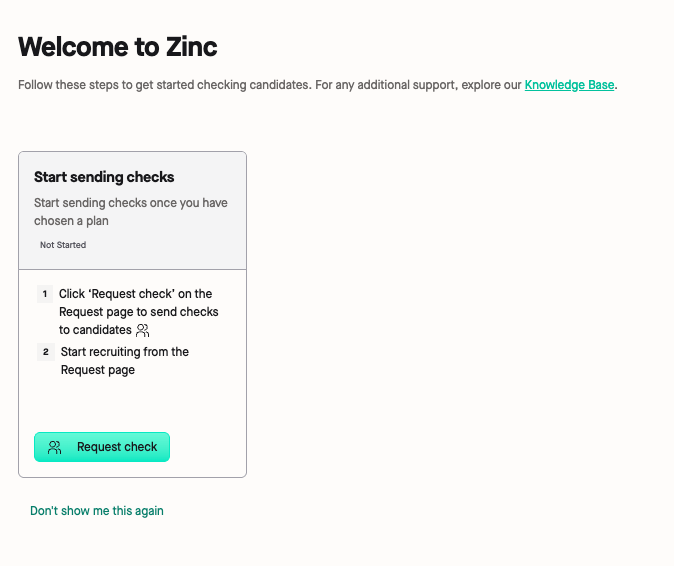
- **Welcome page** – your account's homepage. If you don't need it, click **Don't show me this again** on the page to hide it from the sidebar.
- **Request** – the page covered below, where you track and manage check requests.
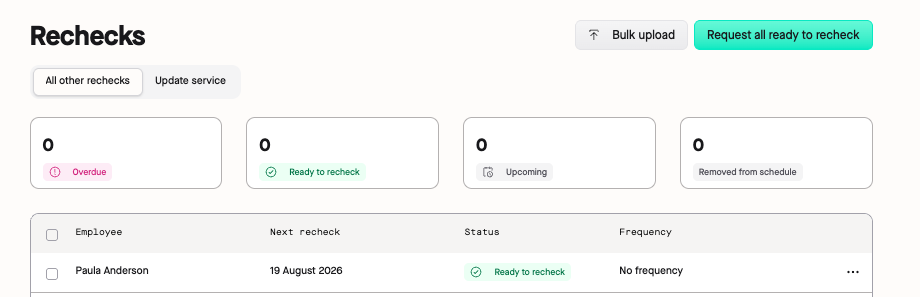
- **Rechecks** – track candidates on a recheck schedule, or on Zinc's Update Service recheck schedule.
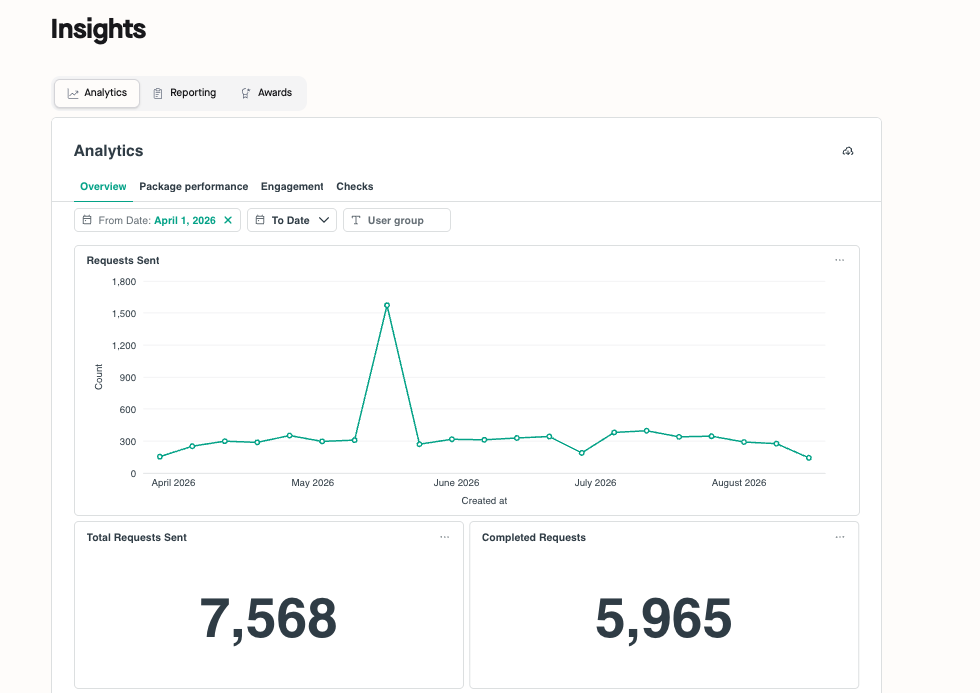
- **Insights** – reporting, analytics, and company awards data.
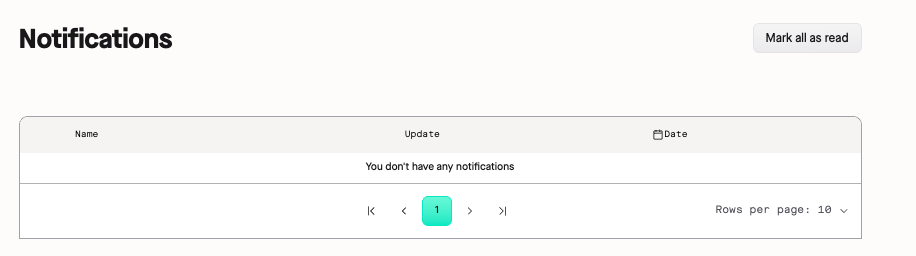
- **Notifications** – updates from Zinc about your account.
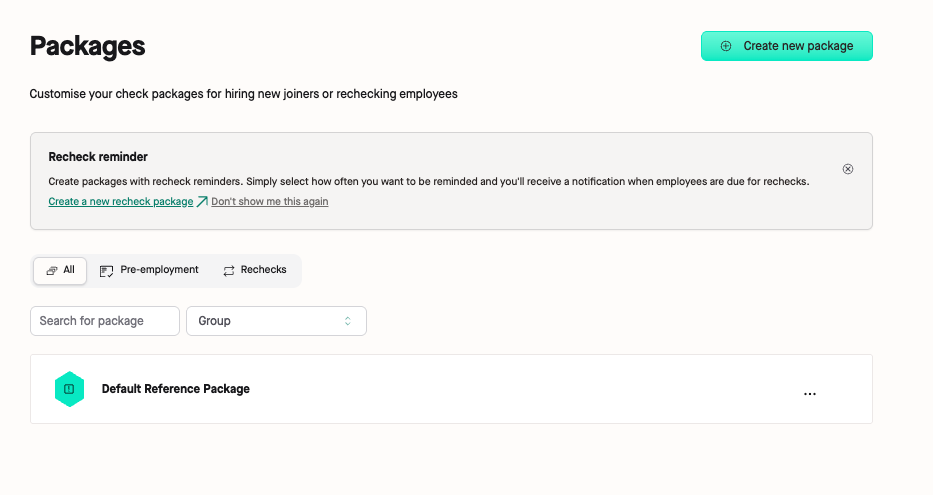
- **Packages** – manage your check packages and create new ones.
- **Profile** – your company profile. Only shows if you've also used Zinc as a candidate.
- **FAQ** – opens this Help Centre.
- **Platform updates** – announcements about new Zinc features and product updates.
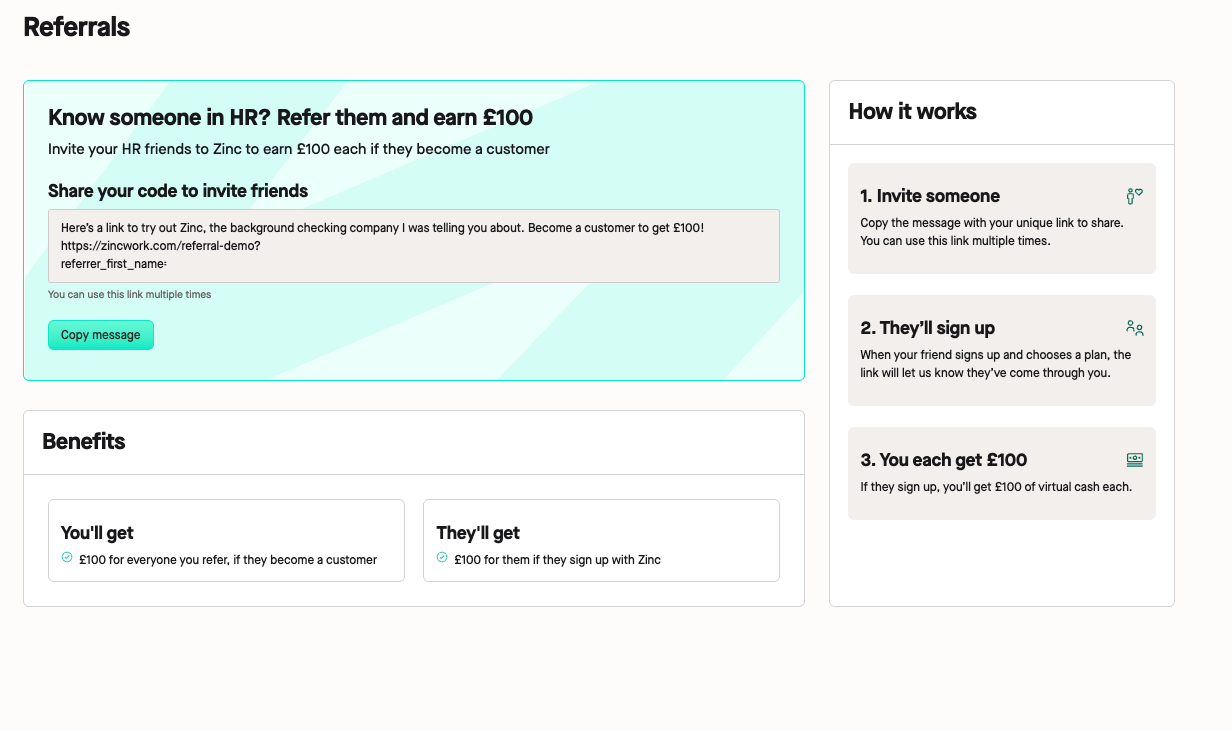
- **Referrals** – refer other businesses to Zinc.
- **Company settings** – account-wide settings for your organisation. Only visible if you're an admin-level user.
- **Personal account settings** – your own login and profile settings.
### Understanding Your Request Dashboard
<iframe width="560" height="315" src="https://www.youtube.com/embed/DC7yOpGRB6o?si=cMWbTbKMPIIY5wMa" title="YouTube video player" frameborder="0" allow="accelerometer; autoplay; clipboard-write; encrypted-media; gyroscope; picture-in-picture; web-share" referrerpolicy="strict-origin-when-cross-origin" allowfullscreen></iframe>
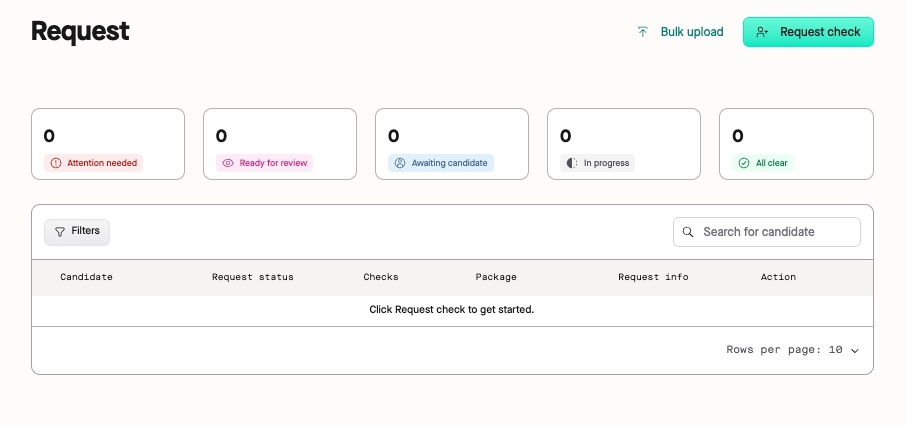
When you sign in, you land on the **Request** page. This is where you track every background check you've requested.

At the top, five status cards give you an at-a-glance count of where all your requests stand:
- **Attention needed** – something on this request needs action from you.
- **Ready for review** – the checks are complete and the report needs your final review.
- **Awaiting candidate** – you're waiting on the candidate to complete their part.
- **In progress** – the check is currently running.
- **All clear** – the check has completed with no issues to flag.
Below the cards, use **Filters** to narrow the list by criteria like start date, group, and package, or the **Search for candidate** box to jump straight to someone by name.
The main table lists everyone you've requested checks for, with these columns:
- **Candidate** – the name of the person being checked.
- **Request status** – matches one of the five categories above.
- **HRIS** – shows if this candidate is linked through your HR system integration, if you have one set up.
- **Checks** – how many checks in the package are complete, e.g. "0 of 1 completed".
- **Package** – the package used for this request.
- **Request info** – the recruiter's name and the date the request was sent.
- **Action** – open the candidate's **Report**, or use the **⋯** menu for more options, such as resending their link.

At the bottom of the table, you can adjust how many rows are shown per page and page through the rest of your candidates.
To send a new request or start a bulk upload, use the **Request check** or **Bulk upload** buttons at the top right of the page.
### Viewing a Candidate's Details
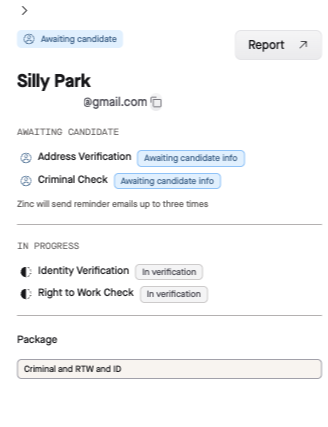
Click on a candidate's row to open a side panel with more detail on their request, without leaving the Request page. The panel shows:
- The candidate's name and email address.
- Their overall request status.
- A breakdown of every check in their package, grouped under the same status categories as the cards above (e.g. Attention Needed, Awaiting Candidate). Each check has its own status, such as **Action required**, **Awaiting candidate info**, or **Pending resubmission**, often with a short note on what's needed — for example, "In-person check required," "Right to Work proof required," or "0/5 years provided" for a reference check waiting on candidate history.
- Any automated reminders Zinc is sending on your behalf, e.g. "Zinc will send reminder emails up to three times."
- The package assigned to the request.
From the panel, click **Report** to jump straight to the candidate's full report.
### Making a New Request
For step-by-step instructions on sending a check, entering candidate details, and resending a candidate's link, see [How to Request a Background Check](https://help.zincwork.com/hc/hm54ky7yrc/article/b1feb366-how-to-request-a-background-check)
### Creating and Editing Packages
Packages determine which checks a candidate is asked to complete. To set one up or make changes to an existing package, see [How to Create a New Check Package in Zinc](https://help.zincwork.com/hc/hm54ky7yrc/article/0576f8aa-how-to-create-a-new-check-package-in-zinc) and [How Do I Edit a Check Package?](https://help.zincwork.com/hc/hm54ky7yrc/article/8d31f42b-how-do-i-edit-a-check-package).
---
If you have any questions, contact our Account Management team at [accountmanagement@zincwork.com](mailto:accountmanagement@zincwork.com).