For the complete documentation index, see llms.txt
For the complete documentation index, see llms.txt
How To Add, Record, and Archive References on a Candidate’s Report
If a candidate gives you the wrong referee, or you already have a reference from elsewhere, you can now update this in the candidate report. **You no longer need to contact our Support Team to amend reference requests.** Here's how to request a new reference, record one you've collected outside Zinc, and archive one you no longer want to count.
## Requesting a New Reference
You can use this when a referee is incorrect, unreachable, or when a reference does not meet your criteria.
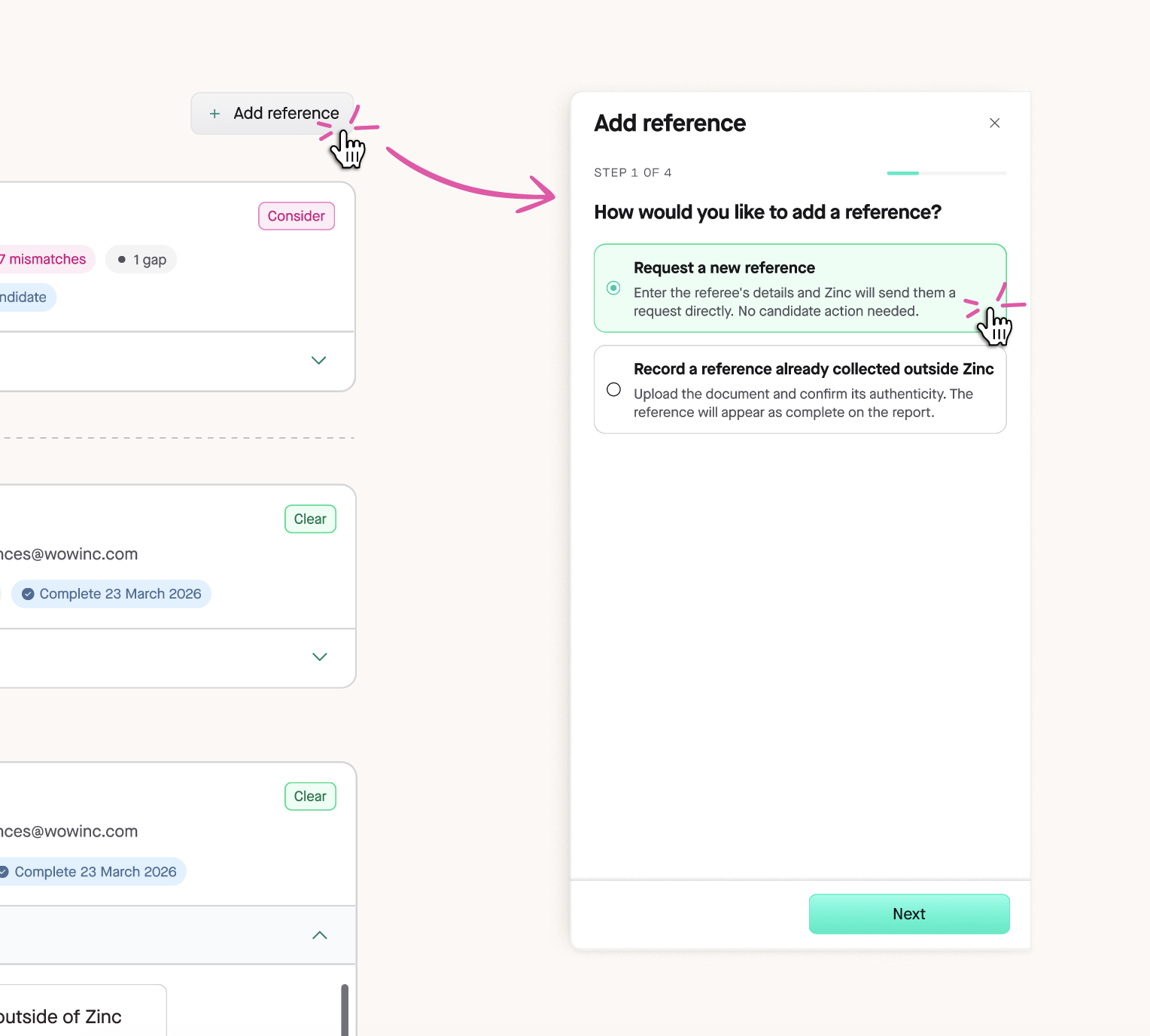
1. Open the candidate’s report and select **Add reference.**
2. Choose **Request a new reference,** then select **Next.**
3. Pick the reference type. Zinc only shows the types in your package.
4. Enter the referee's **first name, last name,** and **email,** plus all the additional details for the reference type: the company, job title and dates.
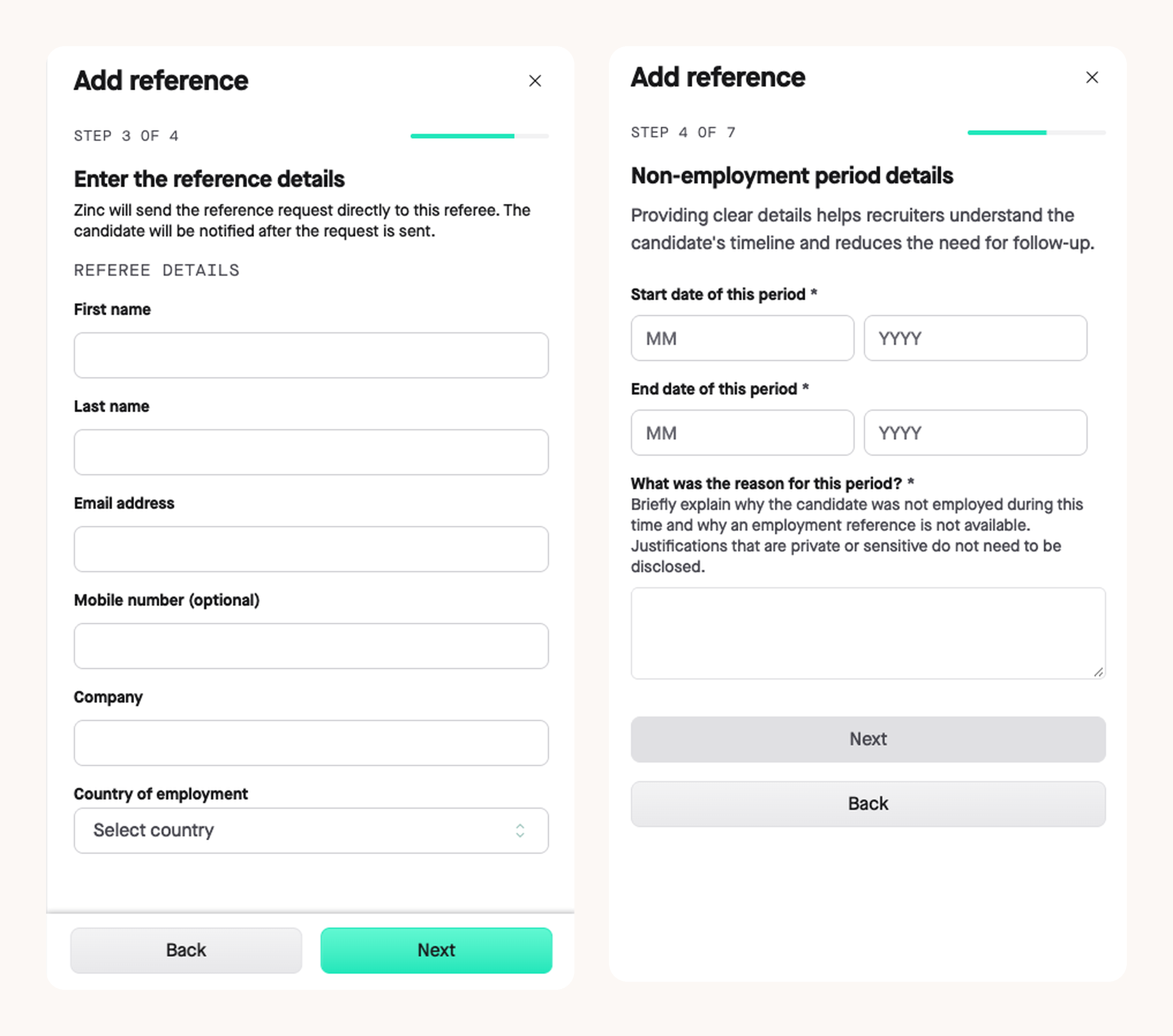
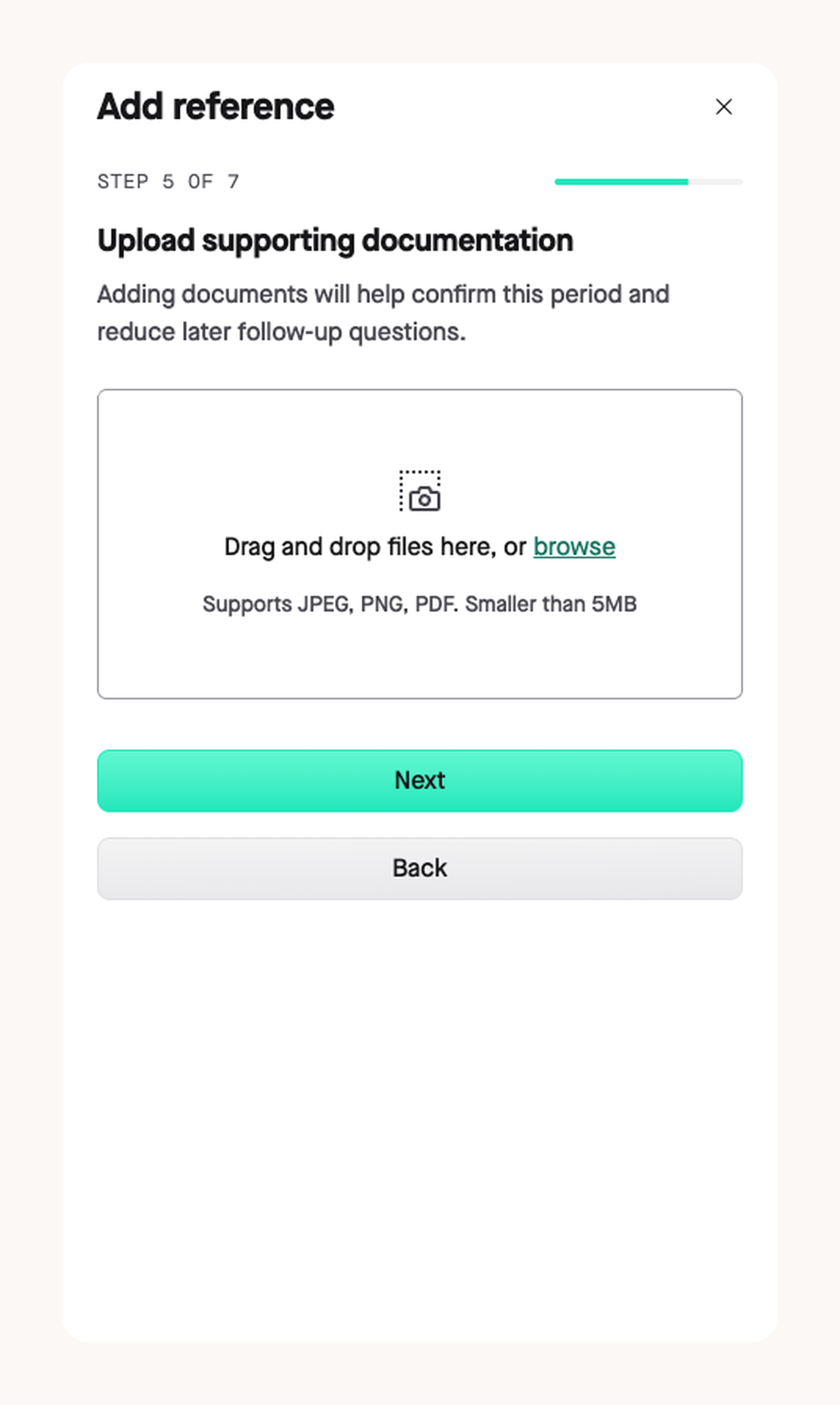
5. If you are uploading a non-employment period, you also have the option to upload some supporting documentation for this time. This can be a degree certificate, letter of admission, flight tickets, or other supporting evidence.
6. Submit the request.
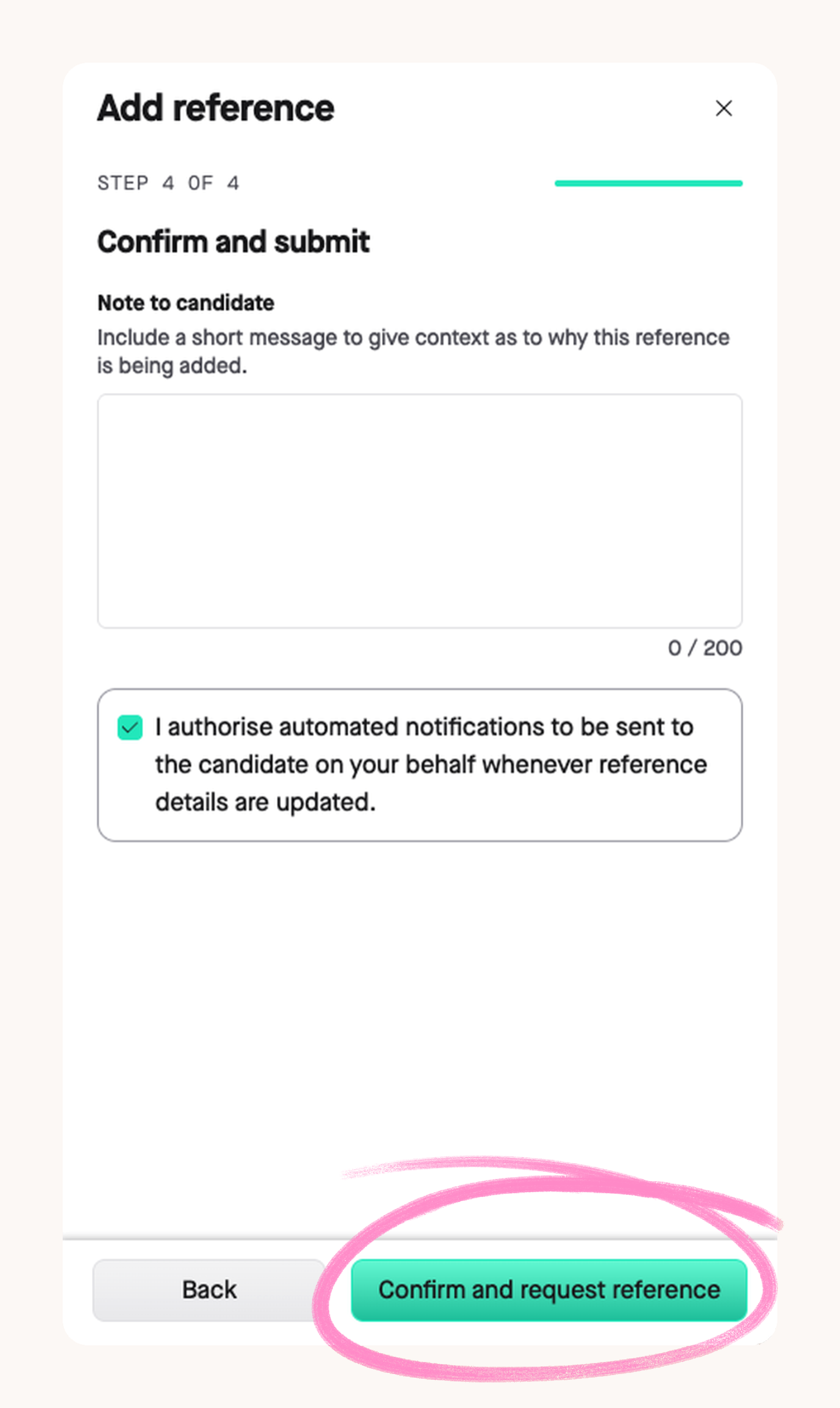
Zinc sends the request to the referee straight away, and the new reference appears on the report as requested. The candidate doesn't need to do anything, but Zinc emails them so they know you've added a referee.
Zinc marks the reference as complete and adds a **Recruiter submitted** badge to its card.
**You can't change a reference's type after you add it.** If you pick the wrong one, archive the reference and add a new one.
## Recording a Reference Collected Outside Zinc
Use this when you've already collected a reference, for example by phone or email, and want it on the report.
1. Open the candidate report and select **Add reference.**
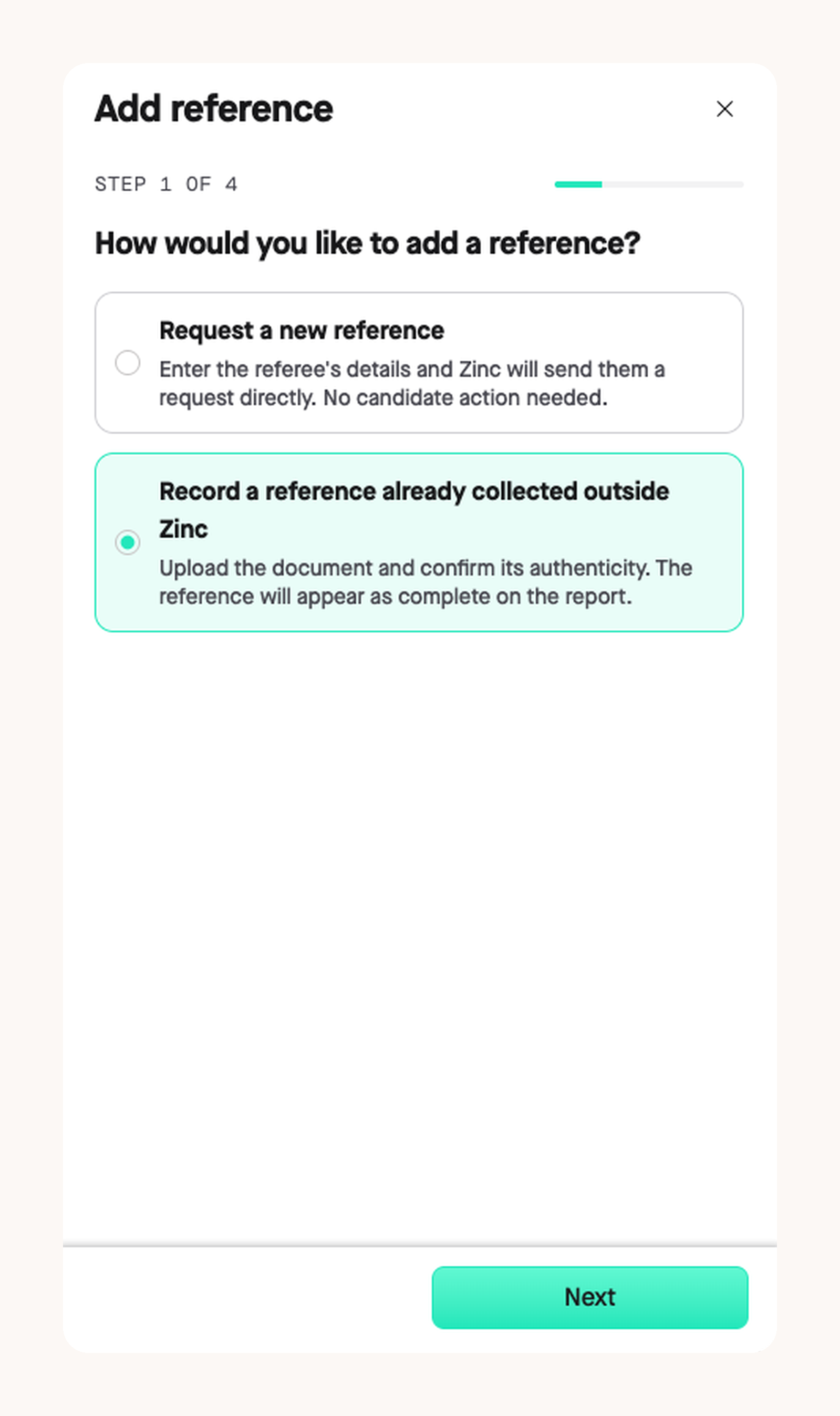
2. Choose **Record a reference already collected outside Zinc,** then select **Next.**
3. Pick the reference type.
4. Enter the referee's details.
5. Upload the reference document.
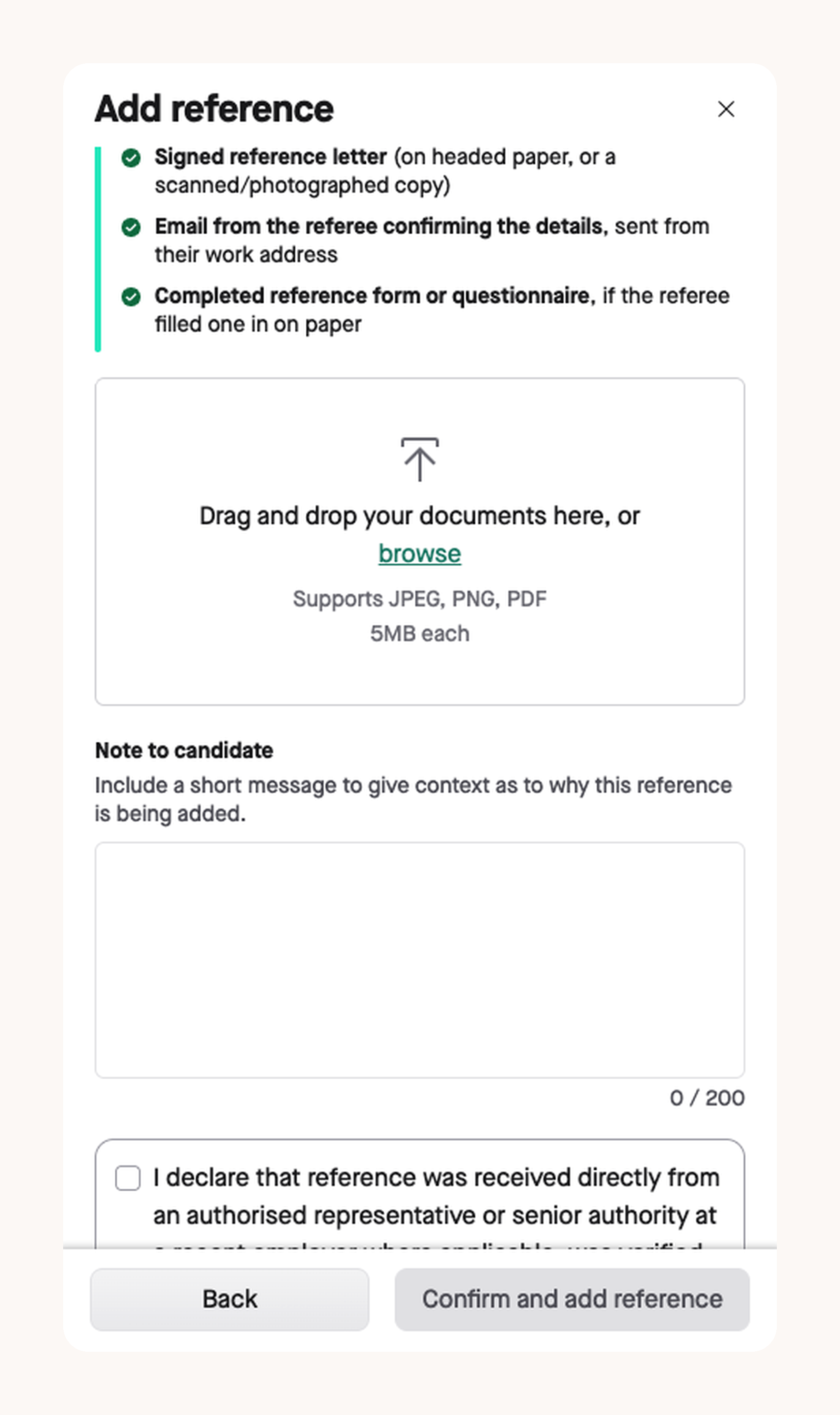
6. Confirm that the document accurately reflects the reference by ticking the declaration box, and select **Confirm and add reference.**
Zinc emails the referee a copy of the uploaded document to say you’ve recorded a reference on their behalf. If anything looks wrong, they can reply to that email, and we’ll let you know. The candidate gets an email notice too.
### If a referee has already been nominated for this period
Don't record a second one. Open the existing reference, go to its **Activity** tab, and add a note with the document attached. If a Zinc request for that period is still in progress, recording an outside reference won't cancel it, and both will appear on the report.
## Archiving a Reference
You can archive a reference when it's wrong, out of date, or added in error. For example, a wrong email, a referee outside your criteria window, or a reference for the wrong role.
1. Find the reference on the candidate's report.
2. Go to the **Activity** tab.
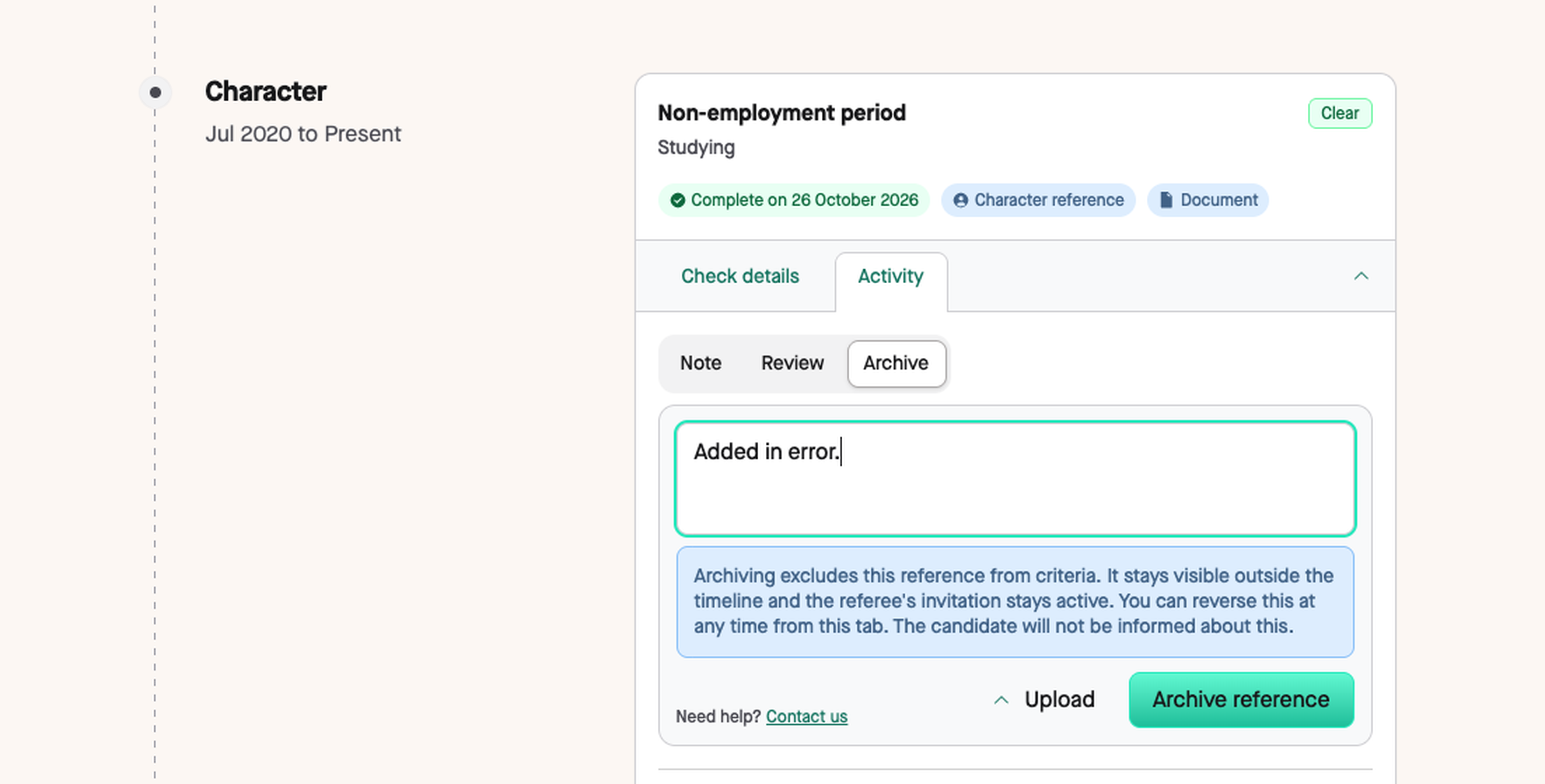
3. Select **Archive.**
4. Enter a short reason as to why you are archiving this (required). This will be shown alongside the time, date and name of the user archiving in the **Activity** tab.
5. Select **Archive reference.**
Zinc moves the reference to the **Archived** section below the line on the report. Nothing is deleted, but it no longer counts towards your completion criteria.
### Is archiving the same as marking a reference as reviewed?
No. **Reviewed** only records that someone on your team has looked at the reference, and doesn't affect your criteria. Archiving removes the reference from your criteria. It's also different from **Declined,** which means the referee chose not to provide a reference. Archived and declined references appear in separate sections.
## Unarchiving a Reference
If you archived a reference by mistake, or you need it back:
1. Find the reference in the **Archived** section at the bottom of the candidate's timeline.
2. Go to the **Activity** tab and select **Unarchive.**
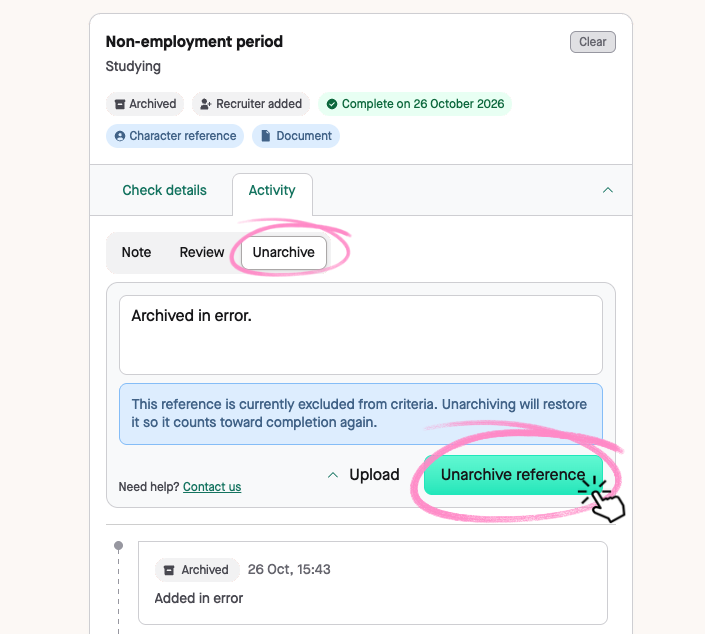
3. Enter a reason for unarchiving (required).
4. Select **Unarchive reference.**
The reference counts towards your criteria again, and the **Activity** tab records the change.
## FAQs
**Does archiving cancel the referee’s request?**
No. Archiving only removes the reference from your criteria. The referee’s invitation stays active, so they can still respond.
**Are candidates told when I archive a reference?**
No. Candidates aren’t notified, and they can’t see or reuse any reference you add or record.
**Does archiving change the status of my request?**
No. It only affects the reference itself, so your request status and any integrations stay as they are.
**Does Zinc check the document I upload?**
No. Zinc doesn’t check the contents of recorded documents, so make sure the document is accurate before you confirm.
**Can I link this to a CV check?**
If your package includes a CV check, you can link the reference to a CV entry, or skip this step.
**Will this show in my downloaded report?**
Yes. Notes, uploaded documents and archived references all appear in the PDF report. Archived references sit in their own section with your reason.