For the complete documentation index, see llms.txt
For the complete documentation index, see llms.txt
How To Trigger a Background Check for a Candidate in Workday ATS
To initiate a background check in Workday ATS, follow these steps:
## Moving the Candidate to the Background Check Stage
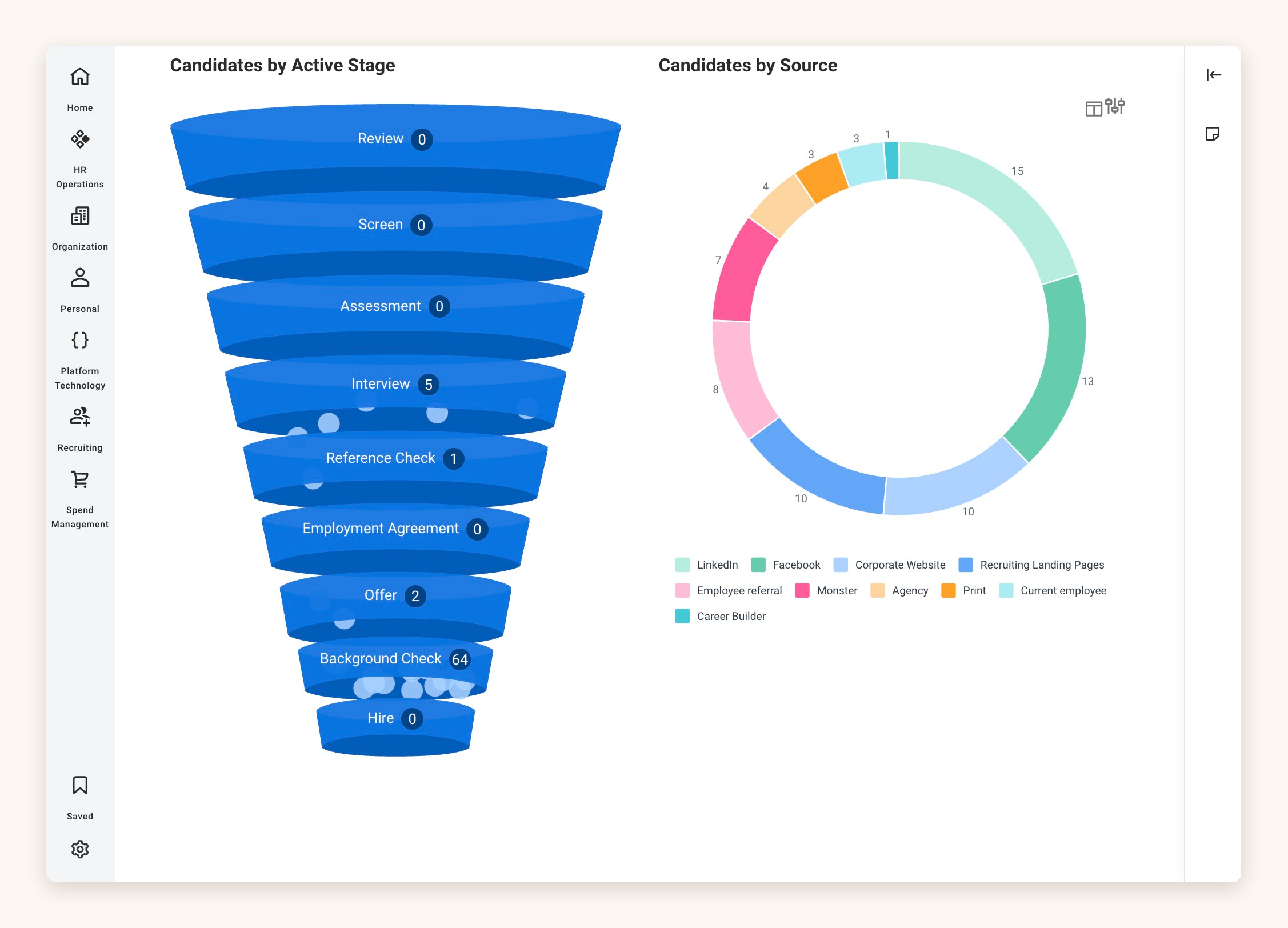
1. Open the **Candidates by Active Stage** chart in Workday Recruiting.
2. Select the stage your candidate is currently in. In this example, it's **Offer.**
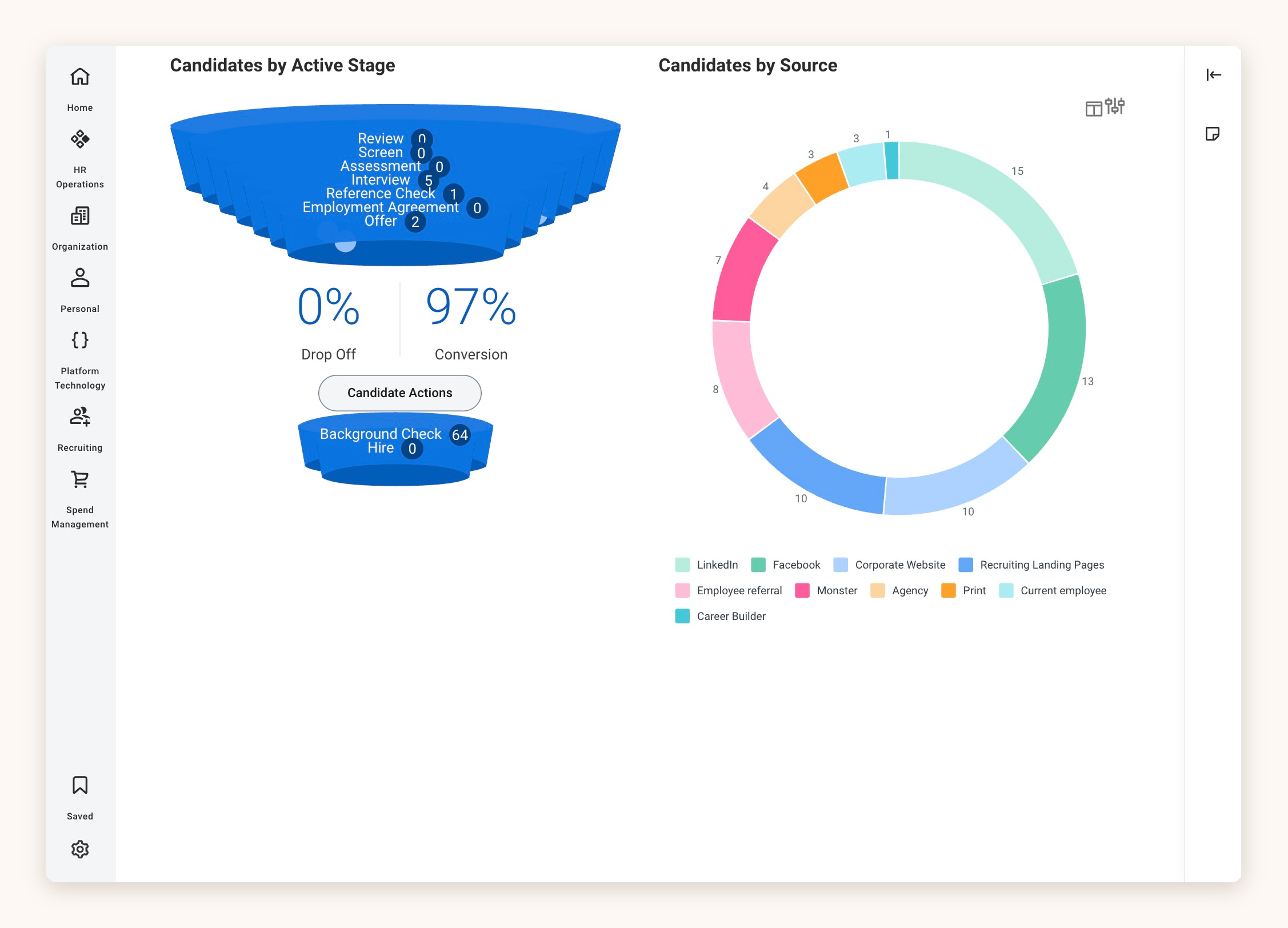
3. Choose **Candidate Actions.**
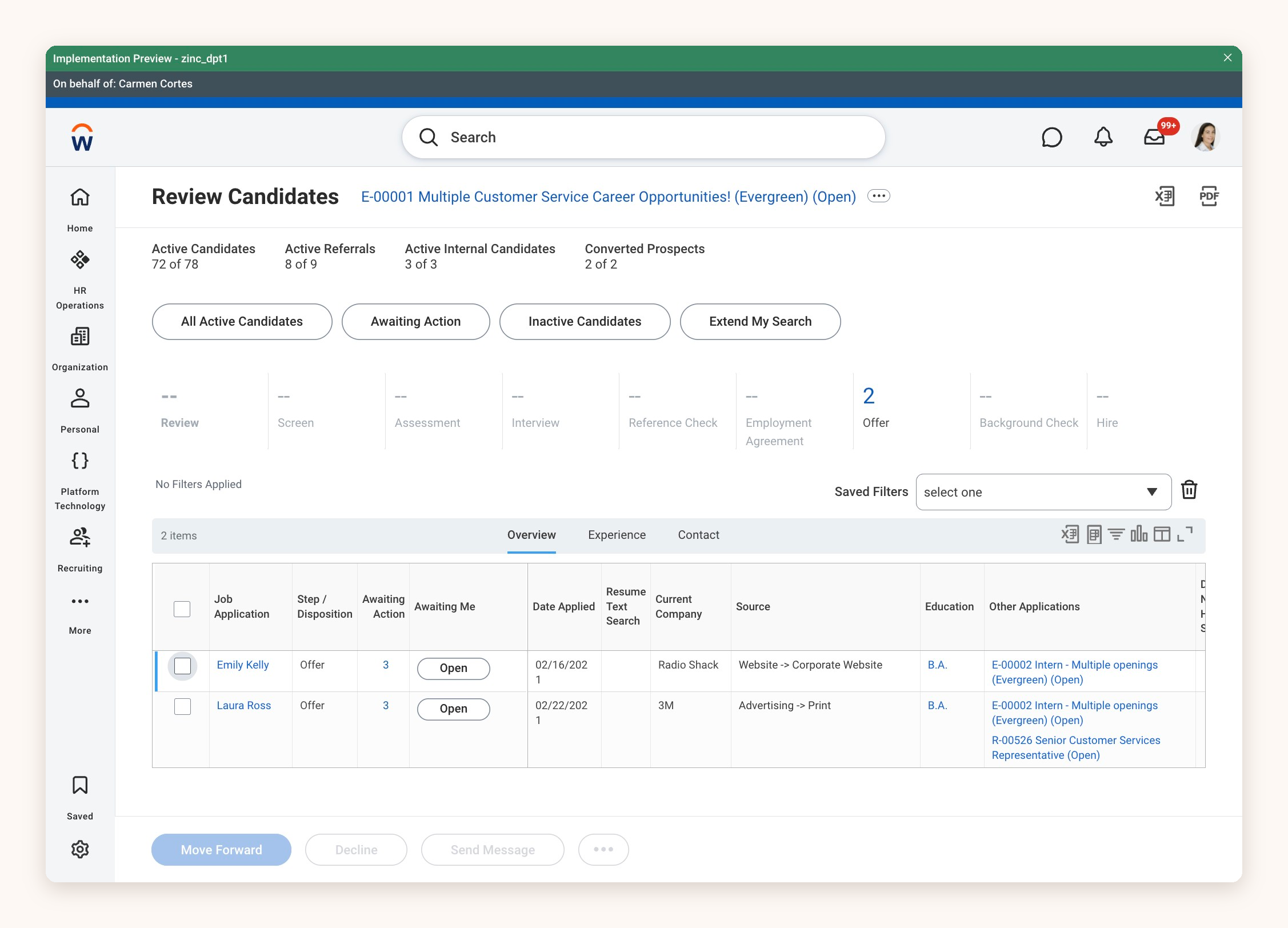
4. Tick the box next to the candidate you want to check.
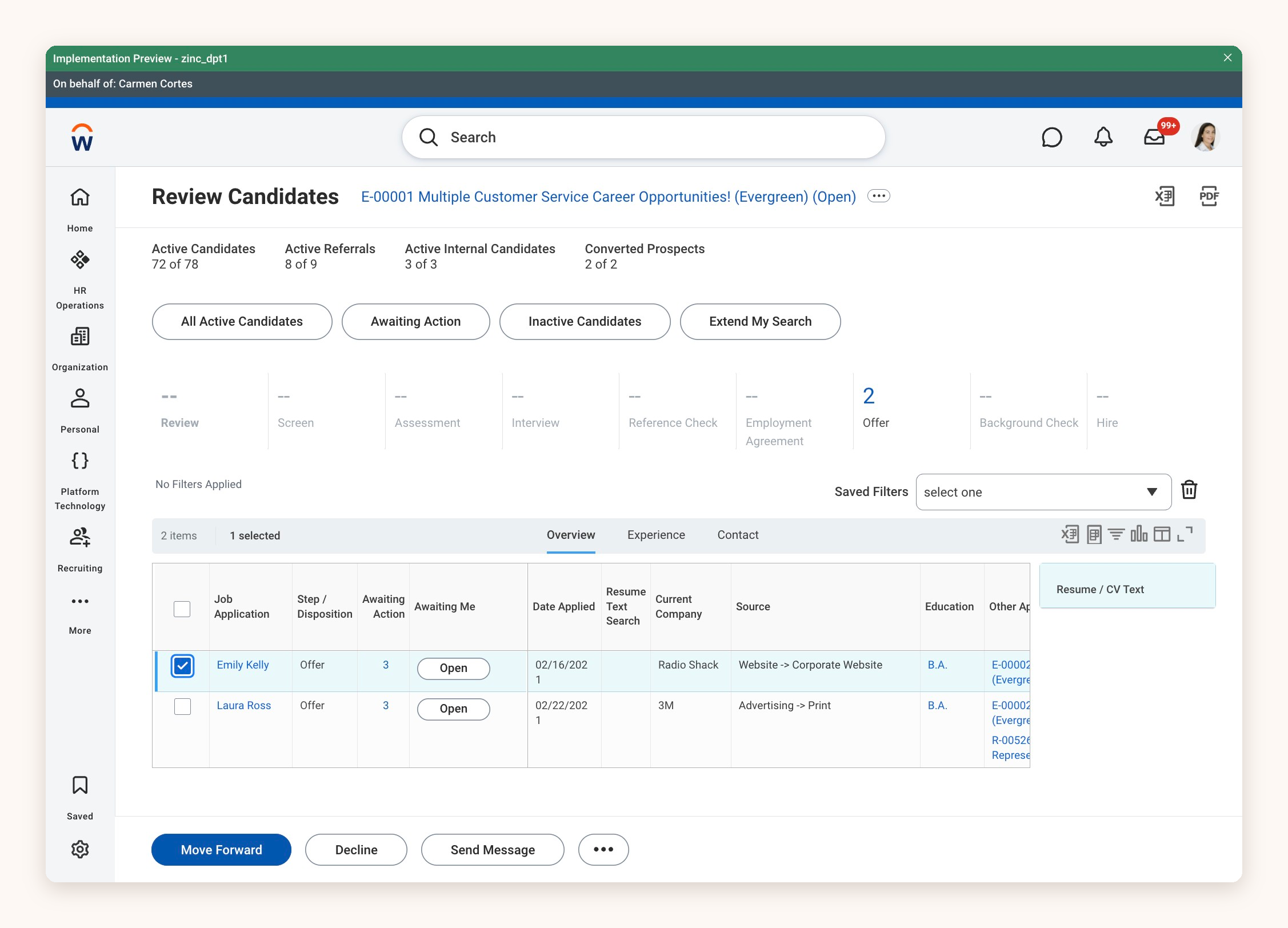
5. Click **Move Forward.**
6. In the **Move Candidates Forward** window, click the **Move Selected Candidates to Next Stage** field.
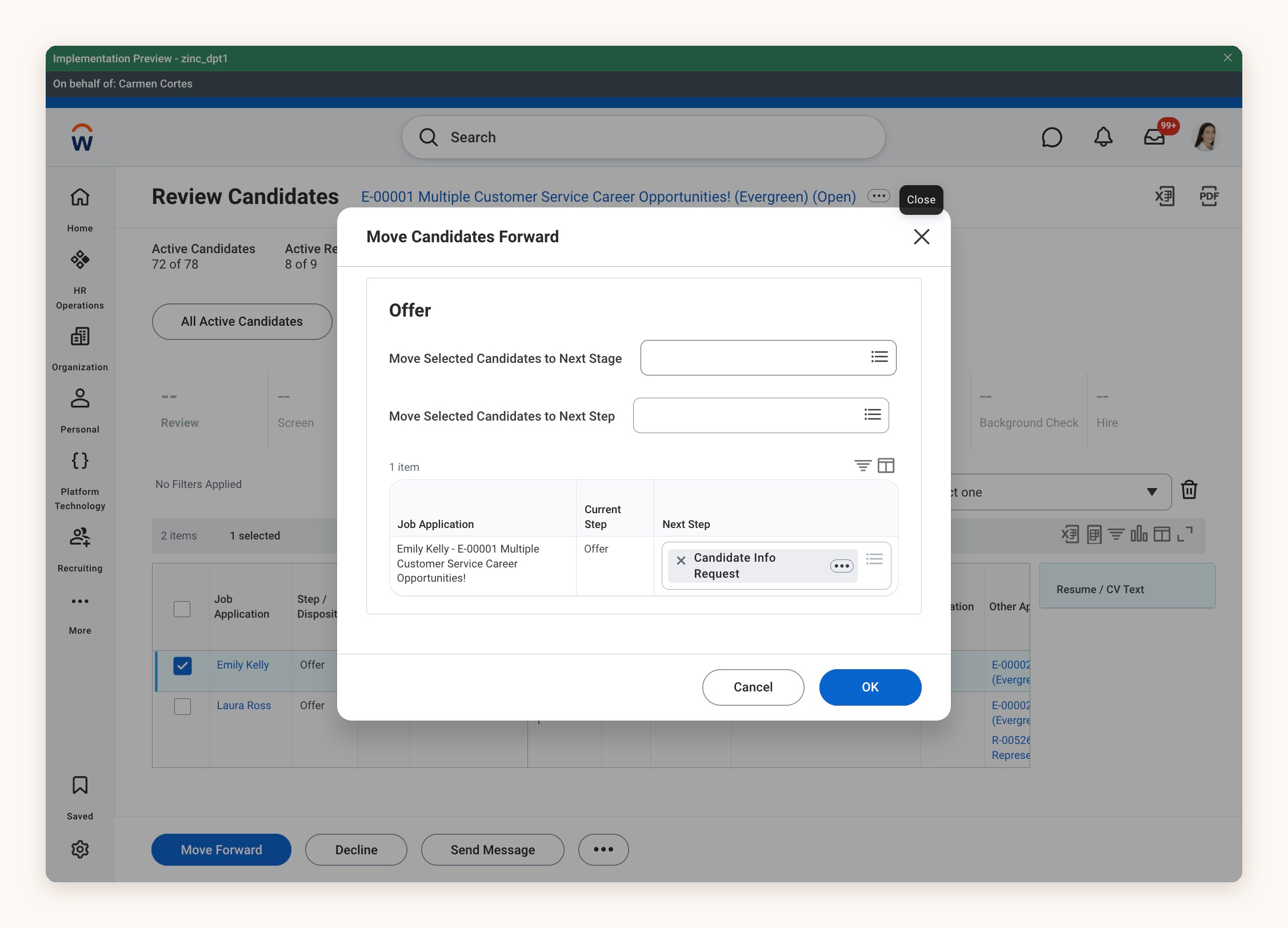
7. Choose **Background Check** from the list.
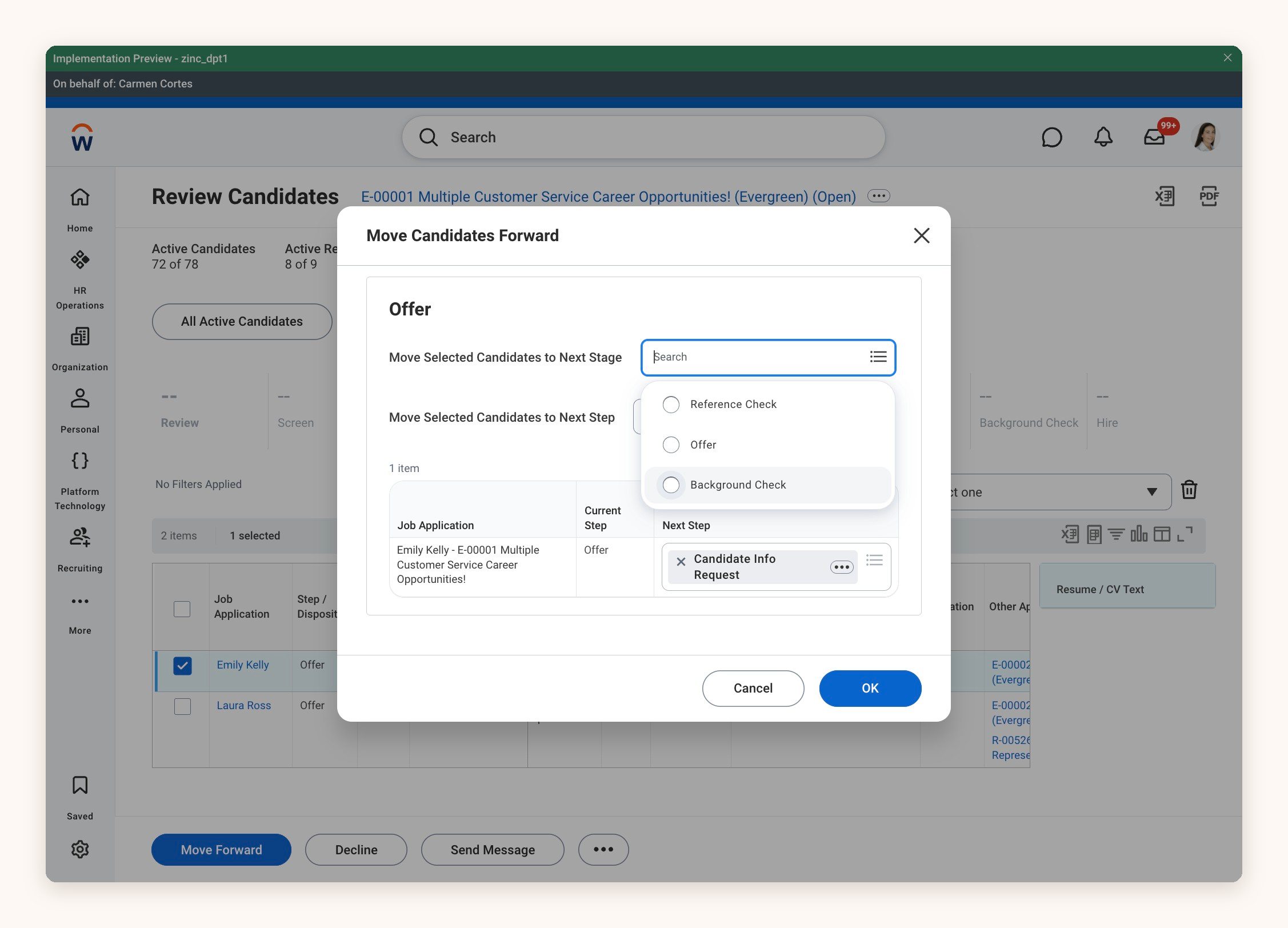
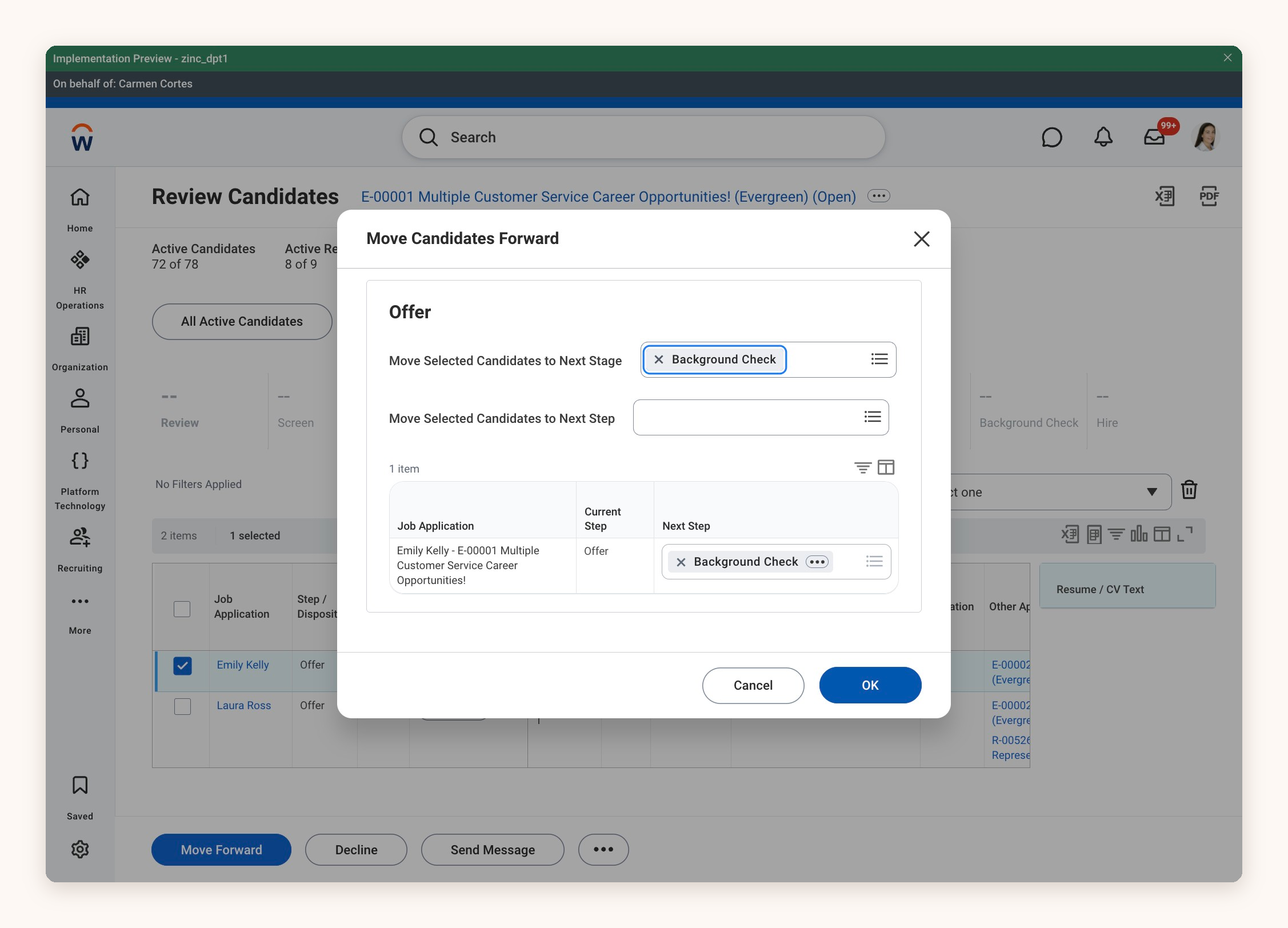
8. Check that **Background Check** now shows in both the **Move Selected Candidates to Next Stage** field and the **Next Step** column, then click **OK.**
## Choosing the Package
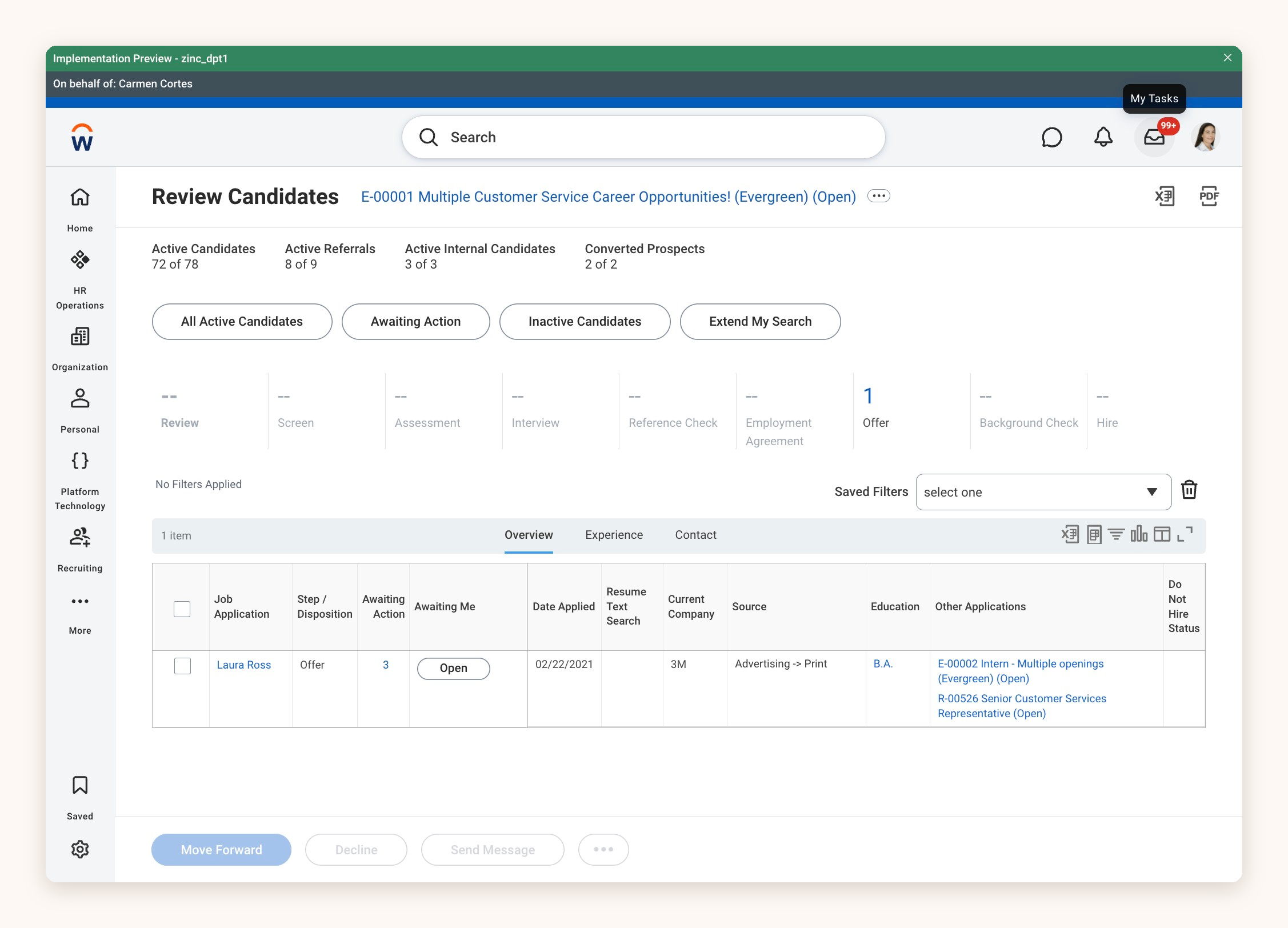
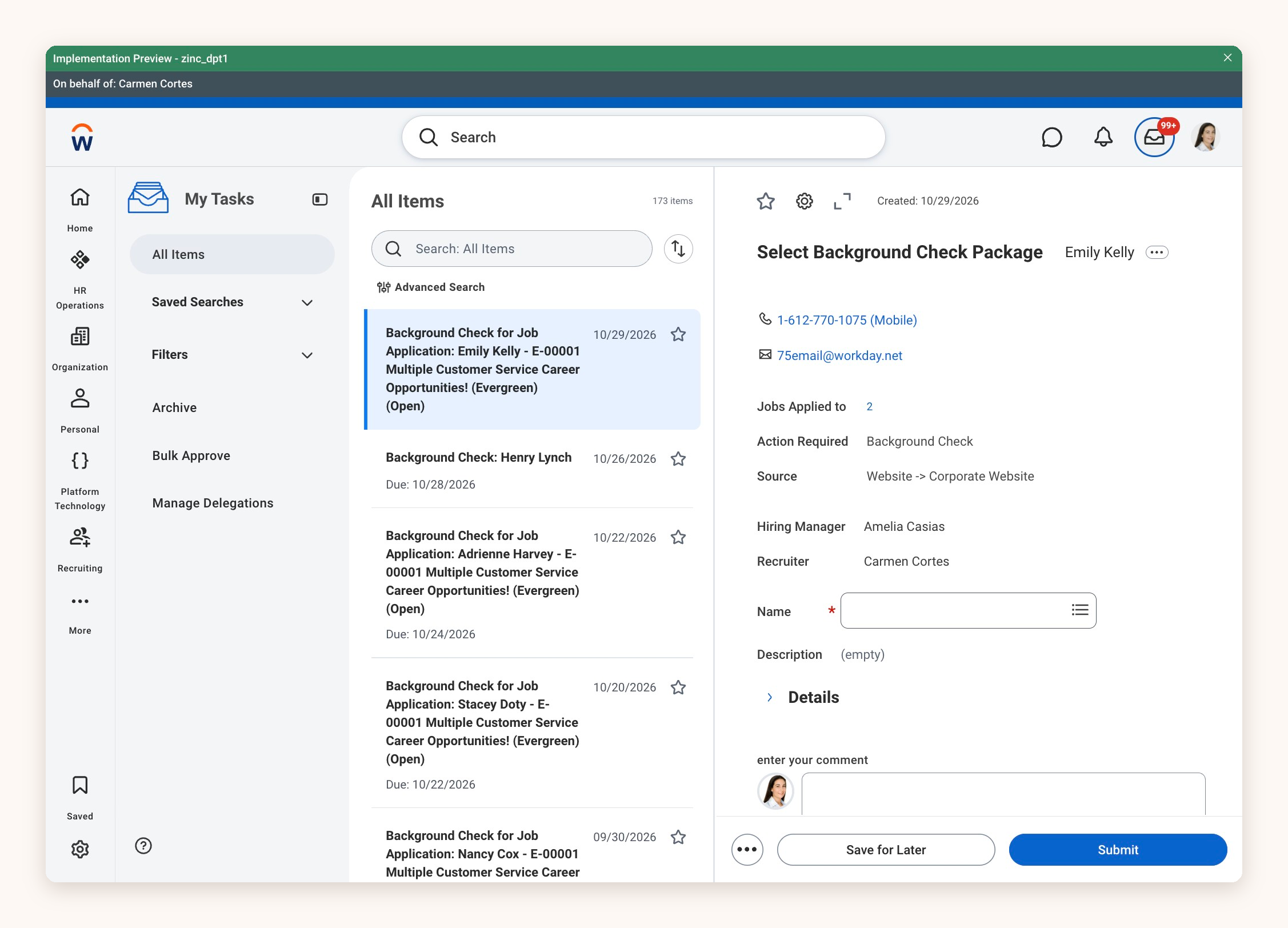
Moving the candidate creates a **Select Background Check Package** task in Workday. You'll need to complete it on the same day you move the candidate.
9. Open **My Tasks** using the inbox icon at the top right.
10. Select the background check task for your candidate, then click the **Name** field on the **Select Background Check Package** form.
11. Pick the package you want to run from the list.
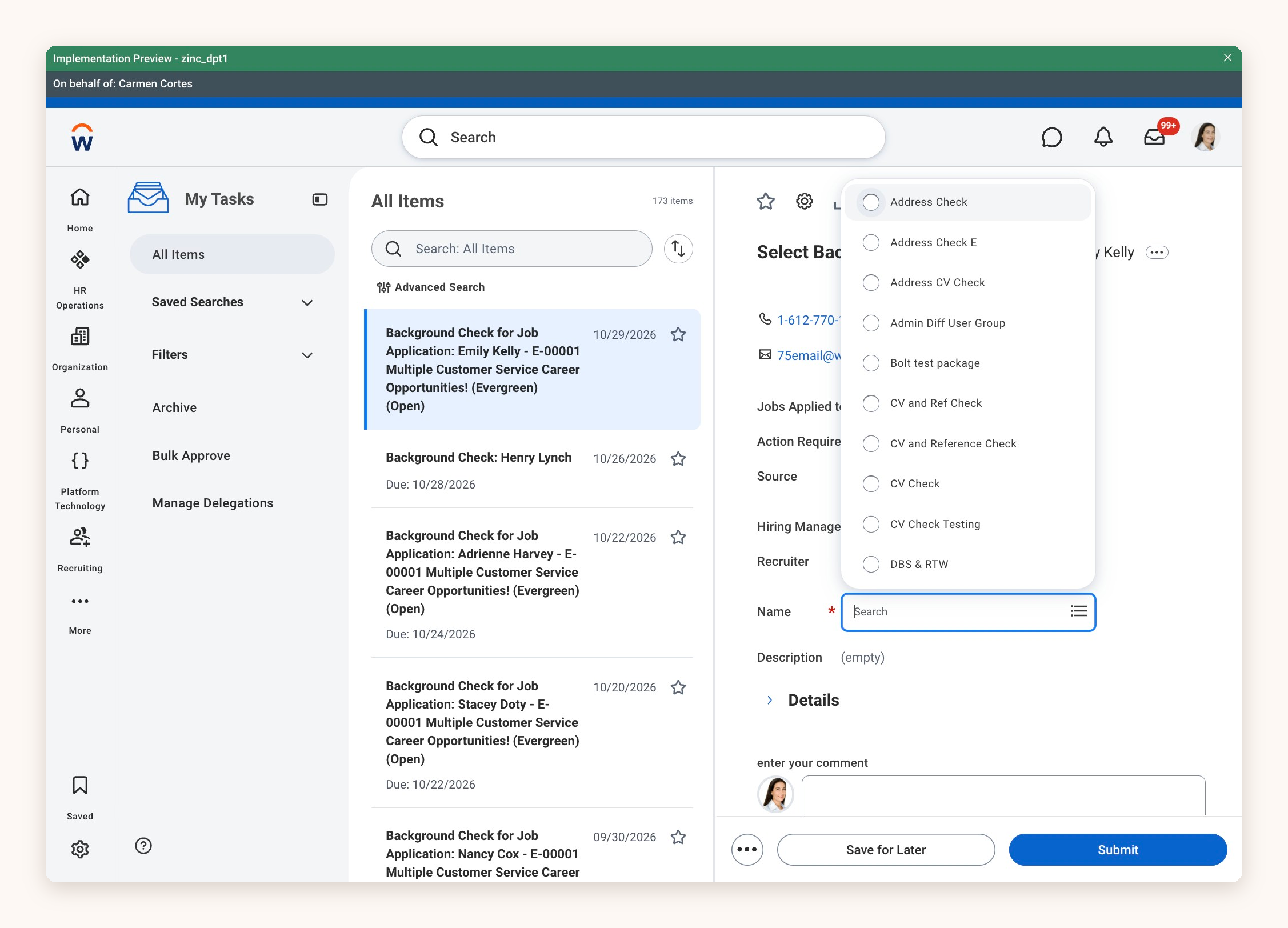
12. Check your choice appears in the **Name** field, then click **Submit.**
## FAQ
### What if the check doesn't start?
Zinc only picks up the request if you move the candidate to the Background Check stage and select the package on the same day. If those two steps happen on separate days, the check won't start.
### What if a package is missing from the list?
A new or renamed package may not appear straight away. This is usually down to one of two things:
The package name is longer than Workday's 50-character limit. This includes the name of a package that has since been deleted, and a single long name can stop syncing for your whole account.
The integration needs a re-sync. Try re-entering your integration credentials in Zinc.