For the complete documentation index, see llms.txt
For the complete documentation index, see llms.txt
How To Trigger a Background Check for an Existing Employee in Workday HRIS
Here's how to start a Zinc background check for a current employee, straight from their Workday profile. You don't need to go through Recruiting or move anyone to a hiring stage.
## Starting the Check
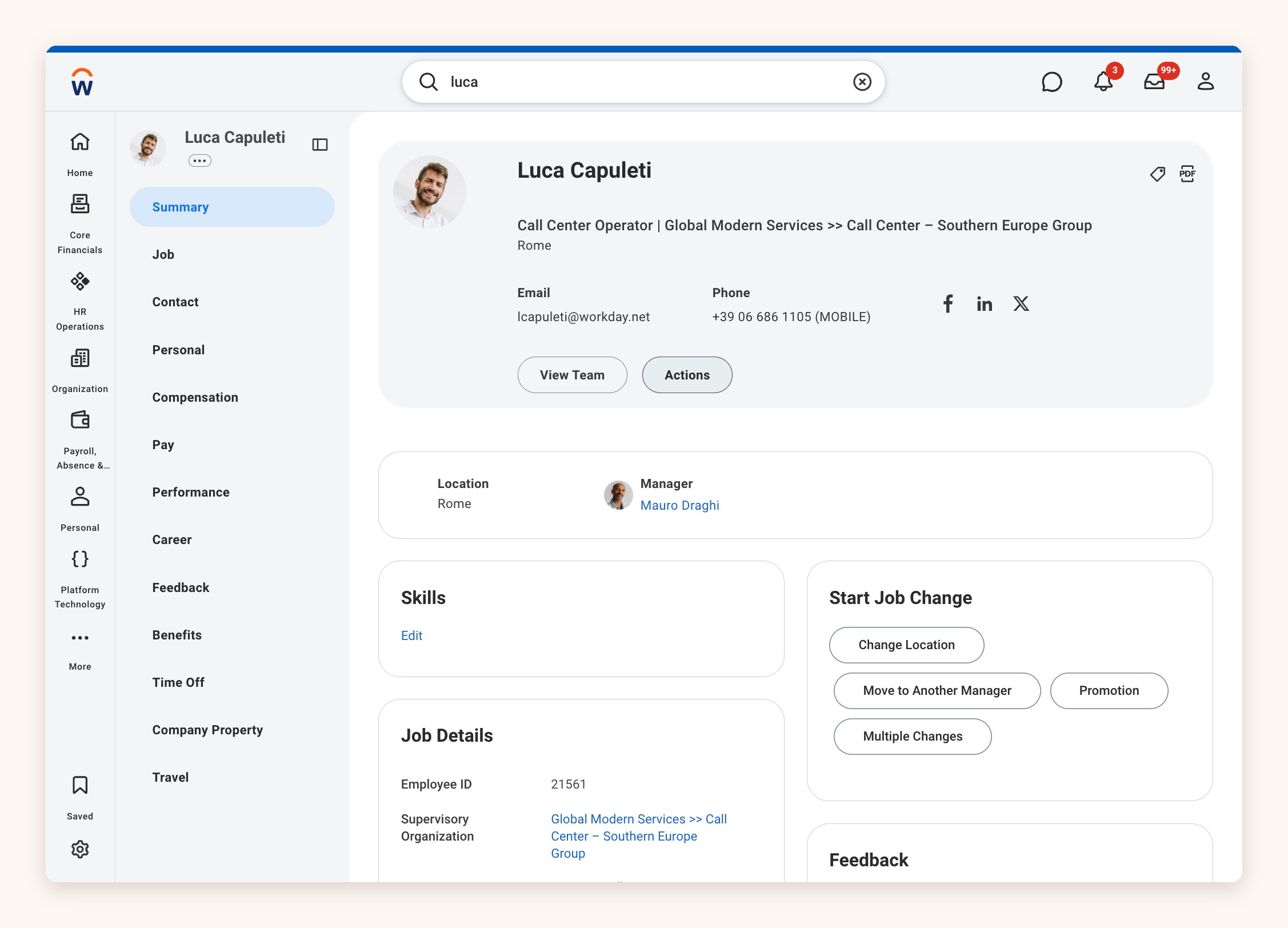
1. Open the employee's profile in Workday. Searching for their name is the quickest route.
2. Select **Actions** on their profile summary.
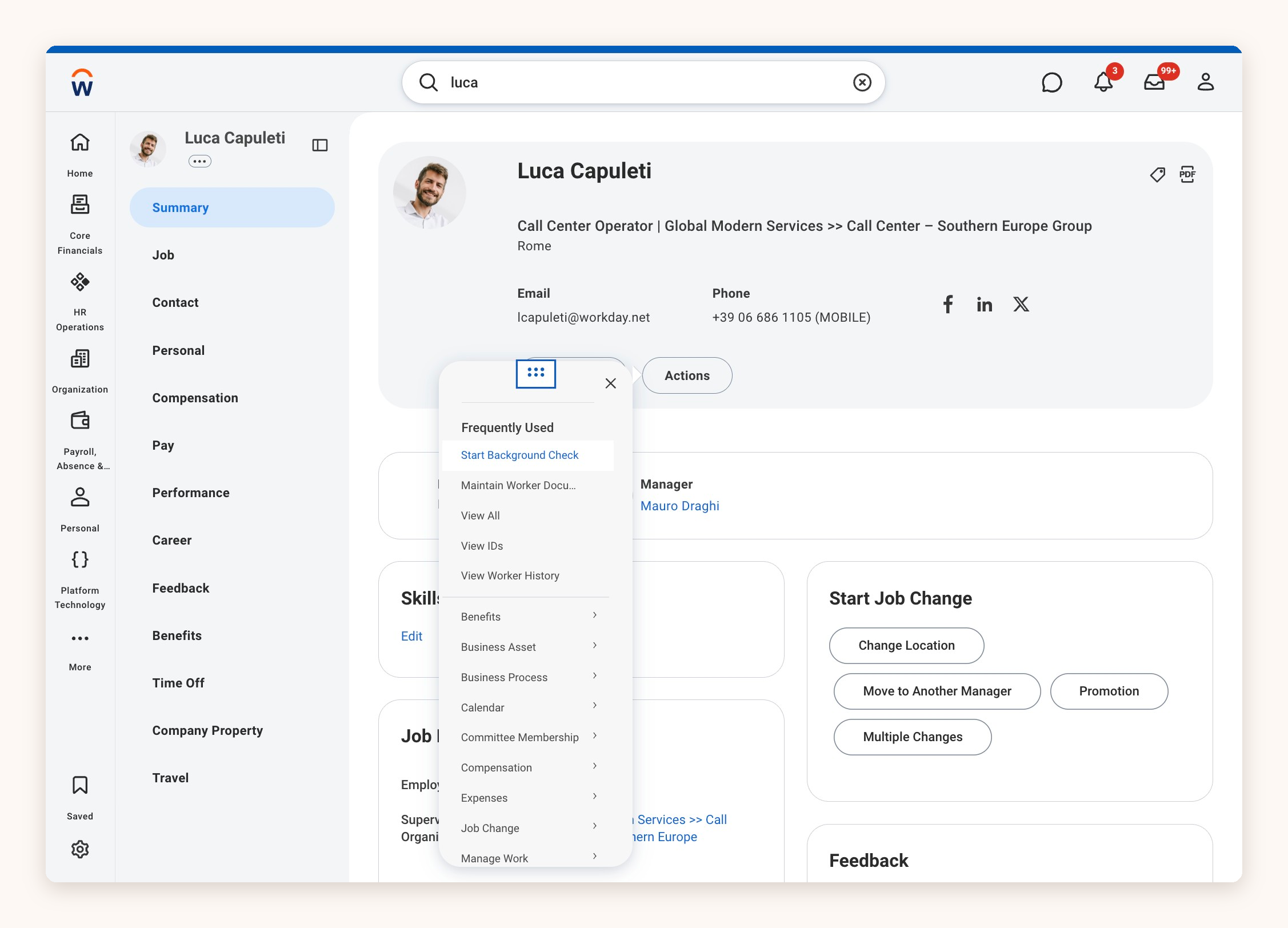
3. In the pop-over menu, choose Start Background Check. You'll find it under Frequently Used.
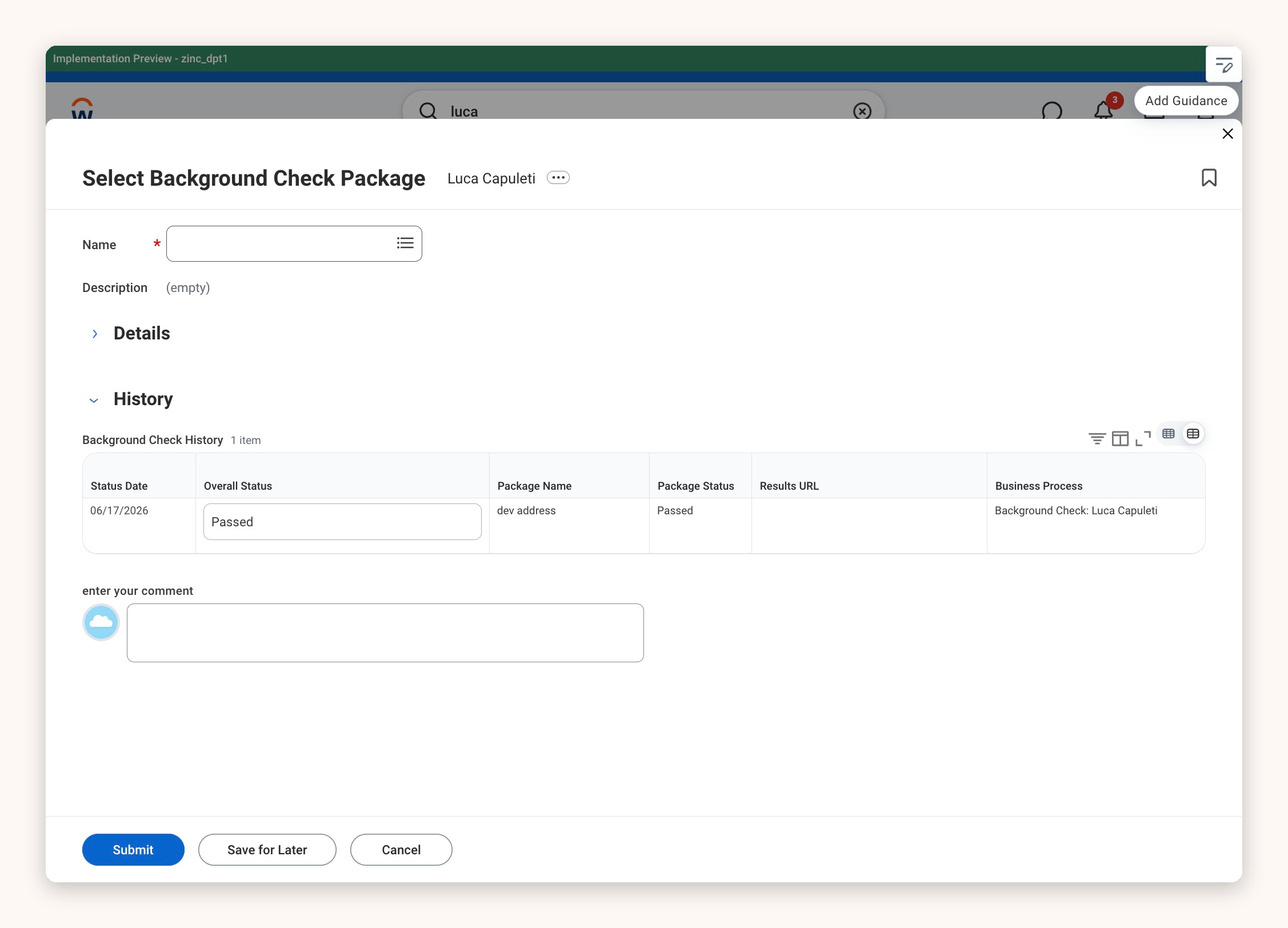
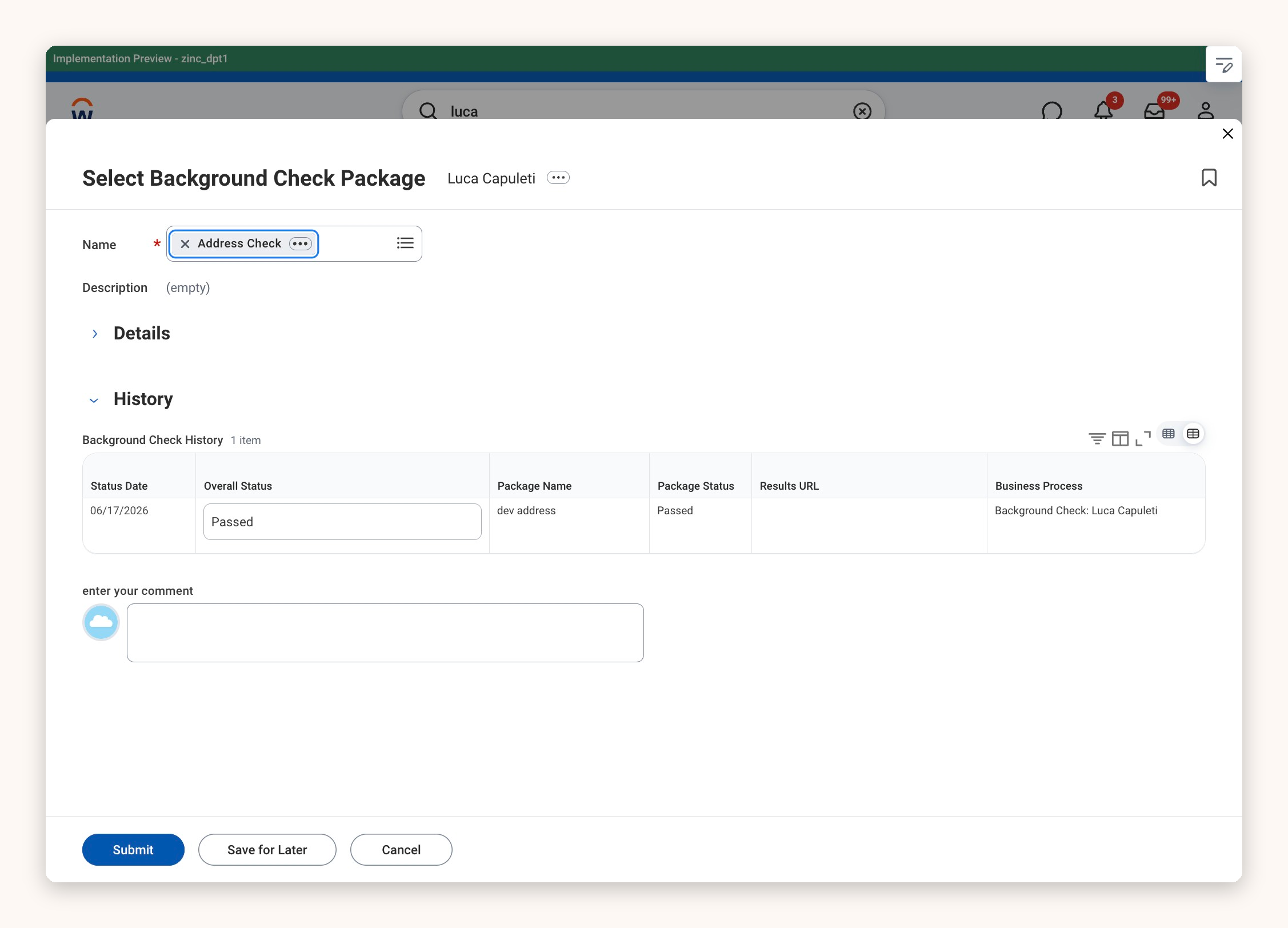
4. On the **Select Background Check Package** screen, click the **Name field.**
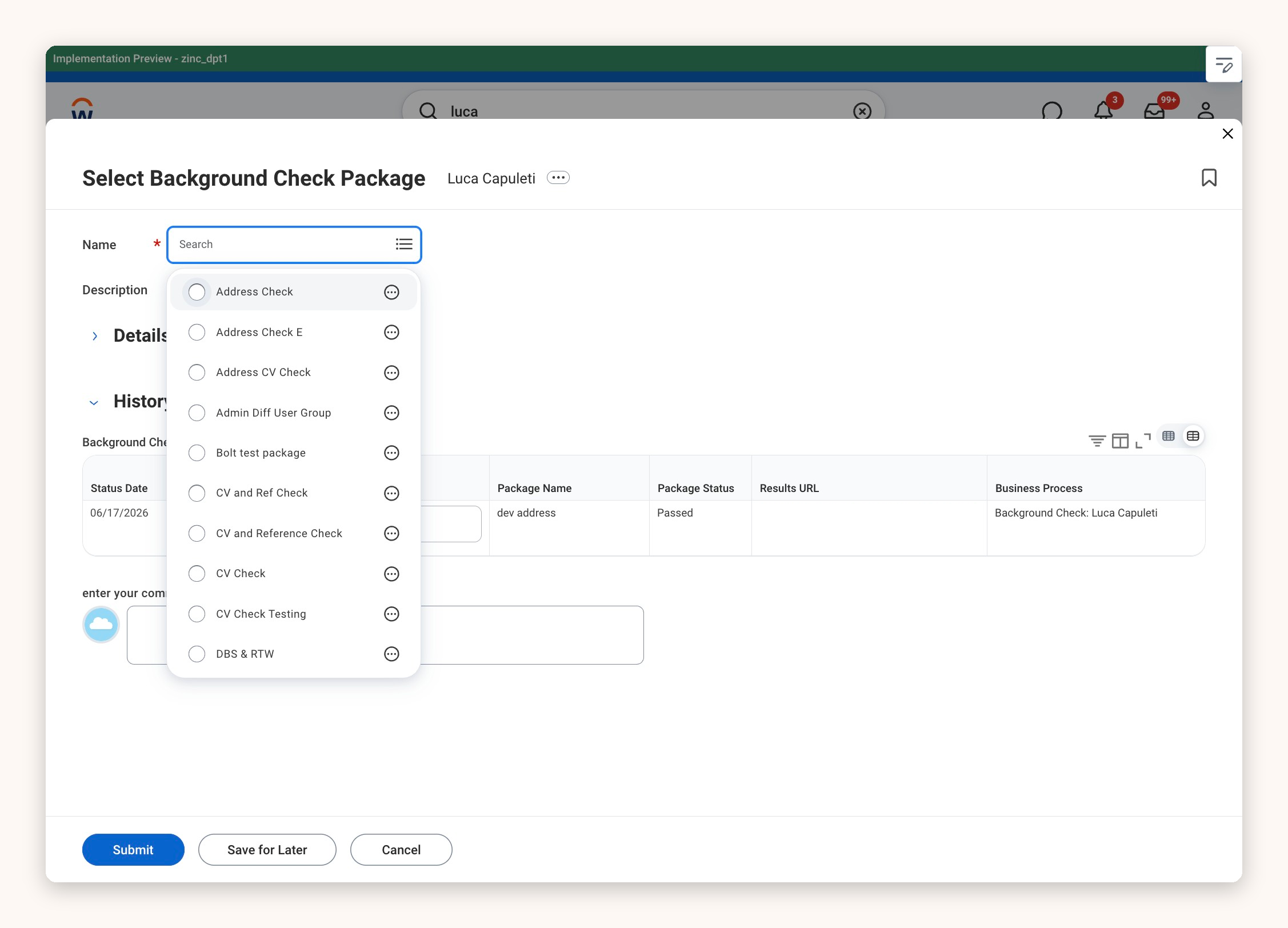
5. Select the package you want to run from the list.
6. Check that your choice appears in the **Name** field, then click **Submit.**
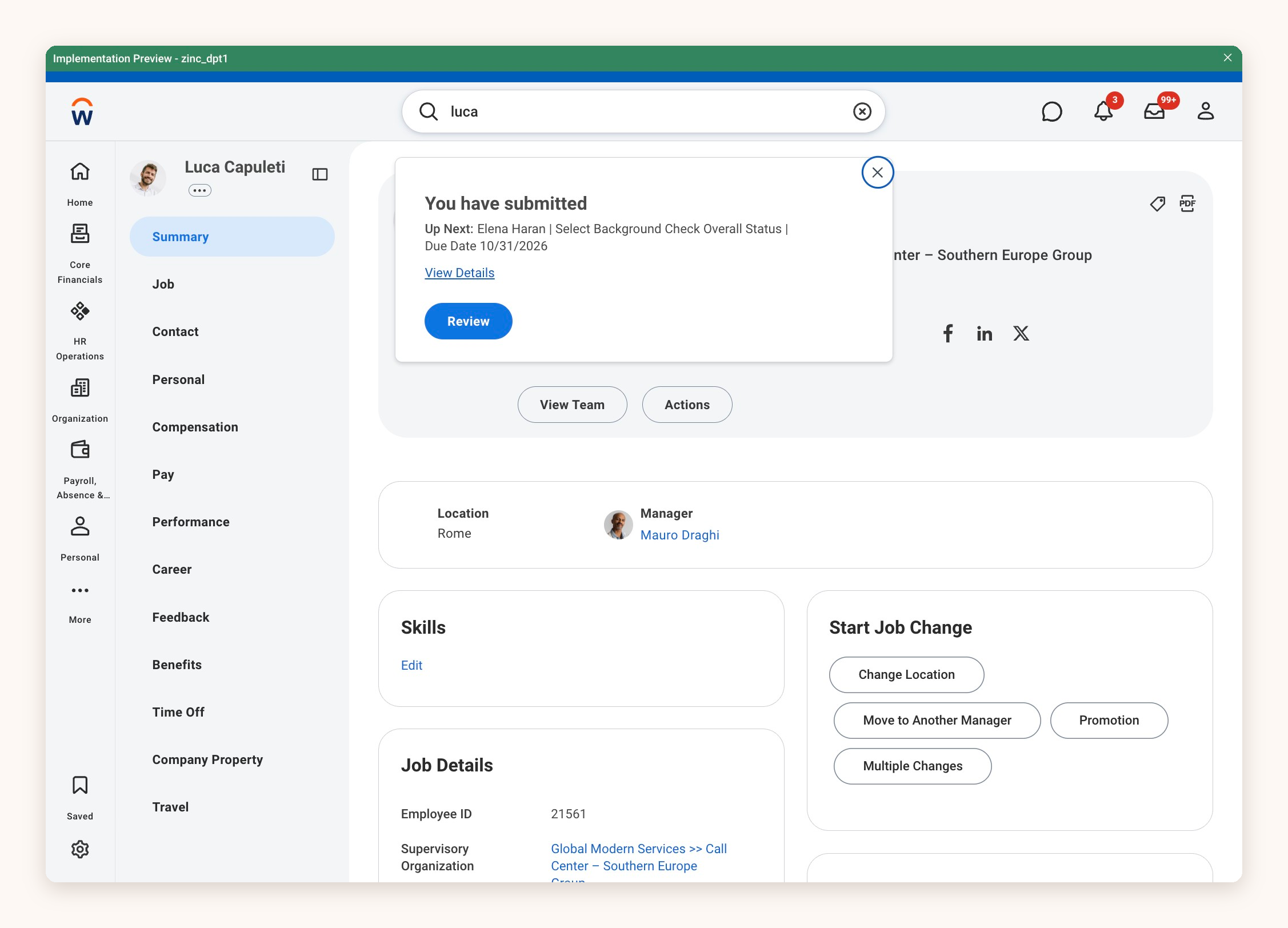
7. A confirmation appears with the next task in the process, **Select Background Check Overall Status,** and its due date.
## FAQs
### What is the Background Check History table?
Below the **Name** field, the **History** section lists any background checks already run for this employee. For each one, you can see the status date, overall status, package name, package status, a Results URL linking to the Zinc report, and the business process it ran under.
### What if a package is missing from the list?
A new or renamed package may not appear straight away. This is usually down to one of two things:
1. **The package name is longer than Workday's 50-character limit.** *This includes the name of a package that has since been deleted, and a single long name can stop syncing for your whole account.*
2. **The integration needs a re-sync.** Try re-entering your integration credentials in Zinc.