For the complete documentation index, see llms.txt
For the complete documentation index, see llms.txt
How to Integrate and Configure Zinc Background Checks with Eploy
**Please note that CV checks are only available directly on Zinc. Eploy cannot currently be used with packages containing CV checks.**
## Contact Eploy for initial set up
To integrate Zinc with Eploy, **Eploy** will need to set up the integration.
You will need to obtain an API key from Zinc, which you must then provide to Eploy for the integration to take place.
To generate an API key, please click [here](https://help.zincwork.com/hc/hm54ky7yrc/article/a7ed573f-how-to-generate-an-api-key-for-your-ats) for more information on how to do so.
The estimated turnaround time for set-up is approximately 8-12 weeks.
For information on integration pricing, kindly get in touch with Eploy directly.
Once Eploy has completed the integration set up, you can begin configuring Eploy with Zinc.
## Configure the workflow
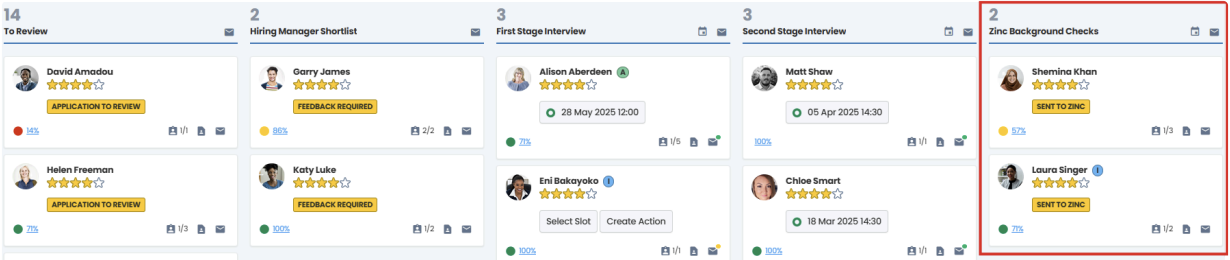
Since this integration is workflow-based and designed to run automatically when an applicant reaches a specific stage in the **Zinc Background Checks** recruitment workflow, you will need to place the workflow accordingly.
The workflow stage can be positioned at any suitable point within each of your Recruitment Workflows.
This is can be done within Eploy at **Admin** > **Recruitment Workflows**.
Automatic transitions can also be set up within the workflow to move candidates to the Zinc stage automatically, based on factors such as reaching a specific Application Status, Action Outcome or Hire Status.
## Trigger the Zinc integration through the Eploy workflow
There are several options available to trigger the integration.
1. Manually moving the applicant to the Zinc stage by standard users (Eploy Core System).
2. Manually moving the applicant to the Zinc stage by Hiring Managers (Hiring Manager Portal).
3. Automatically moving the applicant to the Zinc stage from a previous Application Status or Action Outcome (Automatic Transitions).
## Configure Zinc checks
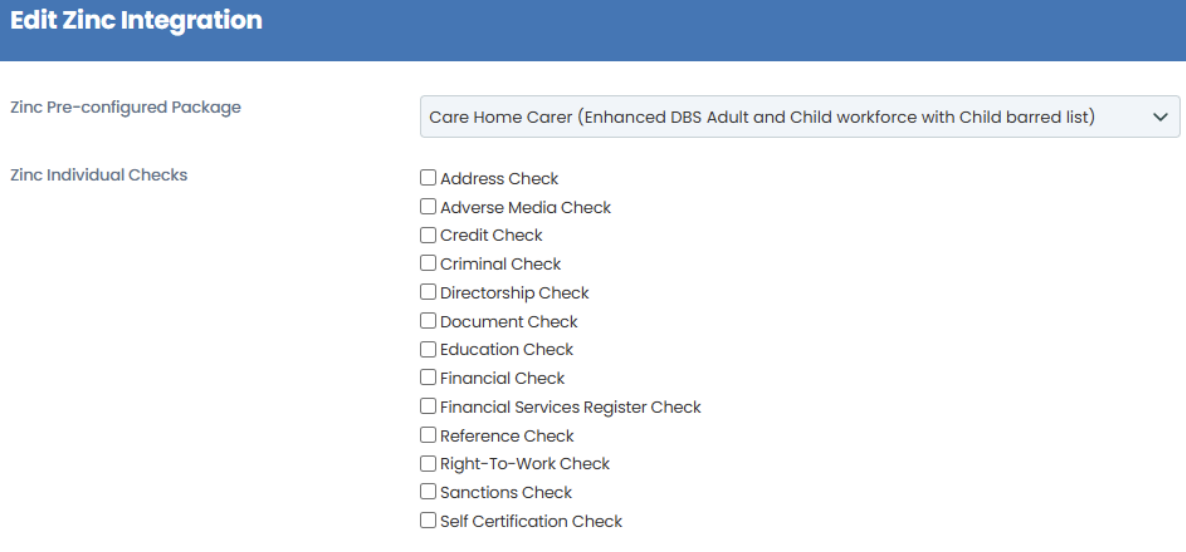
Using either a **Pre-configured Package** or **Individual Checks**.
The Zinc integration offers two options for defining **check requirements** (**Vacancy or Application record**), and two options for defining the checks themselves (**Pre-configured package** or **Individual Checks**), resulting in four variations:
- **Pre-configured package (defined on the Vacancy)**
- **Pre-configured package (defined on the Application)**
- **Individual checks (defined on the Vacancy)**
- **Individual checks (defined on the Application)**
These settings are flexible allowing for a mix of methods to be used for applications to any vacancy.
- **Packages**: These must be pre-configured in the Zinc interface, including multiple checks and customisable settings.
- **Individual Checks**: Applicants can also be submitted without a pre-configured package which may include Address, Adverse Media, Credit, Criminal, Directorship, Document, Education, Financial, Reference, Right-To-Work, Sanctions, Self Certification and Financial Services Register checks.
📌 For UK Standard/Enhanced checks, it is necessary to configure a package within the Zinc interface
## Vacancy configuration
There is a series of custom fields configured against the **Vacancy record** that allows you to define the Zinc checks that applicants to each **Vacancy** would complete as a default.
The fields may be completed by a standard (core system) user, or they could be included on the Vacancy Requisition form for completion by the Hiring Manager.
They can also be allocated to Vacancy Templates in Eploy so that they are automatically inherited by any Vacancy raised from the template.
📌 The way these fields are completed in the Vacancy record will be the default for applicants, but may be over-ridden for individual applicants if necessary.
The Zinc Vacancy fields can be configured on any custom section of the Vacancy record.
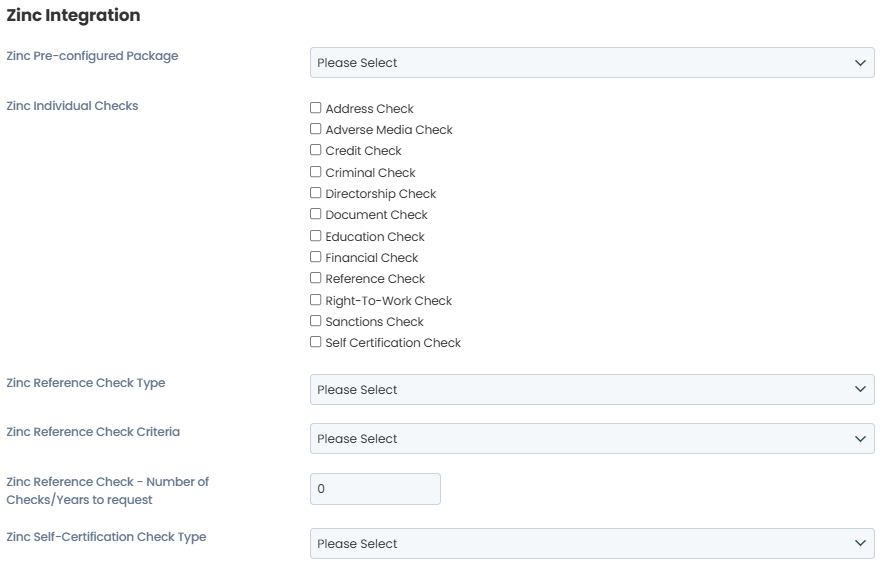
For more information on the fields, please refer the **Defining the Zinc checks** section, which explains the purpose of each of these fields.
## Application configuration
Any applicant who is submitted for Zinc Checks will, by default, use the settings defined in the Vacancy record. However, if there is a need for an individual candidate to complete different checks, then the fields can be configured on the **Application record**, which will take precedence over the Vacancy configuration.
The Zinc Application fields can be filled out by a Standard (core-system) user or by the Hiring Manager by completing the **Zinc Background Checks** form for an individual applicant.
To make the fields easily accessible to users, Eploy can set up a custom Application Form that can be completed by the Standard/Hiring Manager user.
On the Application Dialogue screen:
1. Click **Forms**.
2. Click **Complete Form**.
3. Select **Zinc Background Checks**.
4. Click **Continue**.
The form can be configured using show/hide logic so that only the necessary fields are displayed.
For example, the first question **Use a Pre-Configured Package or Individual Checks?** will determine whether the **Zinc Pre-configured Package** dropdown or the **Zinc Individual Checks** checkboxes will appear.
If **Zinc Individual Checks** are selected, additional fields will appear if the **Reference Check** or **Self-Certification Check** options are chosen.
Completing and submitting the form for an Applicant before they reach the **Zinc Background Checks** stage will apply the settings that the integration uses for that applicant, overriding the Vacancy settings.
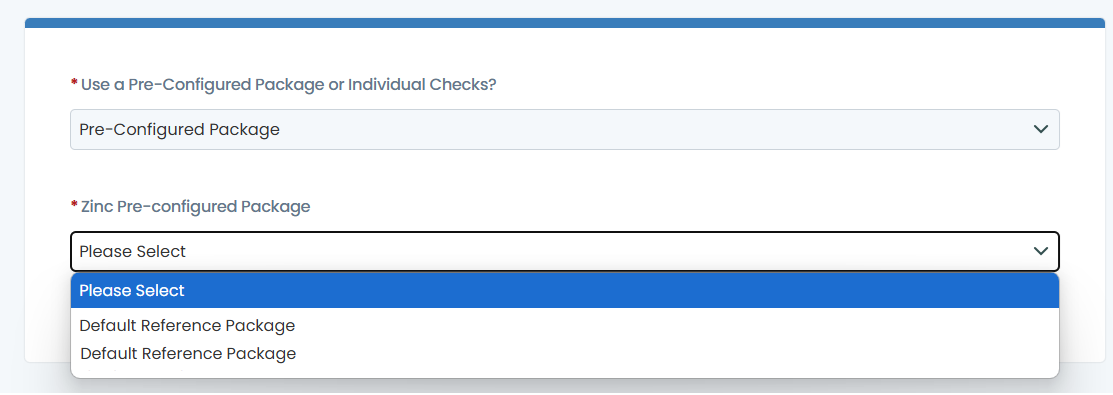
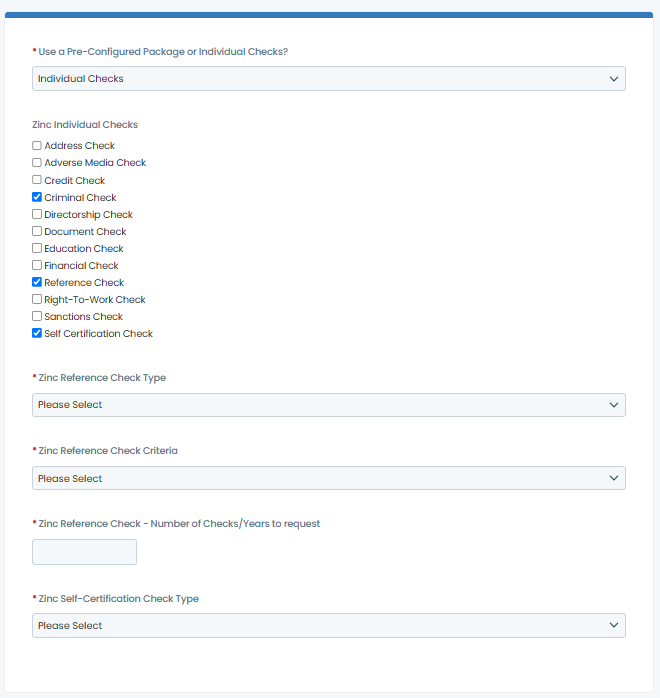
For more information on the fields, please refer to the **Defining the Zinc checks** section below, which explains the purpose of each of these fields.
## Defining the Zinc checks
Whether the Zinc Background Checks fields are completed on the Vacancy and/or on the Application record, they will be used when submitting the applicant for checks via the Zinc API.
Below is a description of each field.
### Use a pre-configured package or individual checks
This field only appears on the Application Form to control the show/hide function for the following questions. It does not impact the integration's operation.
The options are:
- **Pre-Configured Package** which displays the **Zinc Pre-configured Package** field
- **Individual Checks** which displays the **Zinc Individual Checks** field
### Zinc pre-configured package
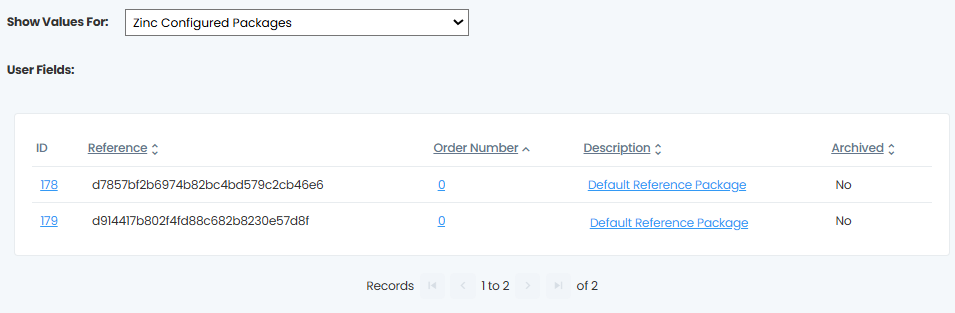
In the Zinc interface, packages can be configured to specify a series of checks that applicants must undergo. These packages are shown in the Eploy dropdown for selection against the Vacancy or the Application record.
The values in the list can be set up in **Admin** > **Drop Down Lists** > Show values for: **Zinc Configured Packages**. The integration uses the **Reference** value from each option, which must match the unique package reference in Zinc.
If new packages are configured in the future, they can be manually added as additional options in the list, by setting the appropriate Reference value and providing a Description.
### Zinc individual checks
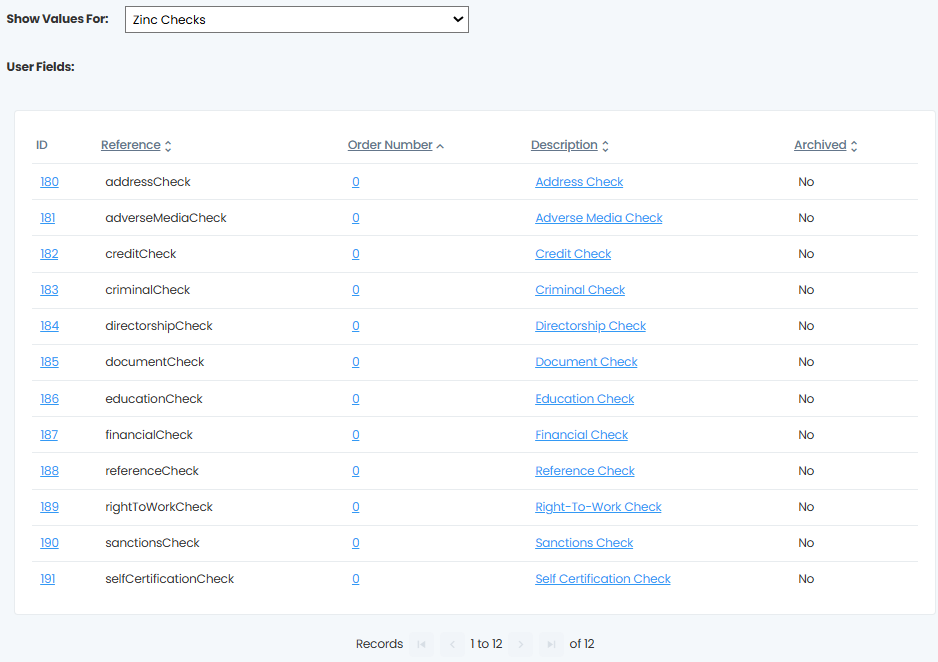
If your Vacancy/Application does not use a pre-configured package, the other option is to select individual check(s) using a series of checkboxes. There is a defined list of individual checks that are possible within Zinc, any of which may be ‘ticked’ against the Vacancy or Application record.
The values within the list can be configured in **Admin** > **Drop Down Lists** > Show values for: **Zinc Checks**. The integration uses the **Reference** value from each option, which must match the technical name for the check in Zinc.
If Zinc begins to support additional checks in the future, they may be added to the list. However, please note that if new checks require additional supporting data, there may be a requirement for additional development for the integration to support them.
If there are certain checks that are not used by the business, then the associated options may be deactivated in Eploy so that they cannot be selected on the Vacancy or the Application record.
📌 It is possible to have both the **Zinc Pre-configured Package** and the **Zinc Individual Checks** fields populated, on either the Vacancy or Application record. In such a scenario, the integration will automatically default to using the Individual Checks. However, this setting can be adjusted if needed.
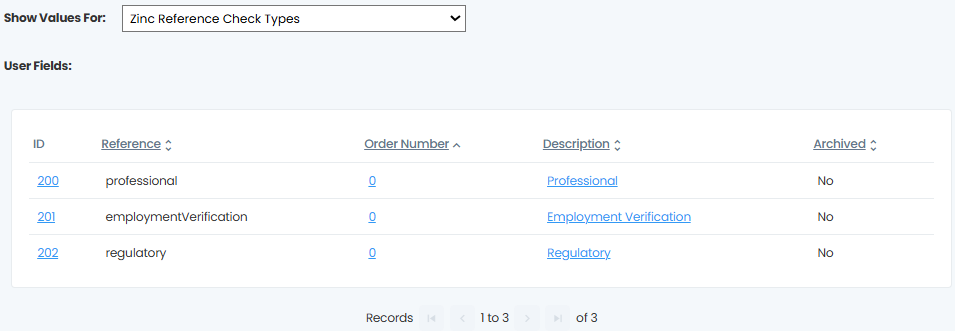
### Zinc reference check type
This field should only be completed on the Vacancy or Application record if you are using the **Individual Checks** method and selecting the **Reference Check** option in the **Zinc Individual Checks** field.
It specifies the type of Reference Check to be conducted for the applicant(s):
- Professional
- Employment Verification
- Regulatory
These values can be customised in **Admin** > **Drop Down Lists** > Show values for: **Zinc Reference Check Type**.
The integration utilises the **Reference** value from each option, which must correspond to the technical name for the reference check type in Zinc.
### Zinc reference check criteria
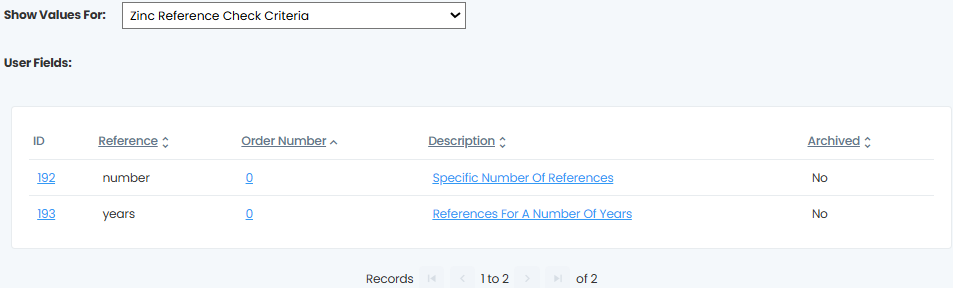
This field should only be completed on the Vacancy or Application record if the Individual Checks method is being used and selecting the Reference Check option is selected in the Zinc Individual Checks field.
It specifies whether the applicant is required to provide a specific number of references or references that cover a certain number of years.
The values in the list can be customised in **Admin** > **Drop Down Lists** > Show values for: **Zinc Reference Check Criteria**. The integration uses the **Reference** value from each option, which must correspond to the technical name for the reference check type in Zinc.
### Zinc reference check number of checks or years to request
This field should only be completed on the Vacancy or Application record if you are using the Individual Checks method and have selected the Reference Check option in the Zinc Individual Checks field.
This is a numeric field that allows you to enter any number greater than 0. The number entered will either represent the number of references the applicant(s) need to provide, or the number of years of employment their references need to cover, depending on the option selected in the Zinc Reference Check Criteria field.
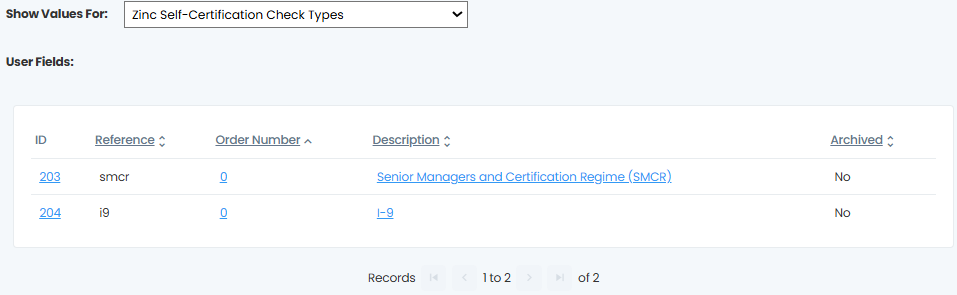
### Zinc self-certification check type
This field should only be completed on the Vacancy or Application record if you are using the Individual Checks method and have selected the Self-Certification Check option in the Zinc Individual Checks field.
It defines the type of Self-Certification Check to be carried out for the applicant(s), either **Senior Managers and Certifications (SMCR)** or **I-9**.
The values within the list can be configured in **Admin** > **Drop Down Lists** > Show values for: **Zinc Self-Certification Check Type**. The integration uses the **Reference** value from each option, which must match the technical name for the reference check type in Zinc.
---
## Track and report on the progress of checks
When a candidate reaches the **Zinc Background Checks** stage, a rule automatically runs to initiate the Zinc integration.
Once the candidate details along with the relevant information of the Check Package or Individual Checks taken from the Vacancy or Application record are submitted to Zinc, Eploy will create an Action record for each Zinc request that is initiated via the integration.
The candidate details that are sent to Zinc include:
- **First Name**
- **Surname**
- **Mobile Number**
- **Email Address**
The integration uses the standard Eploy Candidate fields for these, but can be configured to use different fields if necessary.
If the request is successful, the Action is automatically labeled with the outcome of **Candidate Details Sent**.
At this point, Zinc will automatically communicate with the Candidate via email/text, inviting them to complete the checks within the Zinc platform.
Additionally so, at this point, the following details are saved against the Application/Action record in Eploy:
- **Profile URL:** A URL is saved against the Action that allows a user who is logged in to the Zinc platform to access the applicant’s check. This will appear in the Application Dialogue screen while the candidate is at the Zinc stage, or at the bottom of their **Zinc Background Checks** Action record.
This feature makes it easier to navigate between Eploy and Zinc, without the need to search for the applicant's details within Zinc if you need to access their information or complete an action on Zinc.
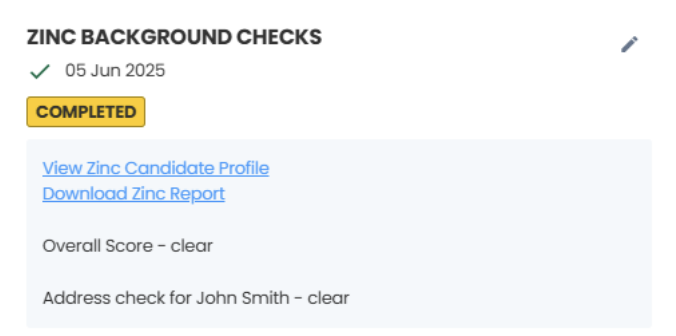
📌 It is possible to configure the integration to not display the Profile URL if needed.
- **Zinc Request ID:** A unique identifier for the applicant’s Zinc request is stored in the **Zinc Request ID** field on the Application record. This ID is not visible by default, but can be added to the Application Dialogue screen by adjusting the Layout settings and dragging the field into any of the Sections at the top.
You can then use Outcome of the Action to track the status of the request. These status changes will be reflected automatically by the Action Outcome for the **Zinc Background Checks** Action record, replacing the initial outcome of **Candidate Details Sent**.
The statuses that may be set are:
- **Requested**
- **In Progress**
- **Attention Needed**
- **Awaiting Candidate**
- **Ready for Review**
- **Reviewed**
- **All Clear**
- **Cancelled**
The Action Outcome field in Eploy is audited, so it is possible to see the date/time stamps when each outcome was set within the Action record.
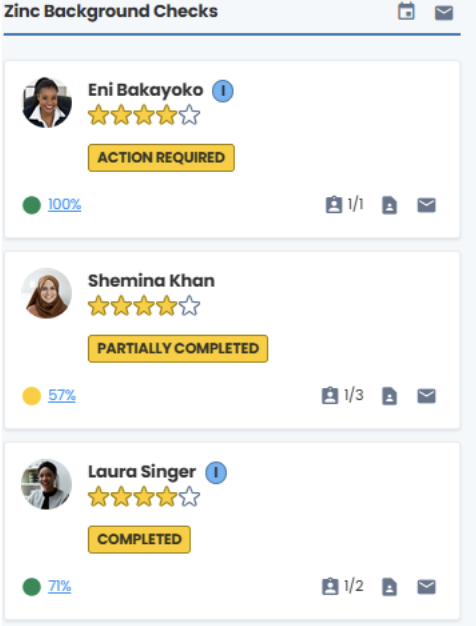
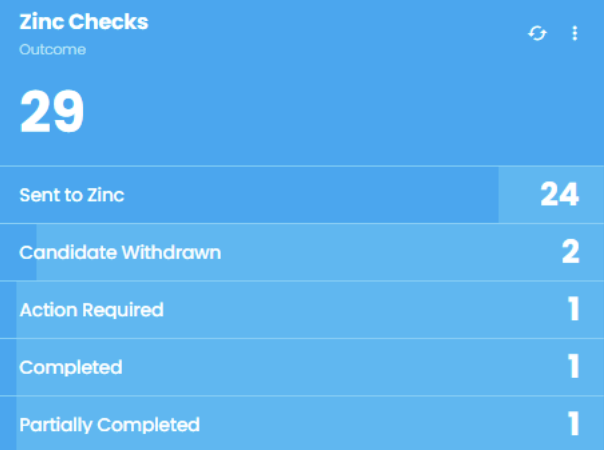
The Zinc Actions can be applied to Eploy Metrics and Dashboard Widgets, enabling you to efficiently report on the status of requests and easily navigate to them within the Eploy interface.
If a request includes multiple checks, the individual statuses/outcomes of the checks will also be visible within the Eploy Action record.
## Completed checks and report links
When a check is fully completed, additional information becomes available within the Action.
This information is displayed next to the **Profile URL** that was set when the check was initially sent, and can be accessed in the Application Dialogue screen while the candidate is at the Zinc stage, or a the bottom of their **Zinc Background Checks** Action record.
The additional information provided includes:
- **Result**: The overall outcomes returned from Zinc regarding the completed check (e.g. 'Pass'/'Fail')
- **Checks**: If more than one check was submitted, the result for each individual check will be listed
- **Report Link:** A link that allows the user to download the report generated within Zinc for the check
The report is downloaded via the Zinc API, so users do not need access to the Zinc admin portal to access this.
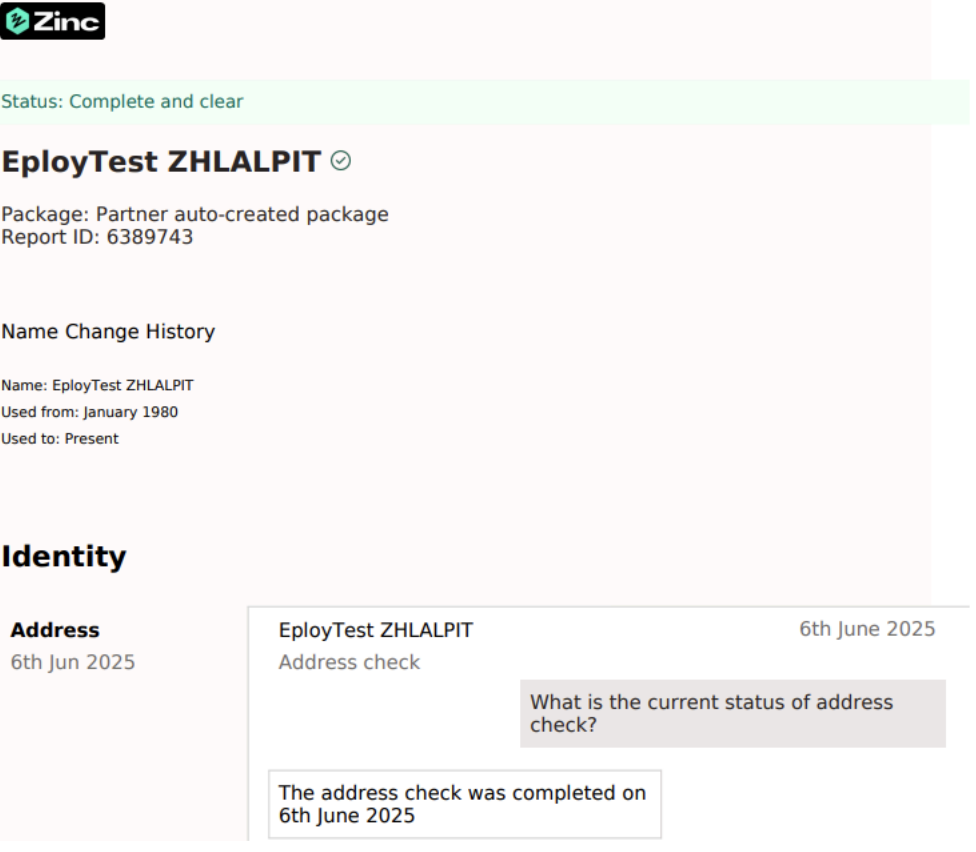
📌 It is possible to configure the integration to not display the Report Link if necessary. In this case, it will be absent from the details in the response.
## Error handling
In the rare circumstance that there is an issue making the request, the Action will receive the outcome **Communication Error**.
This could be caused by:
- Invalid or missing data in Eploy
- A problem with the configuration of the integration
- The Zinc API being unreachable using the configured details, or a problem on the Zinc end
The first two issues can be easily avoided by ensuring that the configuration has been thoroughly tested and that the recruitment process within Eploy has been configured to prevent applicants from advancing if any data is invalid.
Eploy can adjust settings within the system, such as making certain fields mandatory on forms and using the Compliance module to prevent applications from reaching the Zinc stage with invalid or missing data.
Once the problem has been solved, the Action Outcome can be manually set to **Reprocess**, and the request will be re-attempted the next time the Zinc rule runs.
The rules run automatically every 10 minutes, or can be manually triggered via **Admin** > **Rules** using the **Run all Rules** button.