For the complete documentation index, see llms.txt
For the complete documentation index, see llms.txt
How to Enable Sound Notifications for Zinc Live Chat
### How to Enable Sound Notifications for Zinc Live Chat
Sound notifications alert you when Zinc live chat responds, even if you have minimised the chat widget or switched tabs. These notifications are controlled through your browser permissions.
#### 1. Allow Notifications When Prompted
- The first time you use Zinc live chat, your browser will ask permission to show notifications with a popup like:
> **app.zincwork.com wants to** show notifications
> [Block] [Allow]
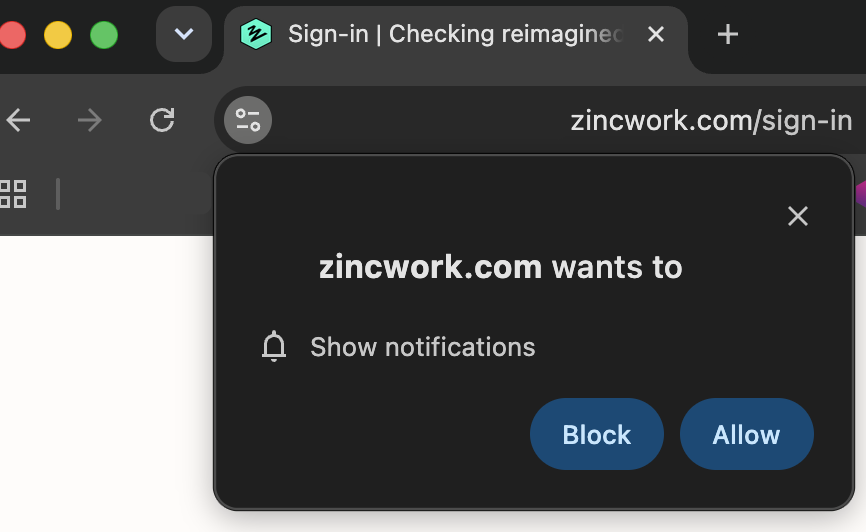
- Click **Allow** to enable sound notifications.
- If you do not see this popup, it may be because you've previously chosen an option or you need to enable it manually.
#### 2. Enable Notifications if You Previously Blocked Them
- Click the icon to the left of the web address in your browser’s address bar (usually a lock, i, or sliders icon).
- Find the **Notifications** permission.
- Change it from **Block** to **Allow**.
- Refresh the Zinc live chat page.
Note: The exact wording and icons may vary by browser (Chrome, Safari, Edge), but the setting is always located in the page-specific site permissions, not general browser settings.
#### 3. Check Additional Sound Permissions
Allowing notifications alone might not be enough if your browser has a separate sound permission.
- **Chrome:**
- Click the icon next to the URL, choose **Site settings**.
- Find **Sound** permissions and set to **Allow**.
- Refresh the Zinc page.
- **Edge:**
- Usually, sound works once notifications are allowed; no extra sound permission is needed.
- If no sound, verify notifications are allowed first.
- **Safari:**
- Open **Safari → Settings (or Preferences)**.
- Select the **Websites** tab, then **Auto-Play**.
- Find app.zincwork.com and set it to **Allow All Auto-Play**.
- Refresh the Zinc live chat page.
#### 4. Troubleshooting If Notifications Still Don't Work
- Confirm your device’s system notification and sound settings allow browser notifications.
- Ensure the browser tab with Zinc live chat is not muted (look for a speaker icon on the tab).
- Check that global browser notification permissions are not disabled, which can override site-specific settings.