For the complete documentation index, see llms.txt
For the complete documentation index, see llms.txt
How to Transition from Demo Mode to Starting Background Check Requests and Setting Up Billing in Zinc
Learn how to go through our demo mode when you first create an account on Zinc to starting your own background check requests.
#### Demo Mode
1\. Navigate to <https://app.zincwork.com/recruit> You should see you are in demo mode by the notice in the bottom of the page.
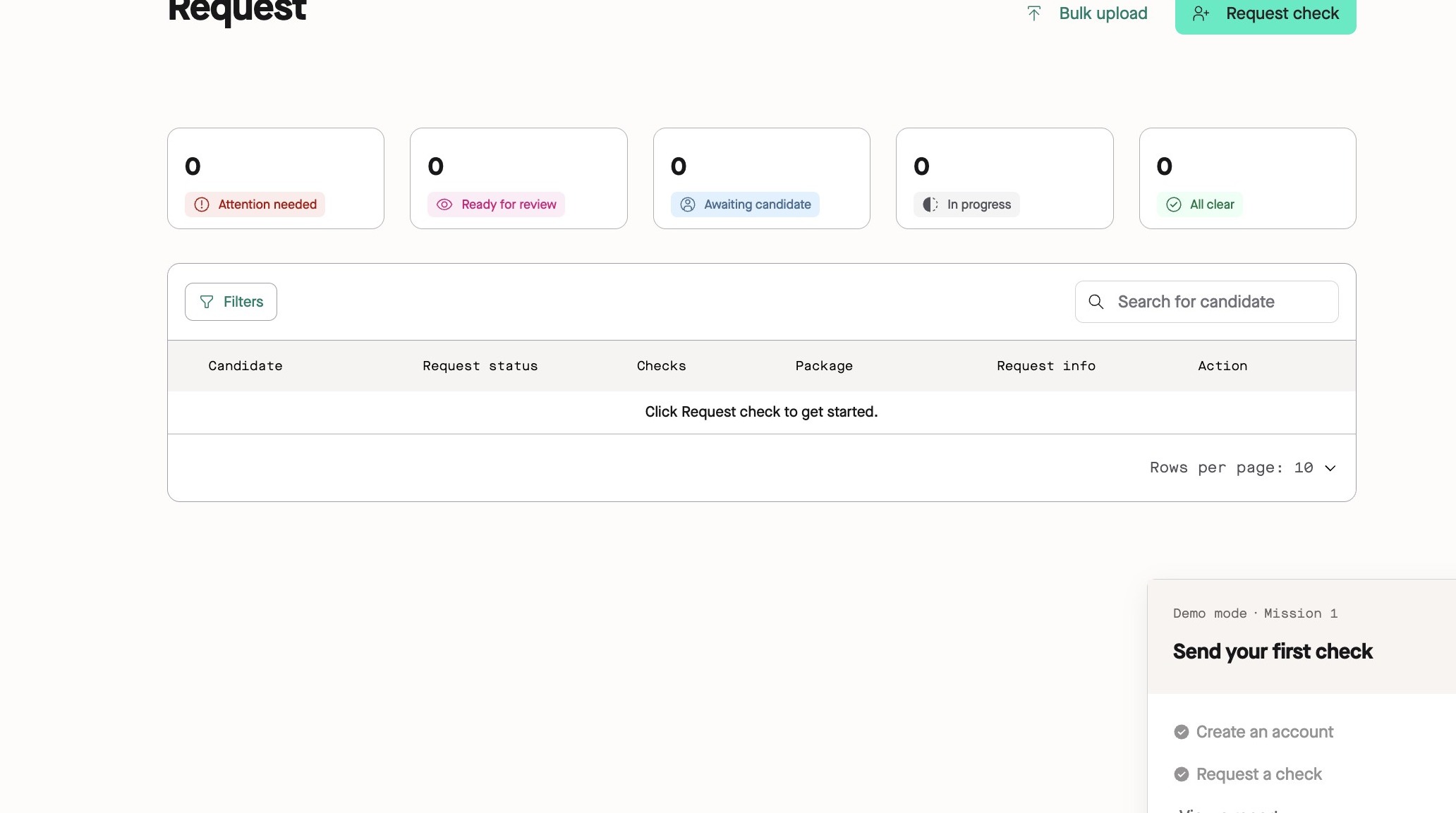
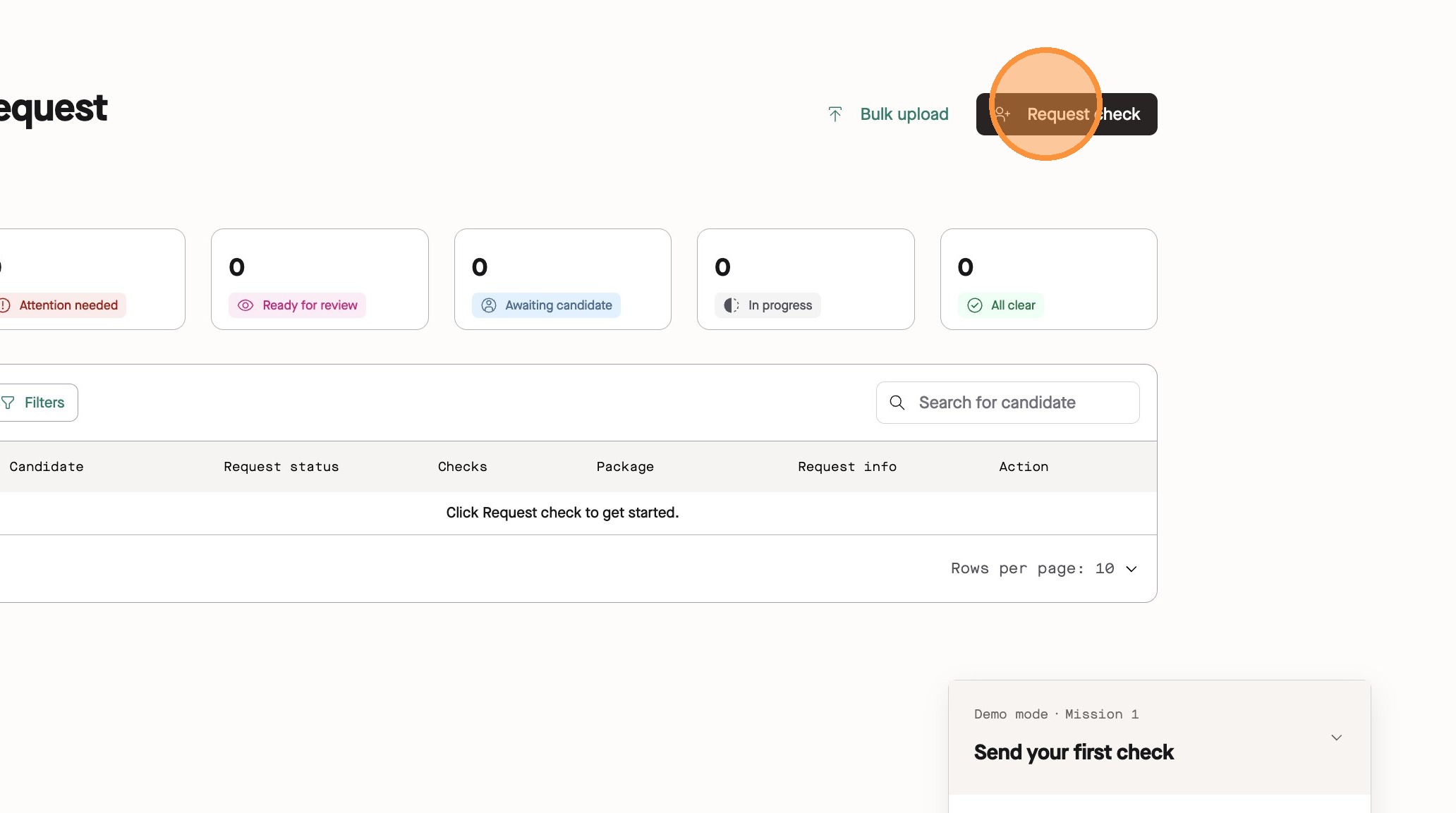
2\. Click **Request check** to begin the demo.

3\. Select the **Default Reference Package** from the package options.
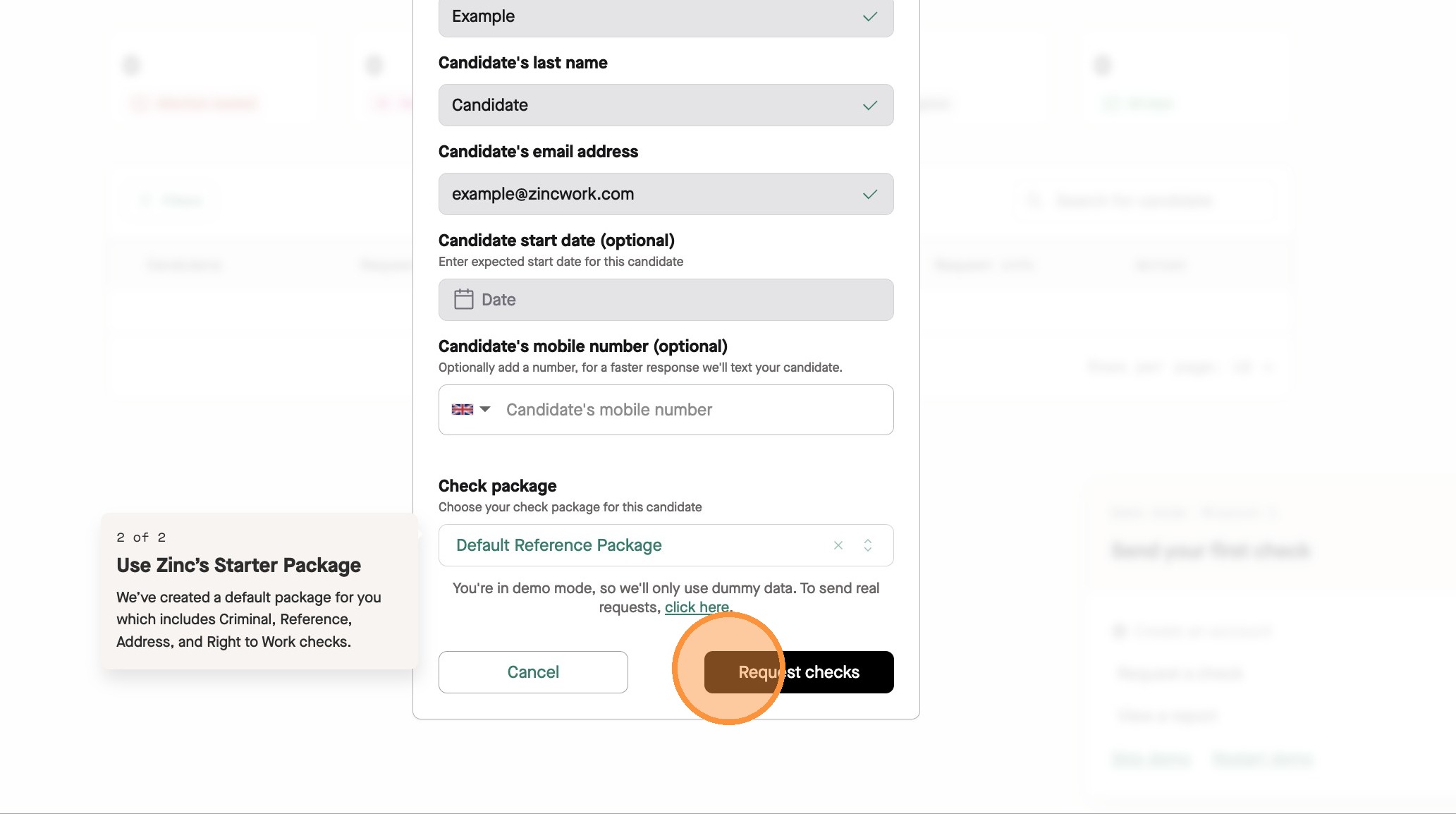
4\. Click **Request checks** to submit your dummy background check request.
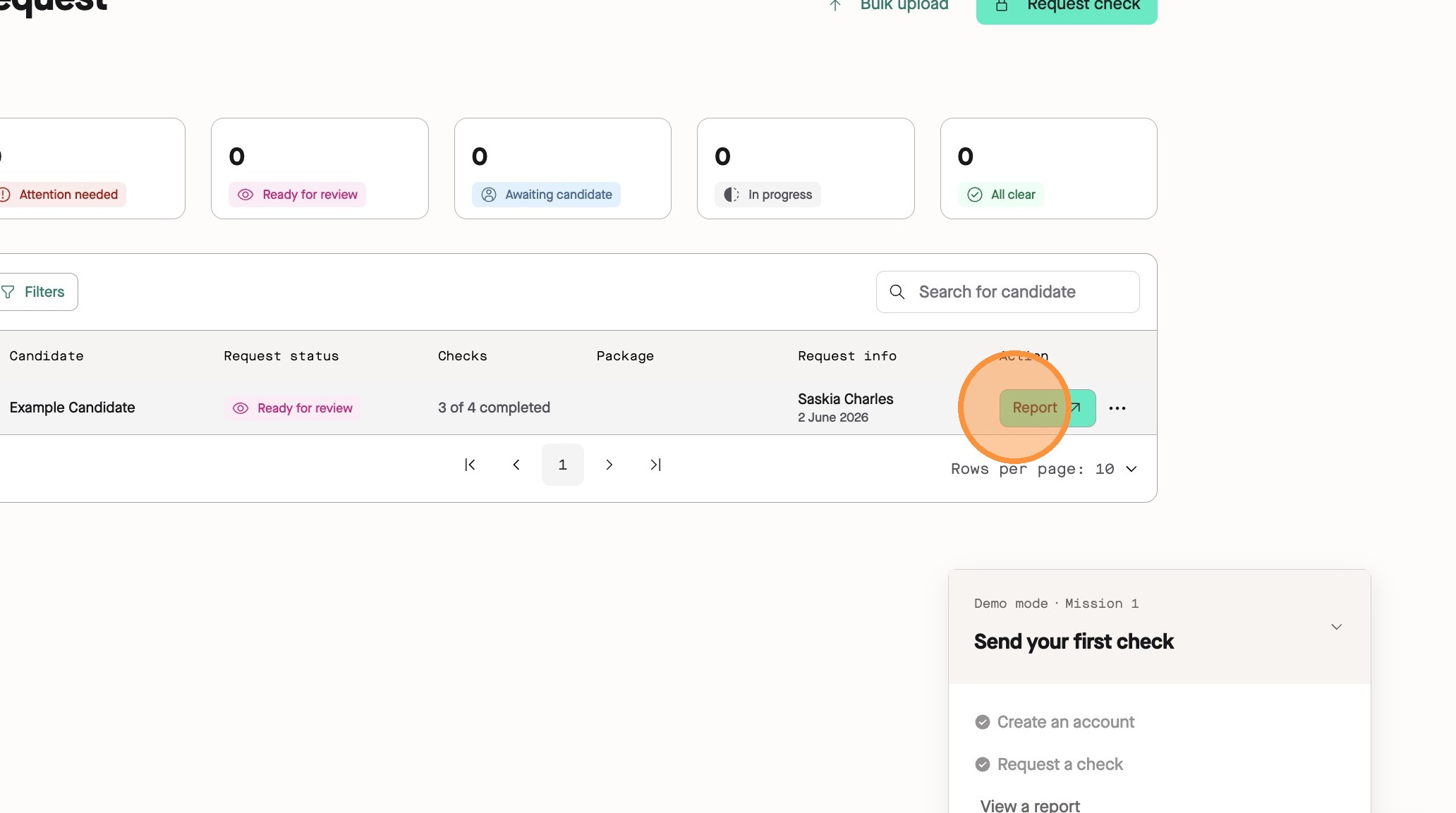
5\. Click **Report** to view the candidate's dummy completed background check.
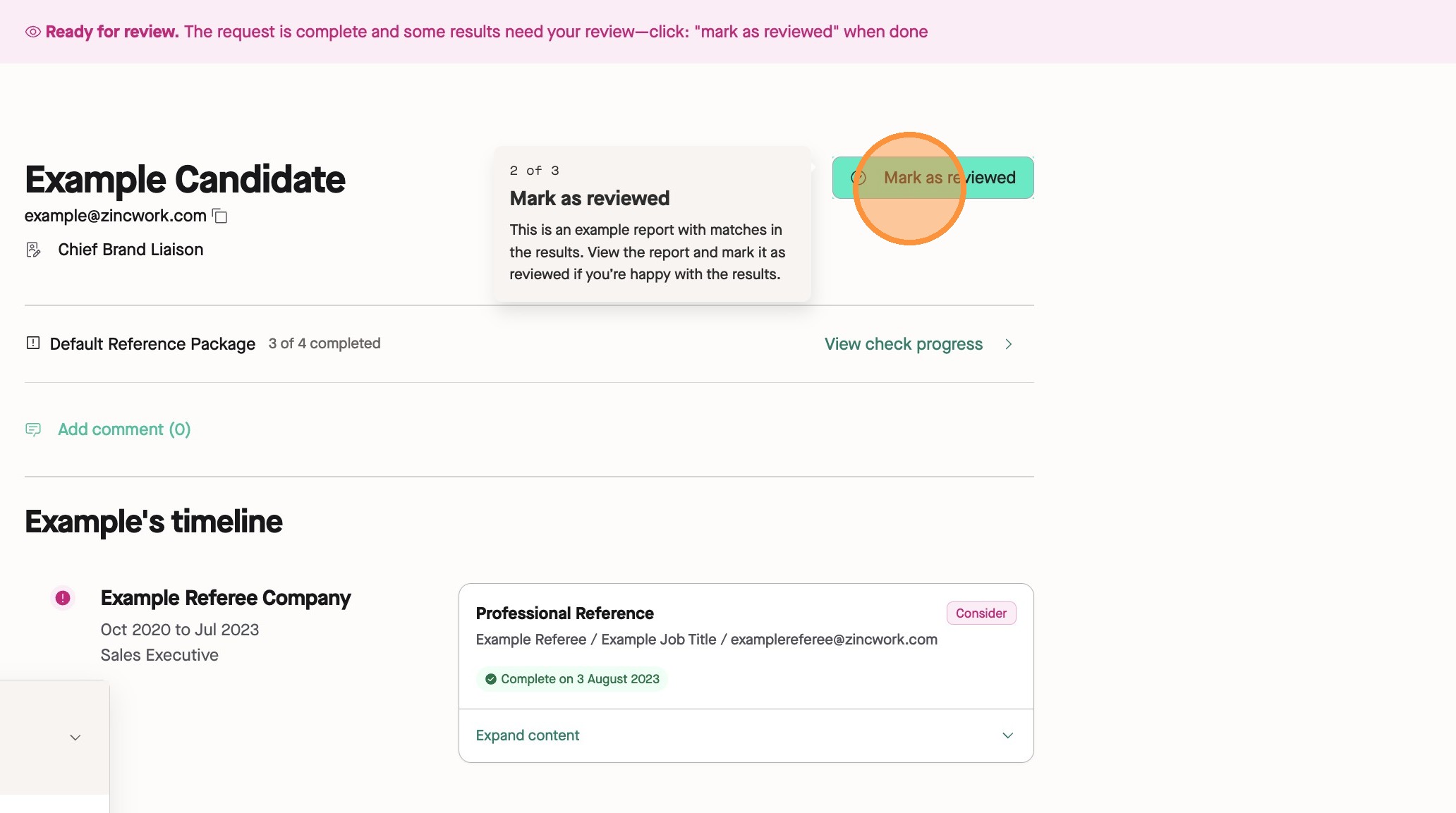
6\. Click **Mark as reviewed** to finalise the candidate's report.
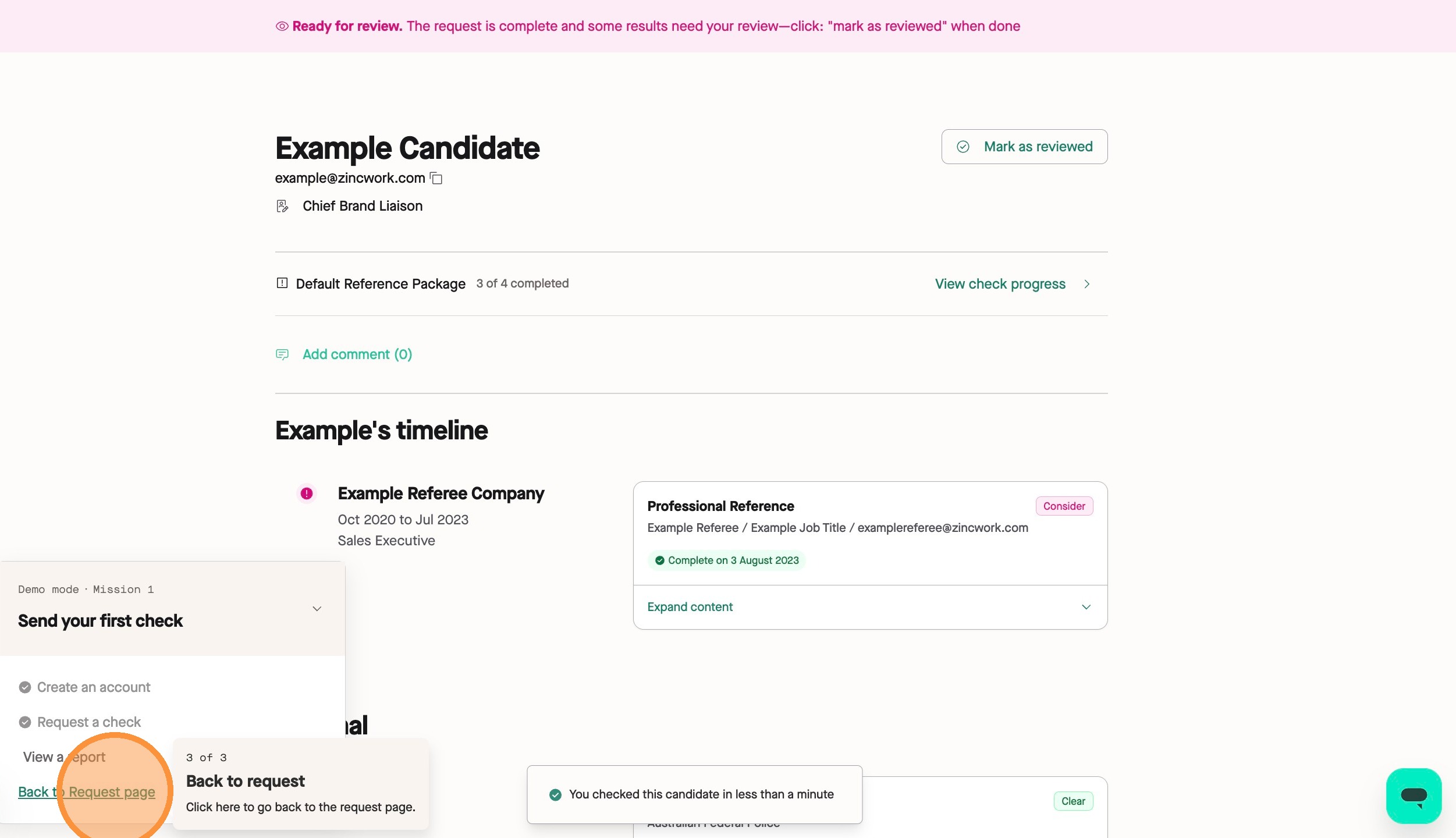
7\. Click **Back to Request page** to return to the main dashboard.
#### Plan and Billing
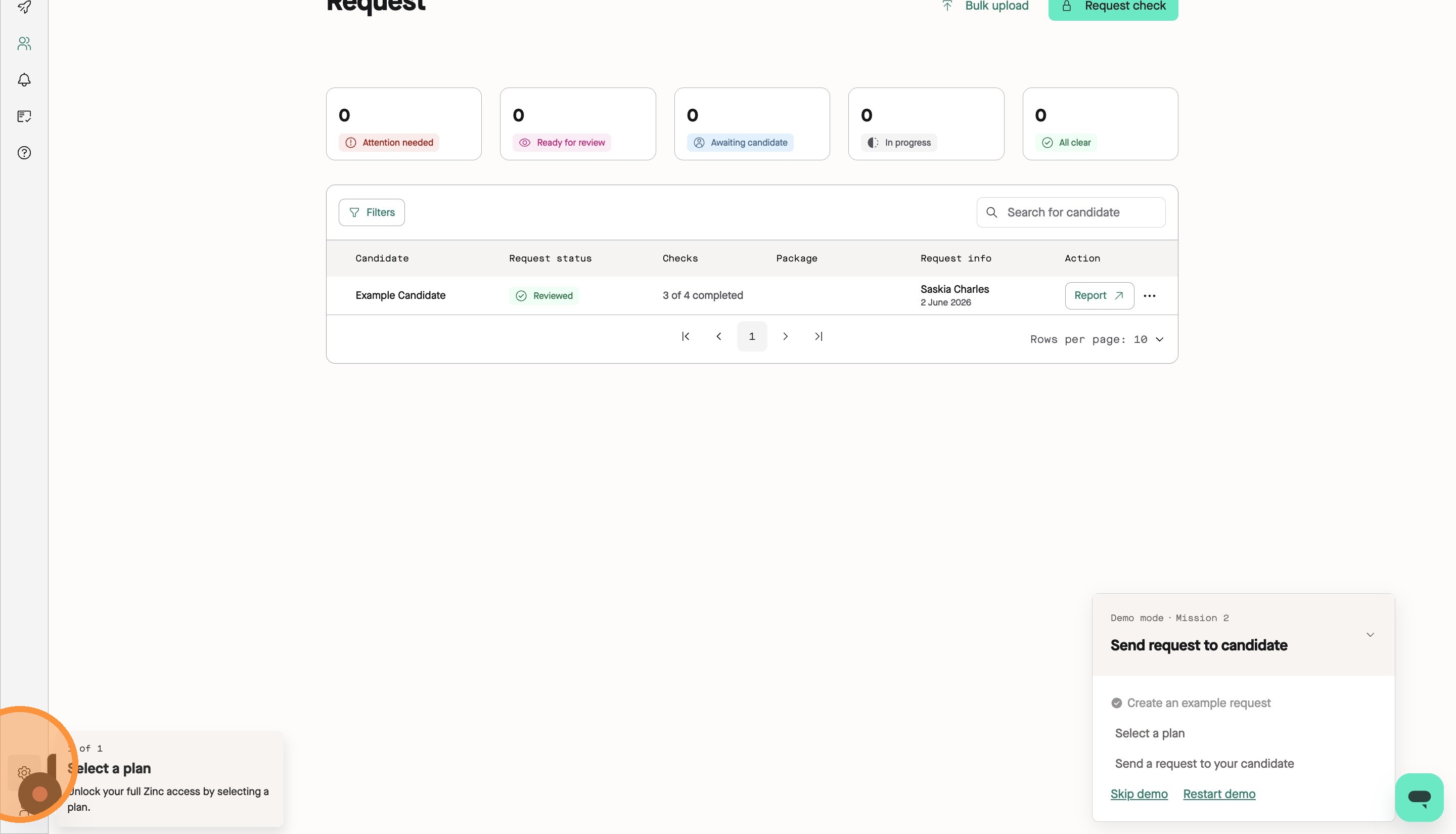
8\. Click **Select a plan** under **Company settings** to begin setting up your account.
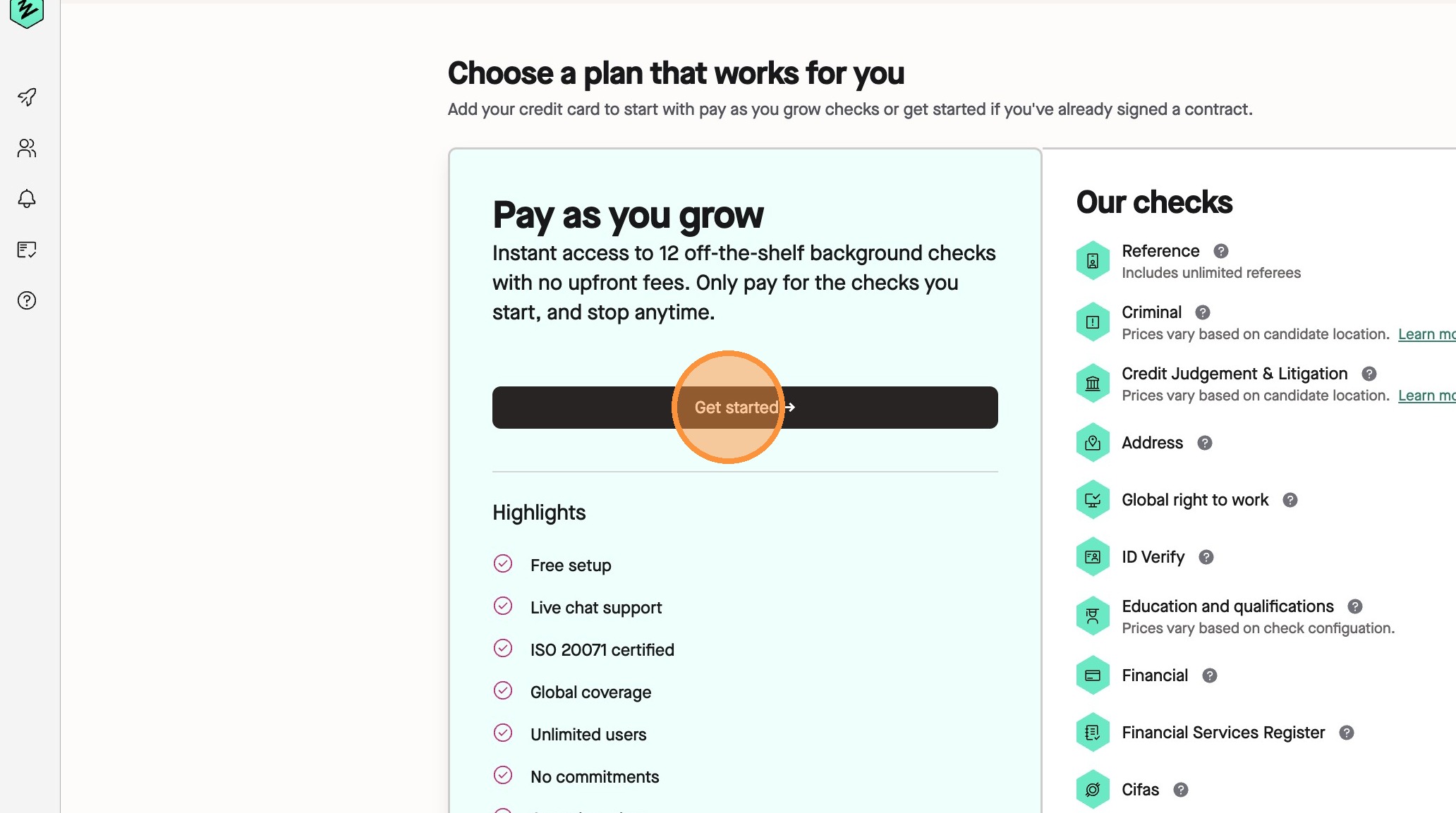
9\. For a Pay As You Grow account, click **Get started ->** under the **Pay as you grow** option.
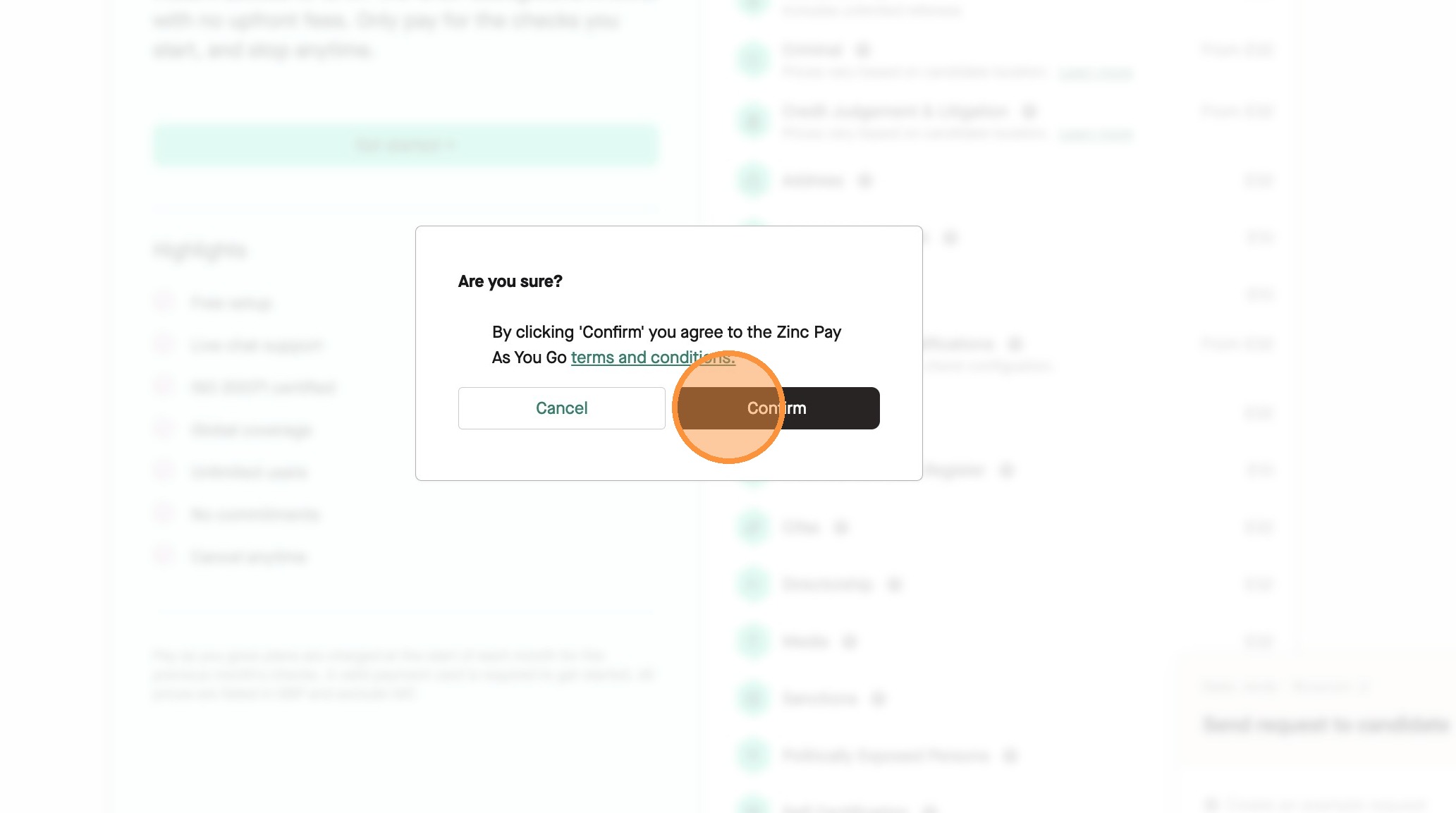
10\. Read the terms and conditions, then click **Confirm**.

11\. Enter your credit card number, expiry date, and CVC and click **Pay**.
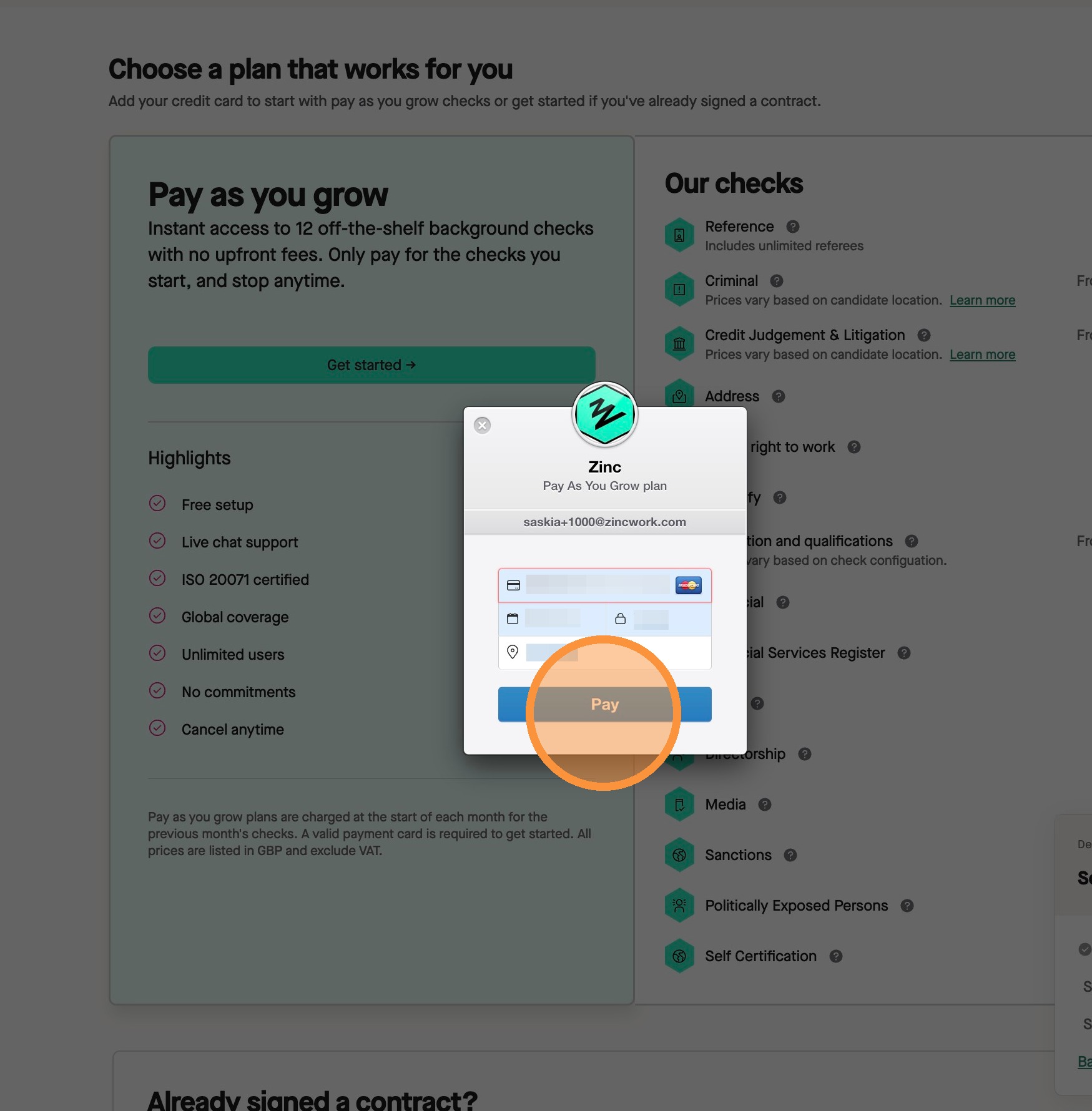
12\. You will then be asked to confirm your billing Zip code. Click **Pay** to complete your account setup.
13\. That's it! You are now ready to start adding any team members/creating a group, creating new packages, and sending out your background check requests to your candidates.
---
### Are you a candidate and stuck in demo mode?
You may just be signed in to the wrong account!
- First, go to the sign out link [https://app.zincwork.com/sign-out ](https://app.zincwork.com/sign-in)
- Then, check your background check request email from Zinc. If you have not received this email yet, check with your employer as they are the only ones that can send a new request out.
- Confirm the email that this email was sent to.
- After, make sure you create an account with this email address as this is the one linked to your check request.