For the complete documentation index, see llms.txt
For the complete documentation index, see llms.txt
How to Complete ROS Instant Employment Verification in Zinc
This guide provides a walkthrough for submitting an instant employment verification request through the Zinc platform. Follow these steps to correctly input your ROS credentials and professional information to complete the reference process efficiently.
#### Start Background Check
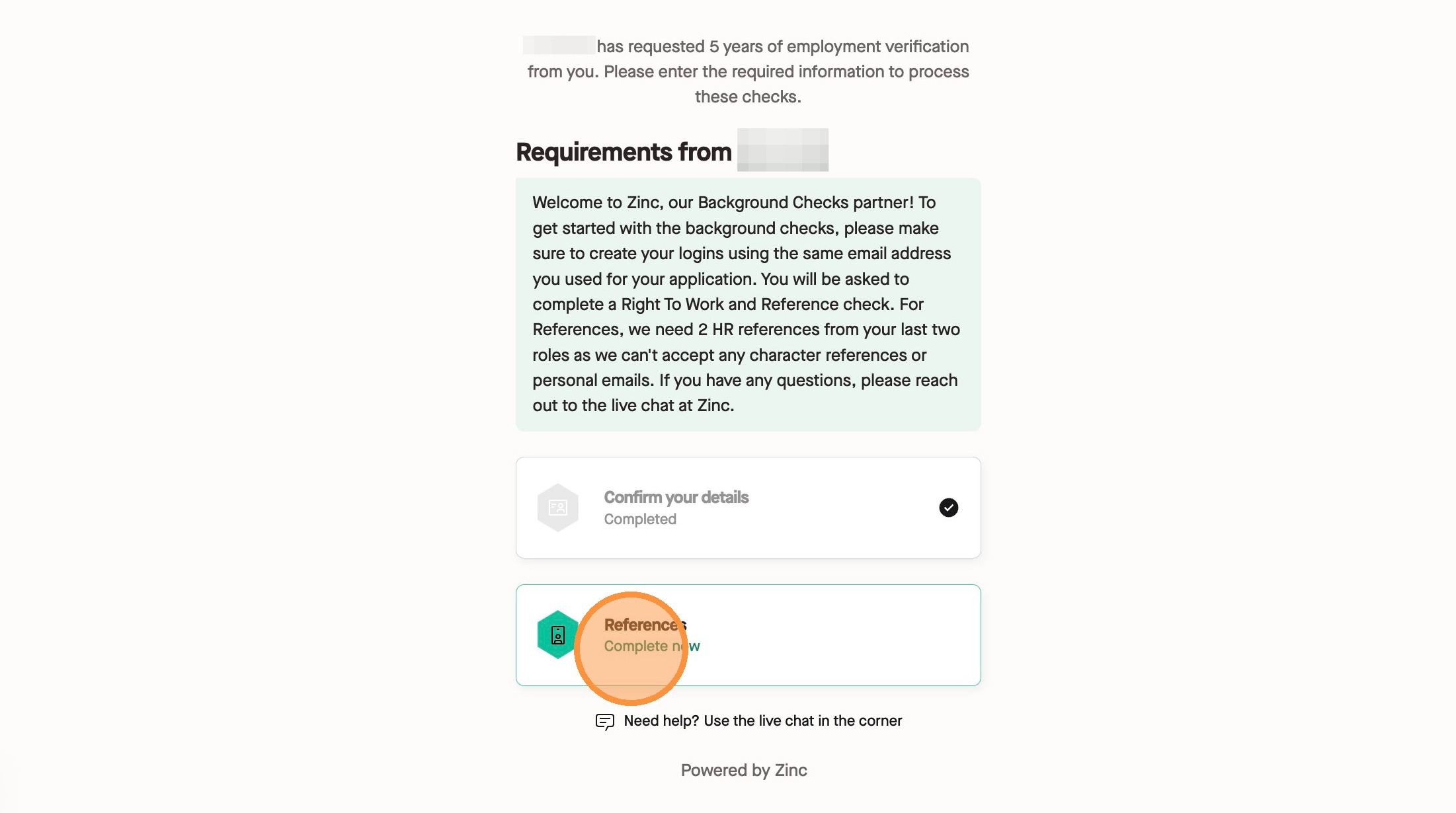
1\. Navigate to your check submission page and click "References"
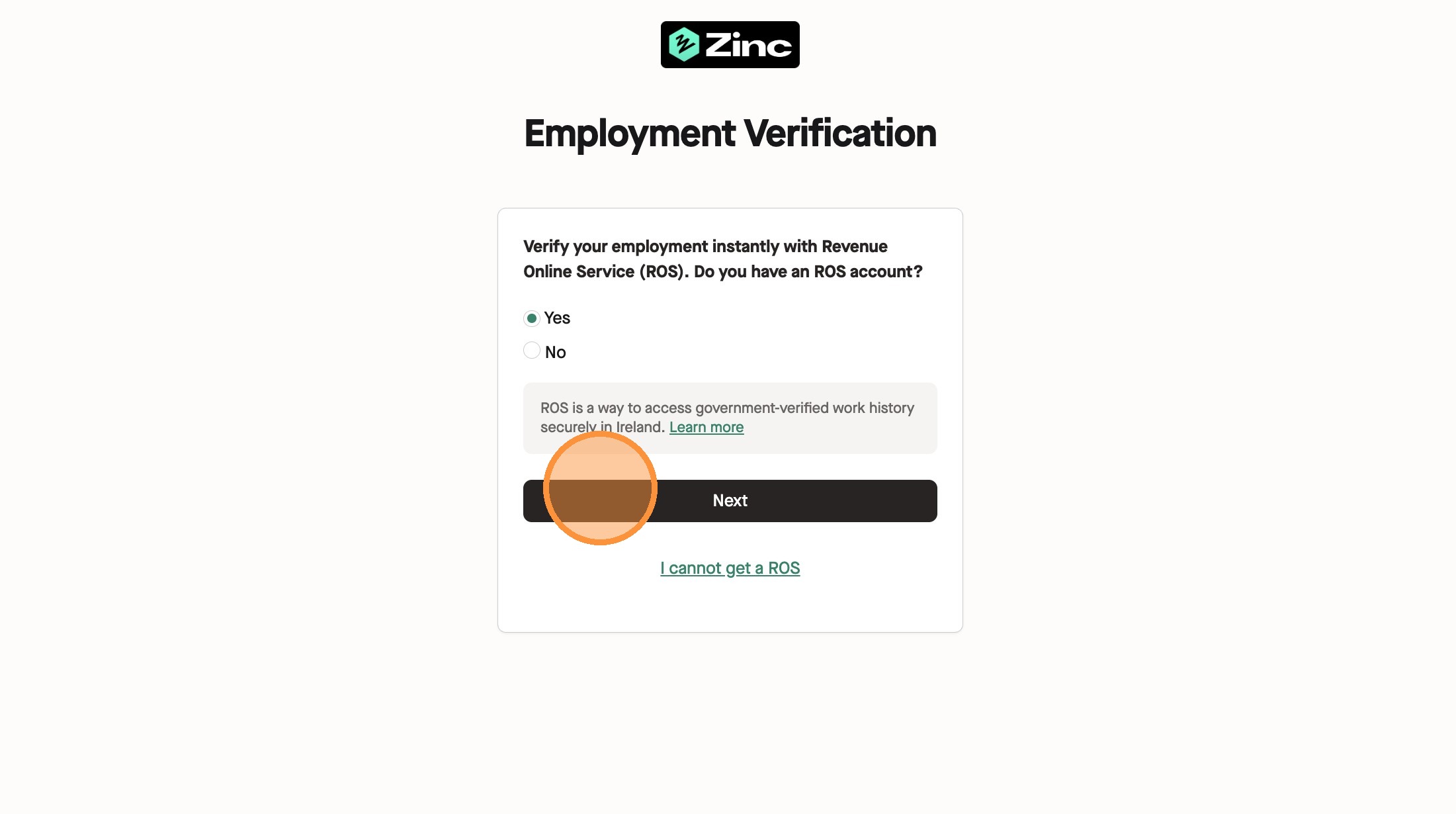
2\. Select "Yes" to confirm you have an ROS account and click "Next".
#### Account Verification
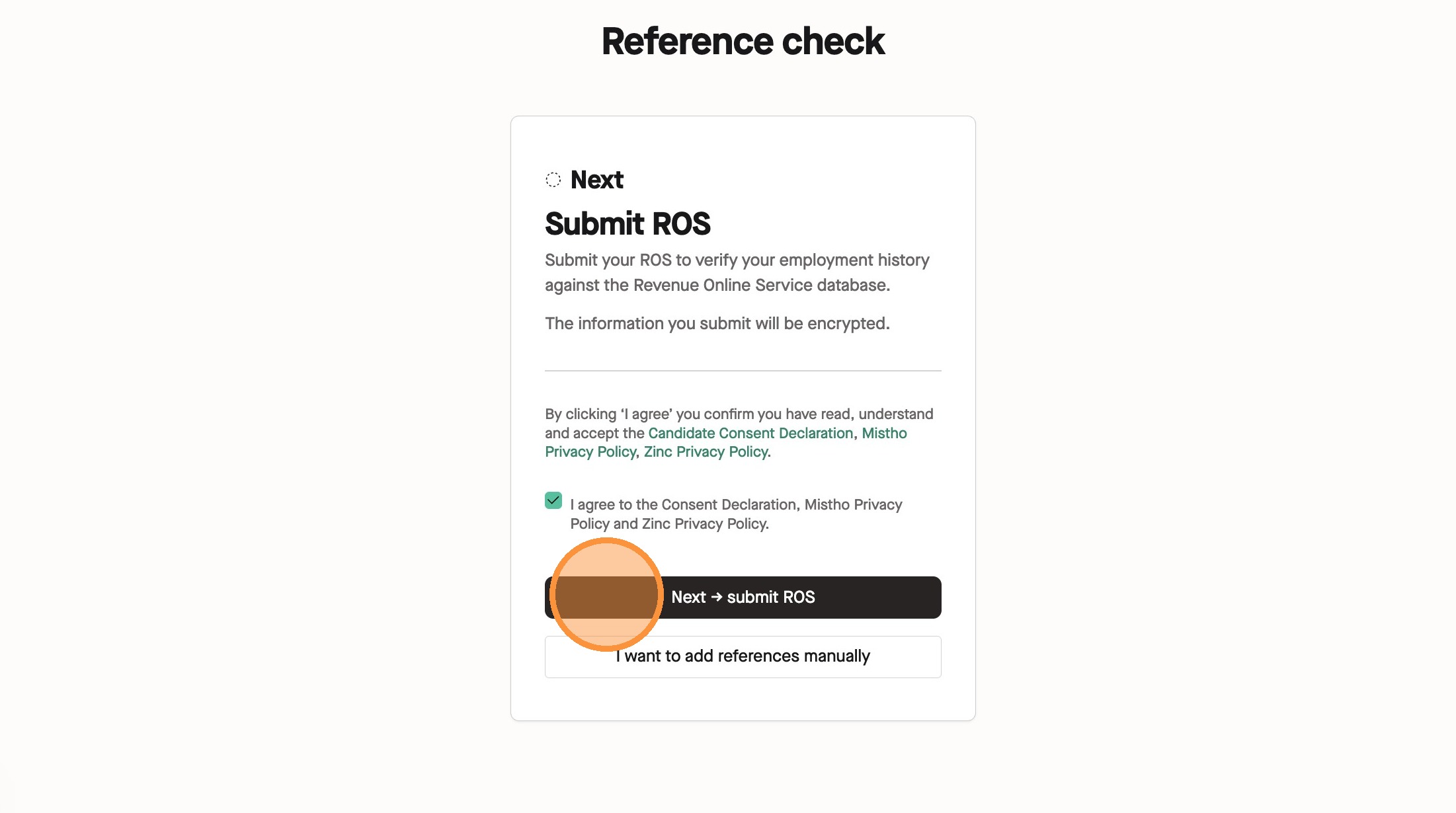
3\. Check the box to agree to the Consent Declaration and click "Next -> submit ROS"
4\. Enter in your PPSN, your date of birth, and your password and click "Submit".
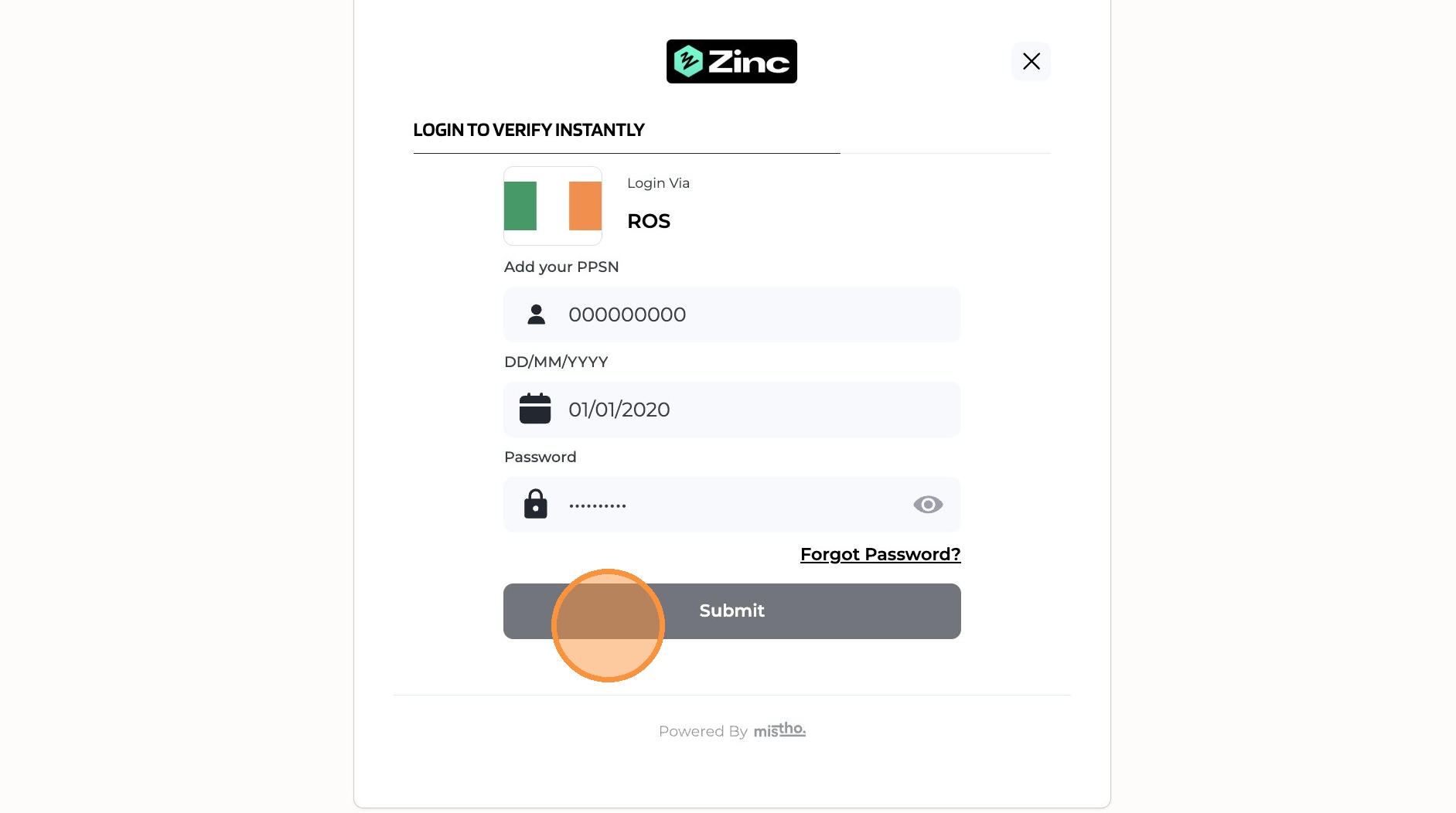
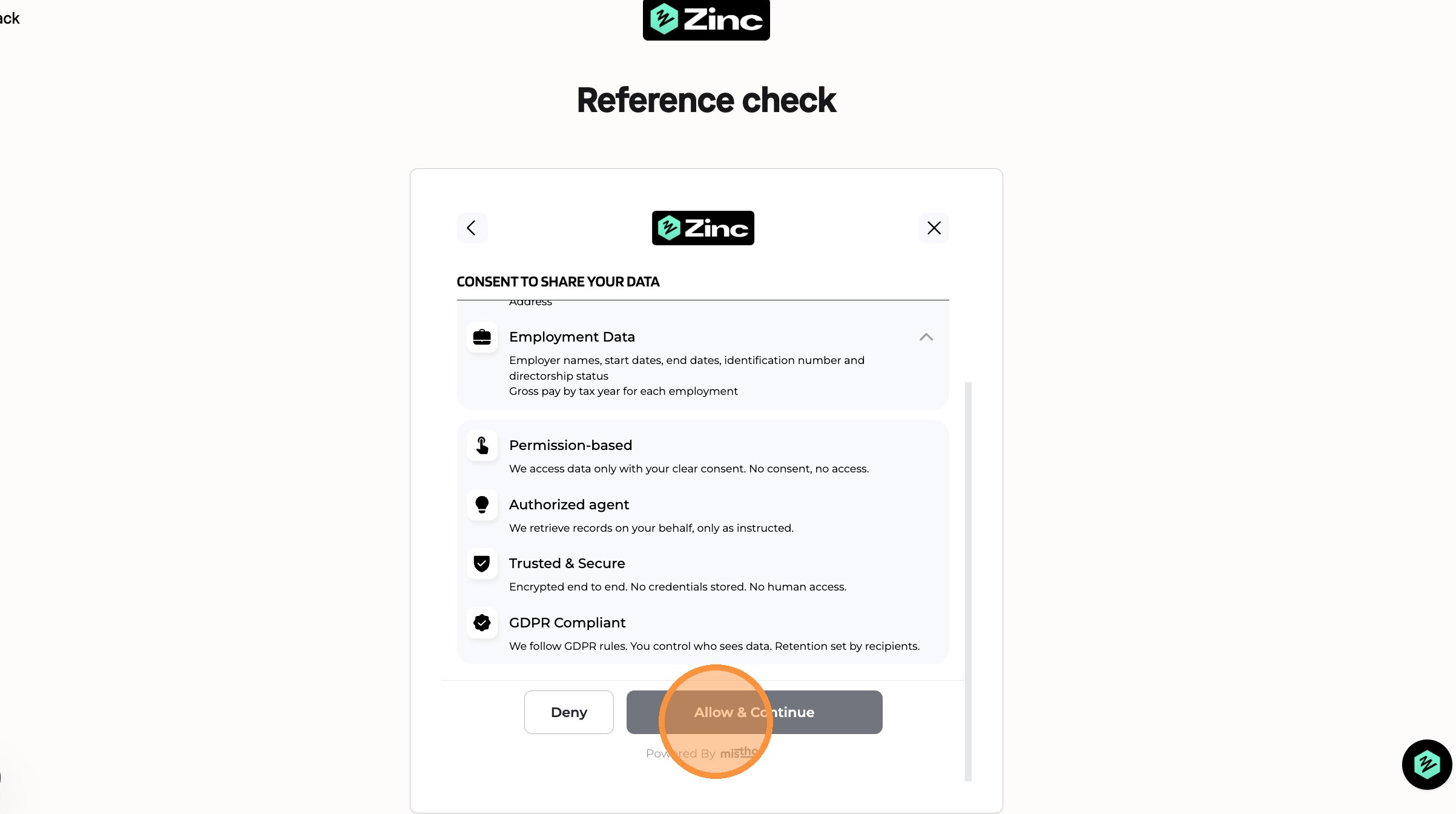
5\. Click "Allow & Continue" on the consent page.
#### Employment Details Confirmation
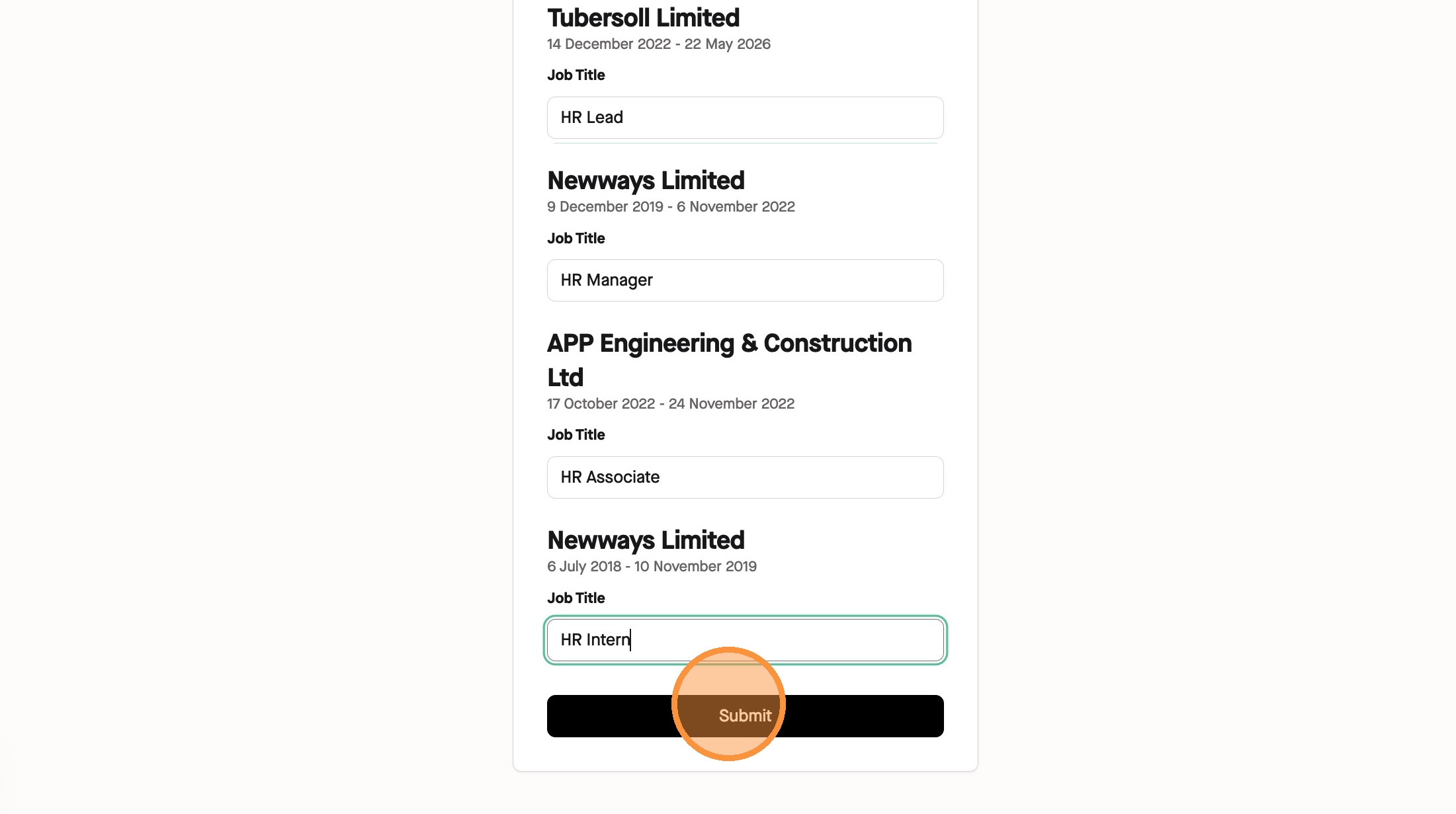
6\. Input the Job Title for each listed employment and click "Submit".
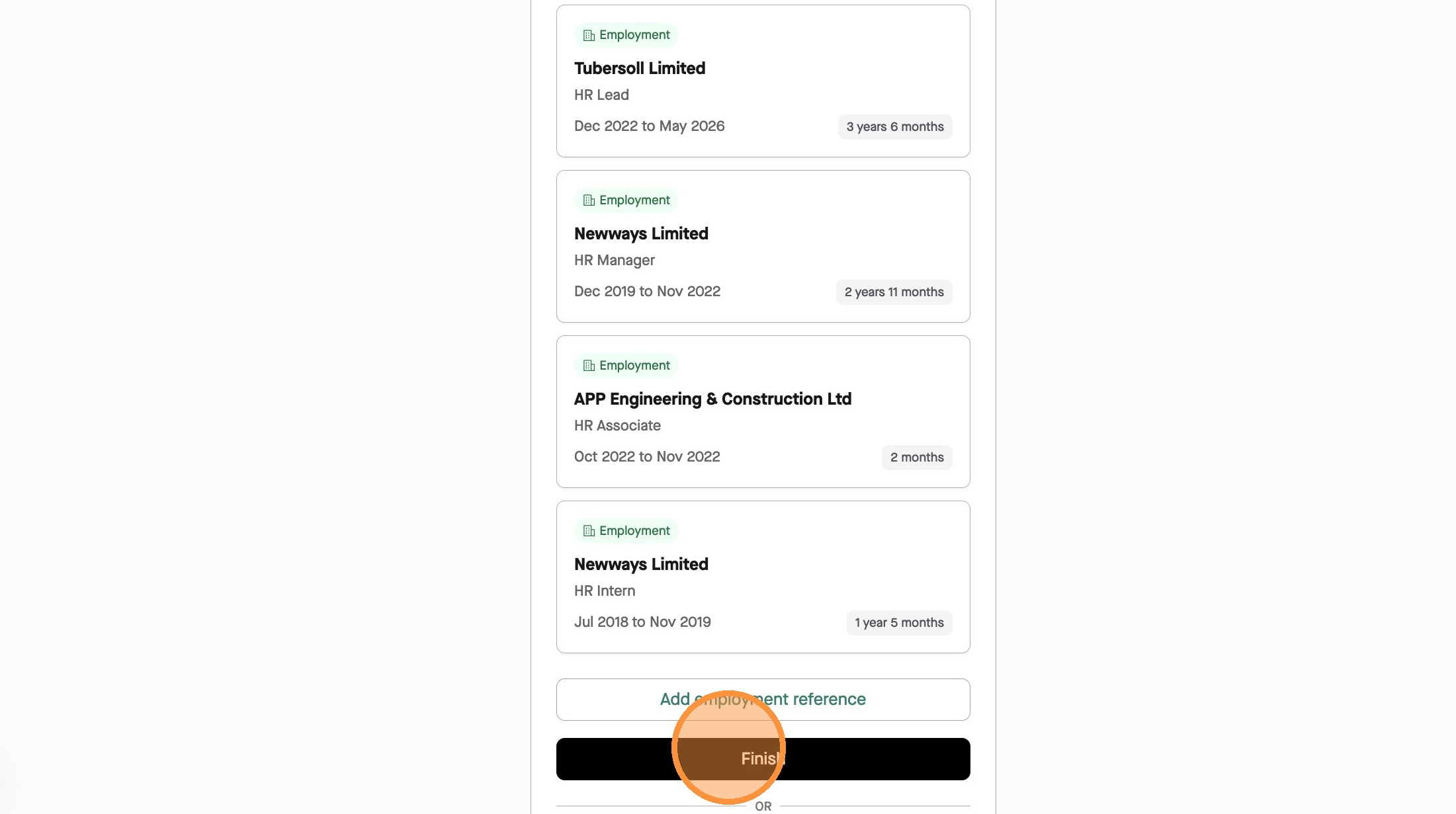
7\. Click "Finish" once you've added in all your references or non-employment periods to meet your employer's requirement for this check.