For the complete documentation index, see llms.txt
For the complete documentation index, see llms.txt
How to Complete Digital Identity Verification for a DBS or UK Right to Work Check
From the week of 12 October 2026, this is how you'll prove your identity if your background check includes a DBS check, a UK Right to Work check, or both. The exact steps depend on which documents you have — this guide walks through the fastest route in full (a biometric passport and an NFC-capable phone), then covers what to expect on the other routes.
## Before You Start
You'll need:
- A valid, in-date passport, driving licence, or national ID card — Zinc will confirm exactly which one based on your citizenship and the check you're completing
- A smartphone with a working camera
- If you have a biometric passport, a phone that supports NFC. Most phones from the last few years do — if you can tap your phone to pay for something, it can
- About 10–15 minutes, somewhere well-lit, with your document to hand
## Step 1: Confirm Your Right to Work (If Requested)
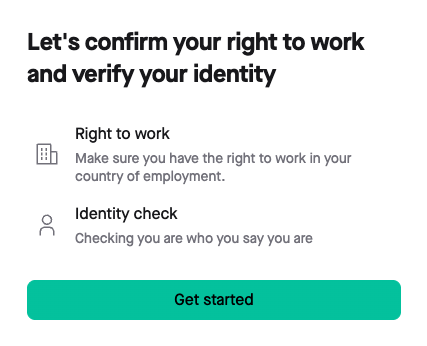
1. On the "Let's confirm your right to work and verify your identity" screen, select **Get started**.
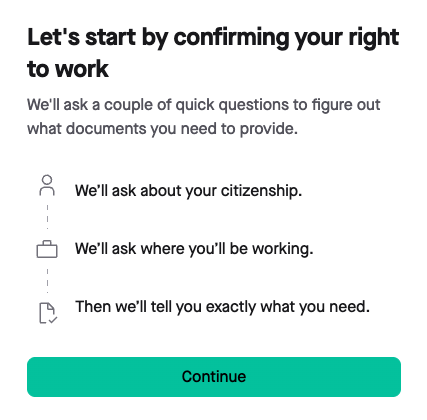
2. Tap **Continue** on the next screen — Zinc will ask about your citizenship, then where you'll be working, then tell you exactly which documents you need.
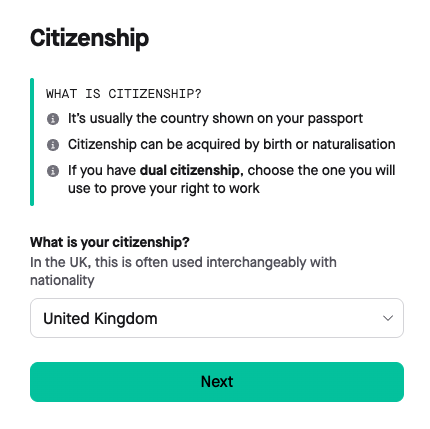
3. Choose your **citizenship** from the dropdown.
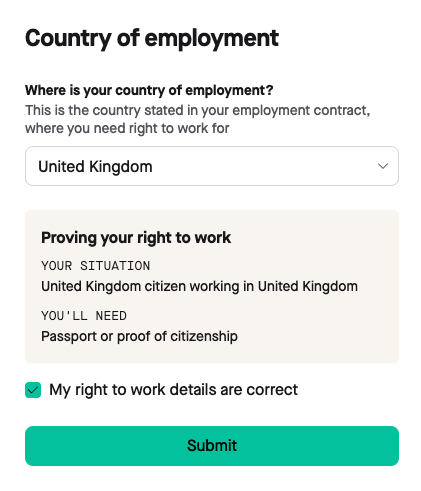
4. Confirm your **country of employment**. Zinc will show you which document you need based on your answers — for a UK citizen working in the UK, this is a passport or other proof of citizenship.
5. Tick the box to confirm your right to work details are correct, then select **Submit**.
### What if I hold more than one nationality, or work outside the UK?
The form only lets you select one nationality even if you hold several, and the documents you're asked for can change depending on where you'll be working. See [What Does Country of Employment Mean in the Right to Work Check?](https://help.zincwork.com/article/2ab767e0-what-does-country-of-employment-mean-in-the-right-to-work-check) if you're not sure which applies to you.
## Step 2: Start Your Identity Check
1. Select **Get started** on the "Let's verify your identity" screen. This part takes about five minutes.
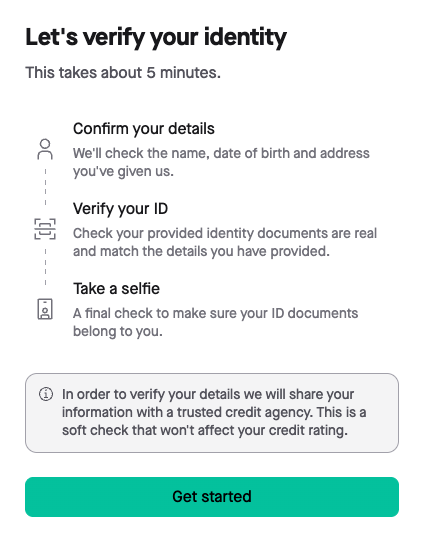
2. Choose how you want to verify: select **Verify digitally** to continue online, or **Verify manually instead** if you'd rather not share biometric data digitally.
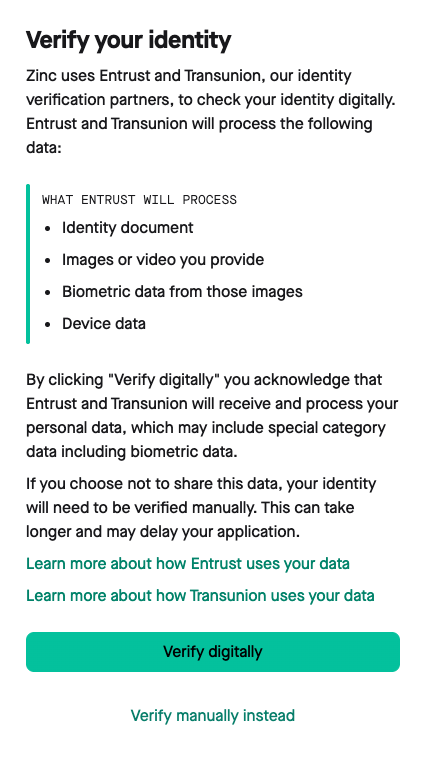
Verifying digitally means Zinc's identity partners, **Entrust** and **Transunion**, process your identity document, the images or video you provide, biometric data taken from those images, and some device data. As part of this, your details are also shared with a credit reference agency — this is a **soft check** and won't affect your credit rating. See [How Zinc's Activity History and Identification Fraud Checks Work] to learn more.
### What if I'd rather not share my documents digitally?
Select **Verify manually instead**. Your check will still go ahead, but manual verification takes longer and may delay your results, so only choose this if you're not comfortable with the digital process. You'll then need to set up a time directly with your employer to have your documents reviewed manually.
## Step 3: Answer a Couple of Questions About Your Documents
Zinc asks two quick questions to work out which route your check should take.
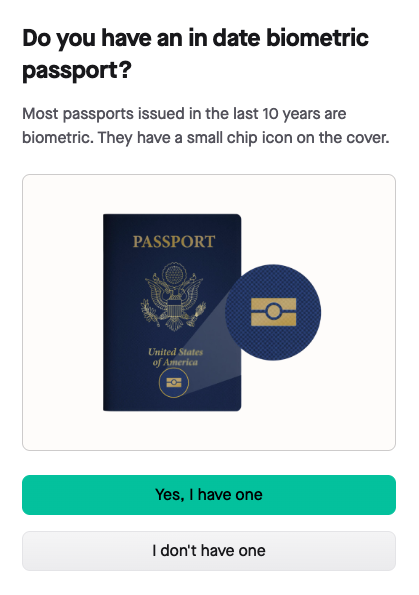
1. **Do you have an in-date biometric passport?** Most passports issued in the last 10 years are biometric — look for the small chip icon on the cover.
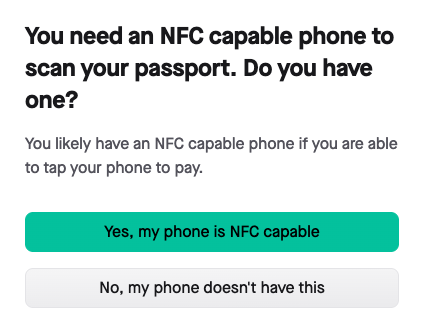
2. **Do you have an NFC-capable phone?** If you can tap your phone to pay for something, the answer is yes.
### What if I don't have a biometric passport?
You'll be asked for two other accepted documents instead of a passport scan — see "Other Ways to Verify Your Identity" below.
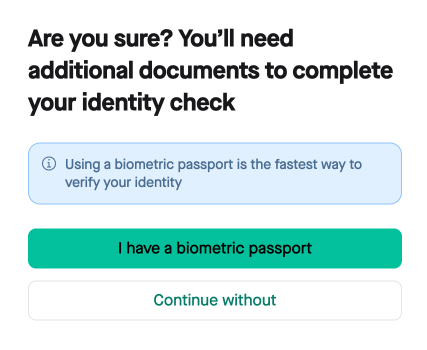
If you don't have two documents, you will need to have your identity verified manually by your employer.
### What if my phone doesn't support NFC?
You'll be asked for one extra document (for example a driving licence or national ID card) instead of scanning your passport chip — see "Other Ways to Verify Your Identity" below.
## Step 4: Download the Zinc App and Link Your Session
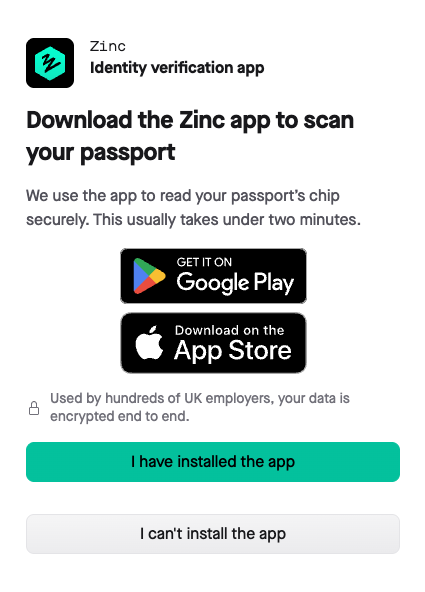
1. If you don't already have it, download the **Zinc** app from the App Store or Google Play, then select **I have installed the app**.
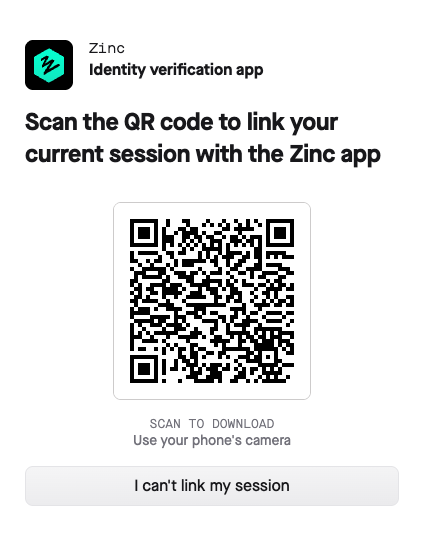
2. Scan the QR code shown on your screen with your phone's camera to link your session to the app.
### What if I can't find the Zinc app in my app store?
If **Zinc Mobile App** doesn't show up when you search, check your app store account's country or region setting — the app is only available in the UK, so you may need to switch to a UK account to find it. Once it's updated, search again.
## Step 5: Photograph Your Passport
1. On your phone, select **Start verification**.
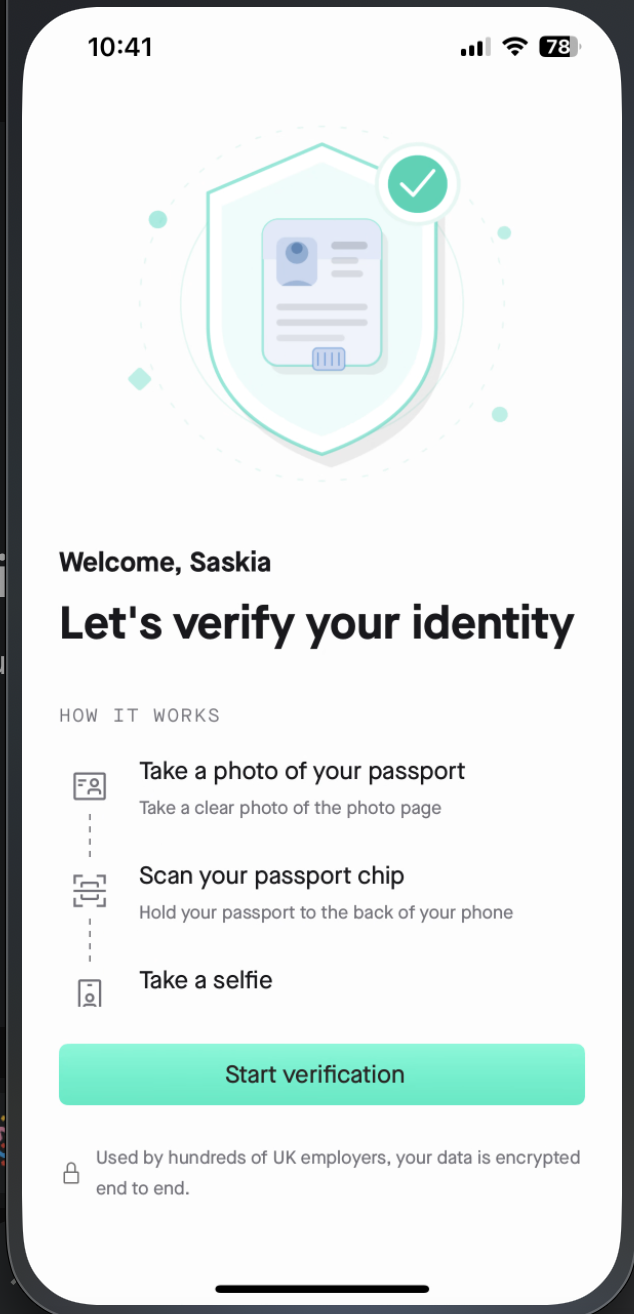
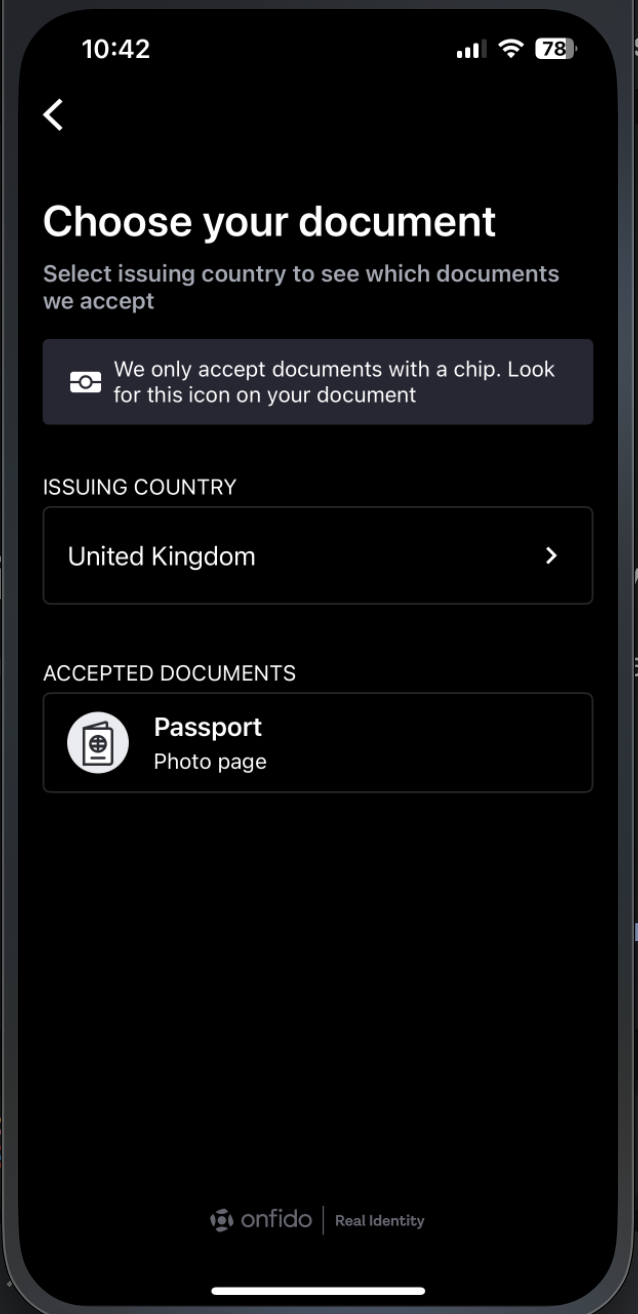
2. Choose your passport's issuing country and confirm the document type (photo page).
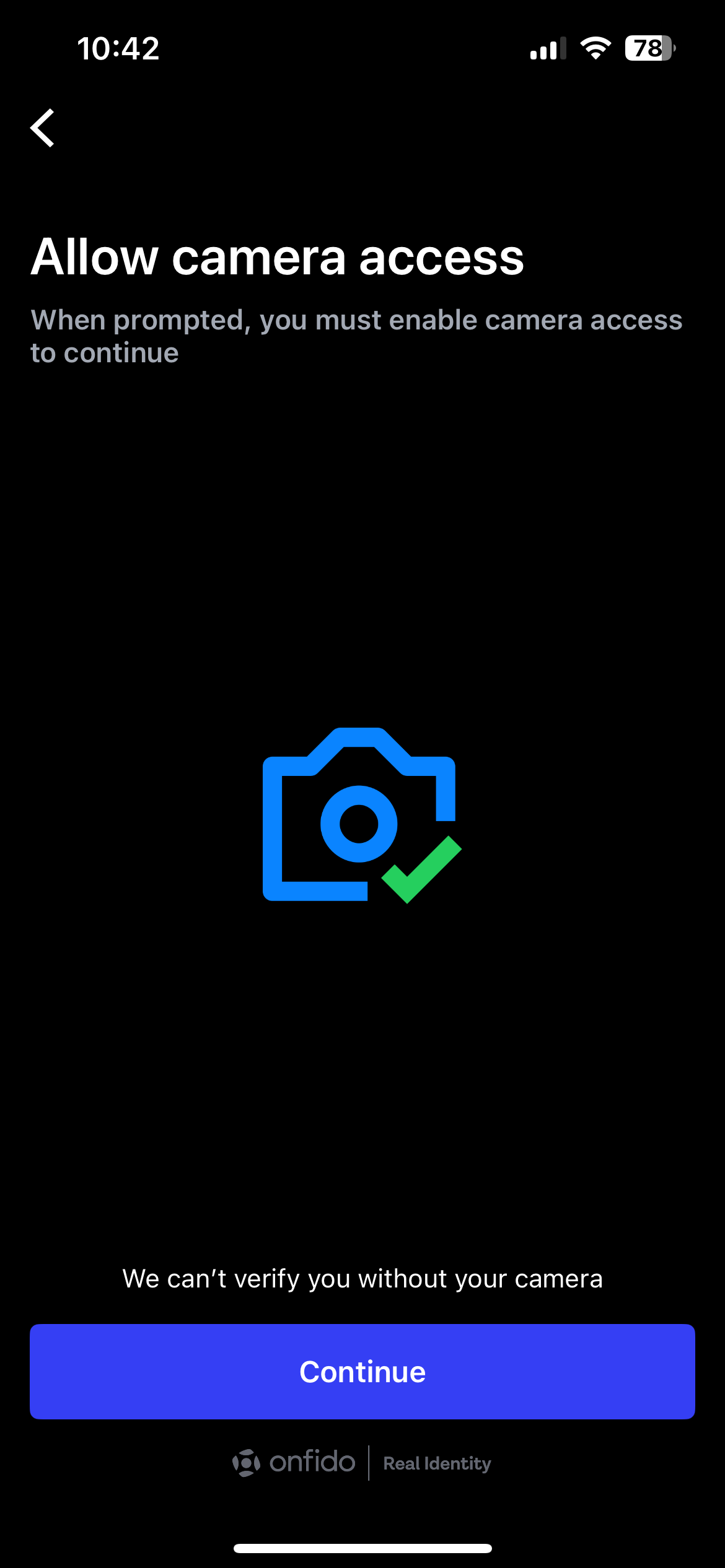
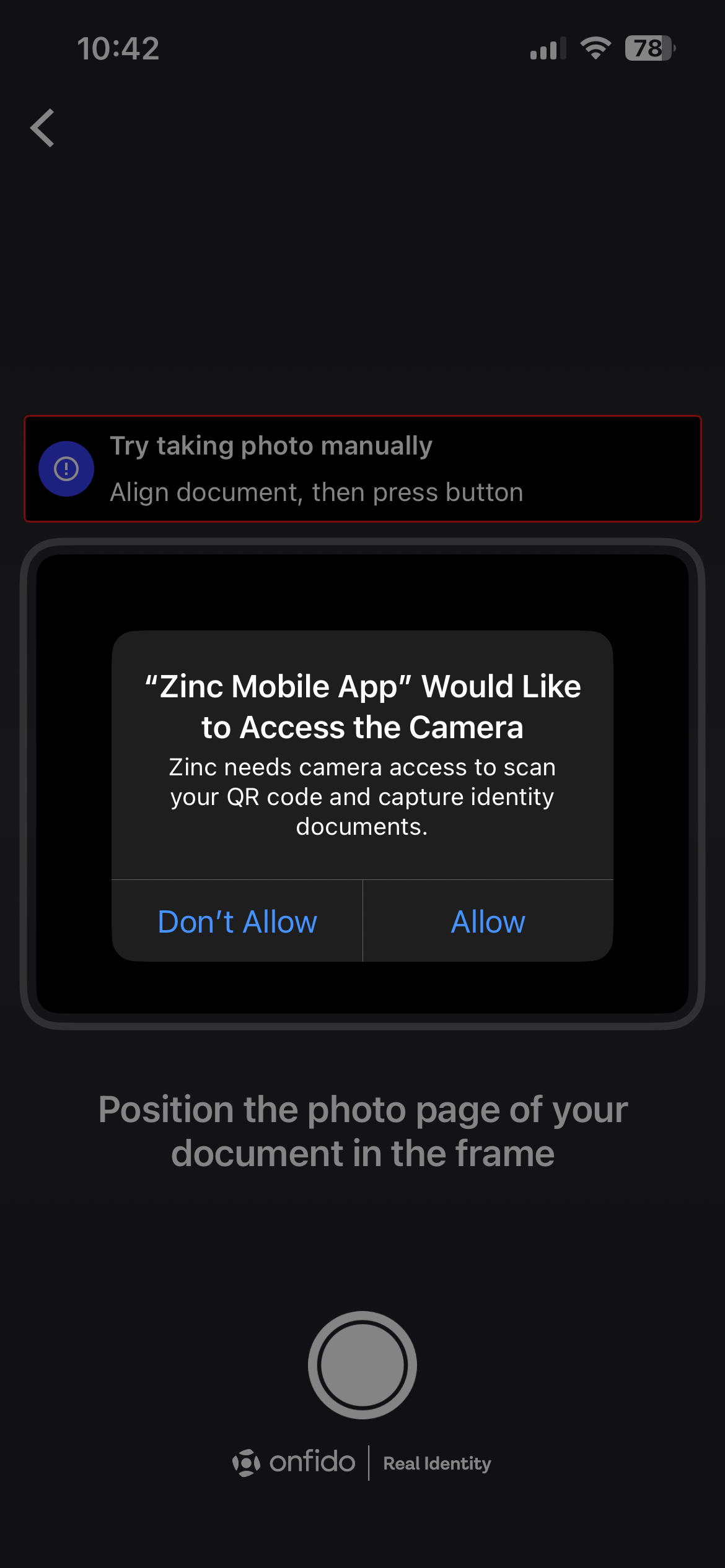
3. Allow camera access when prompted — you'll need this to continue.
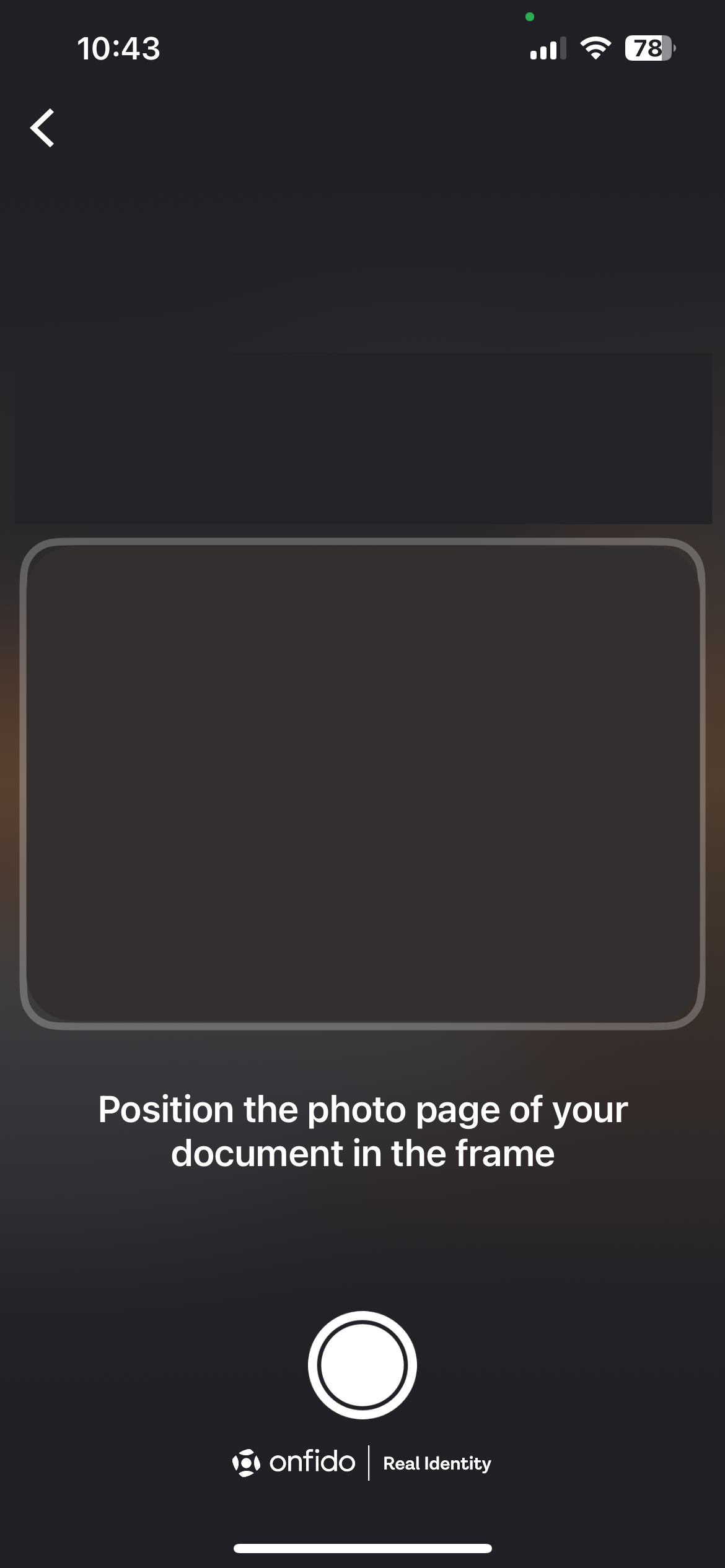
4. Position the photo page of your passport inside the frame. When it's lined up, the photo may be taken automatically.
### What if my passport's issuing country isn't listed?
You have two options: provide a passport from one of the listed countries instead, or on your desktop screen, select **re-link your session** to go back to the QR code screen, then select **I can't link my session** to switch to the alternative verification route instead of the passport chip scan. See "Other Ways to Verify Your Identity" below.
### What if my photo doesn't come out clearly?
Keep your passport flat, out of direct light, and make sure all four corners and both bottom lines are visible. You'll get a chance to retake it if it's not clear enough.
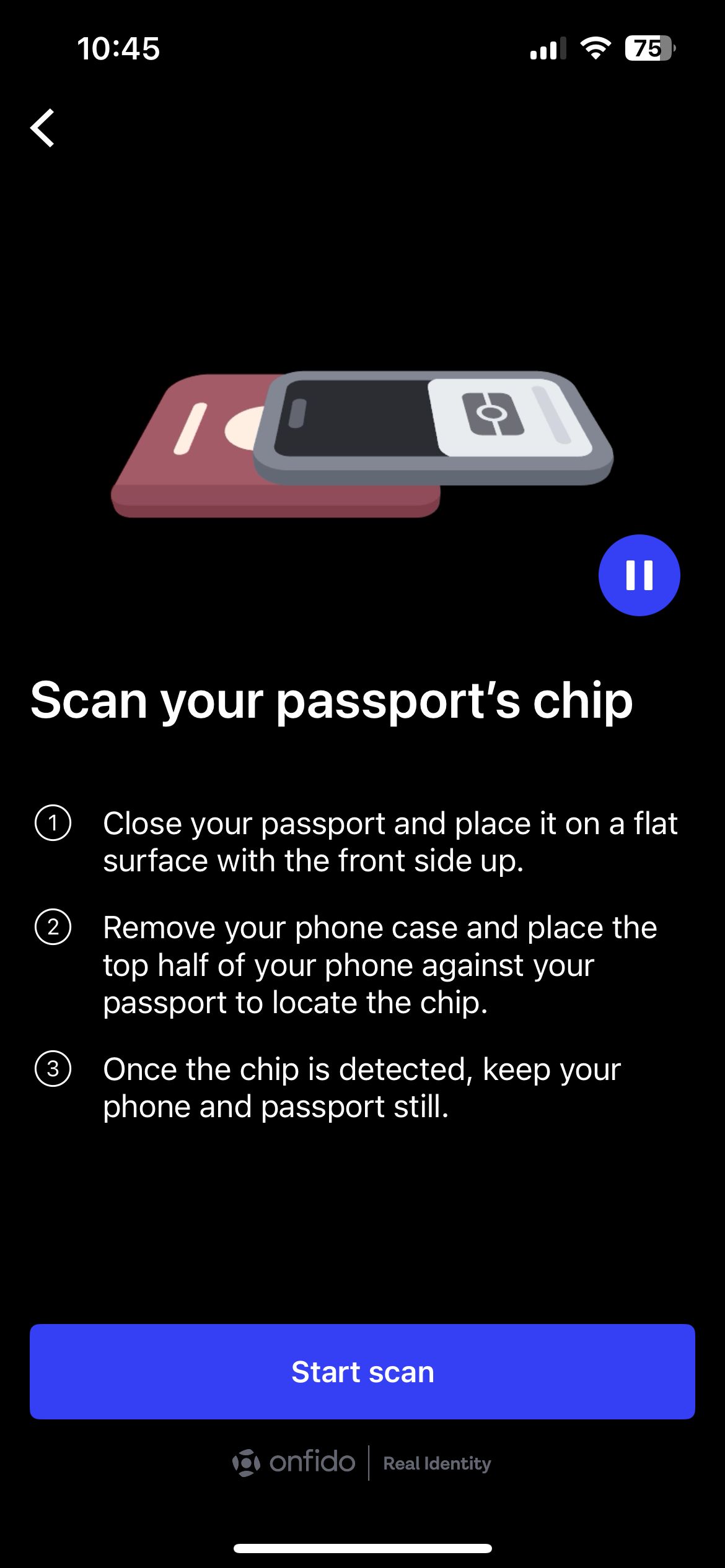
## Step 6: Scan Your Passport's Chip
1. Close your passport and place it on a flat surface, front side up.
2. Remove your phone case and hold the top half of your phone against your passport until it detects the chip.
3. Keep your phone and passport still, then select **Start scan**.
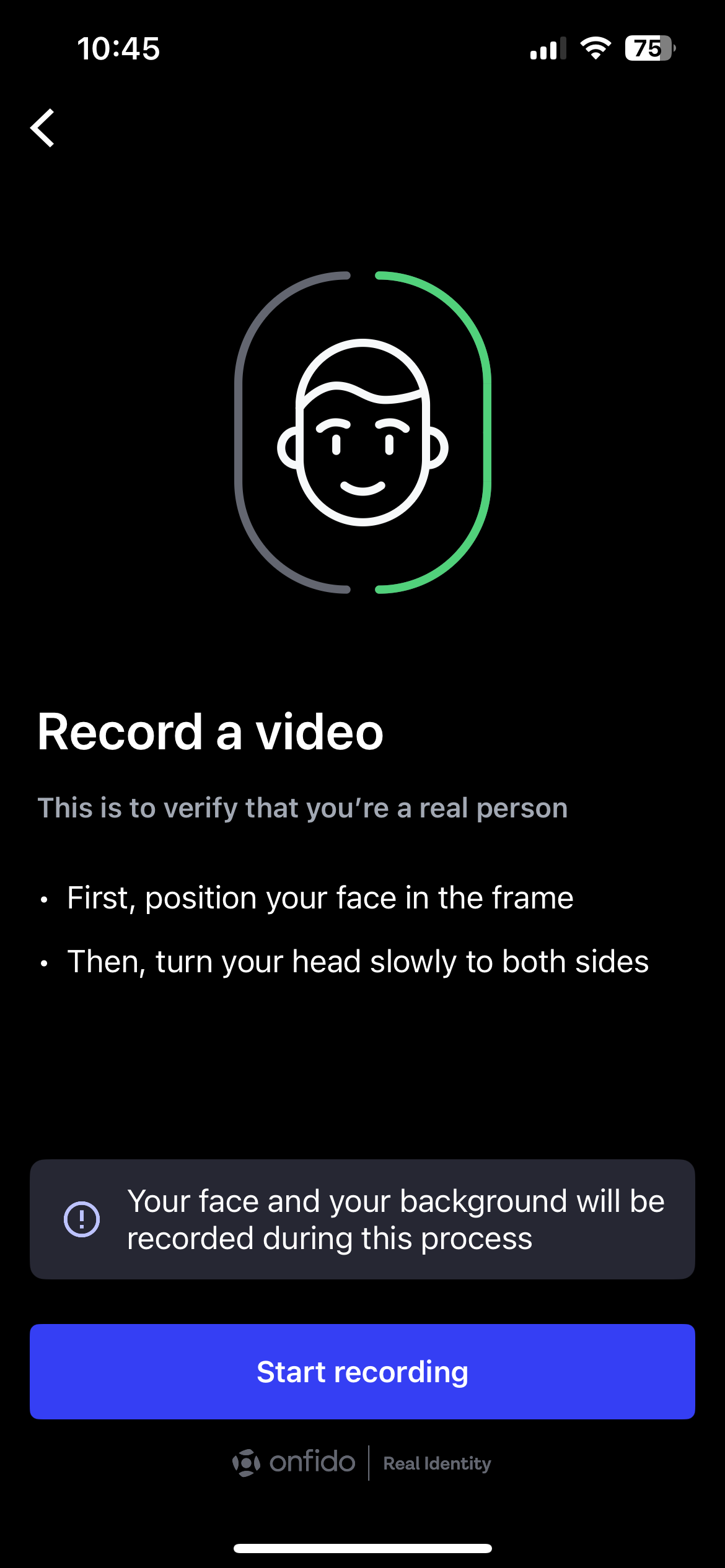
## Step 7: Record Your Selfie Video
1. Position your face in the frame. **Make sure you are presentable as this video will be viewable to your employer.**
2. Turn your head slowly to both sides when prompted — this confirms you're a real person, not a photo.
3. Select **Start recording** to begin. It will automatically be captured once you click this button.
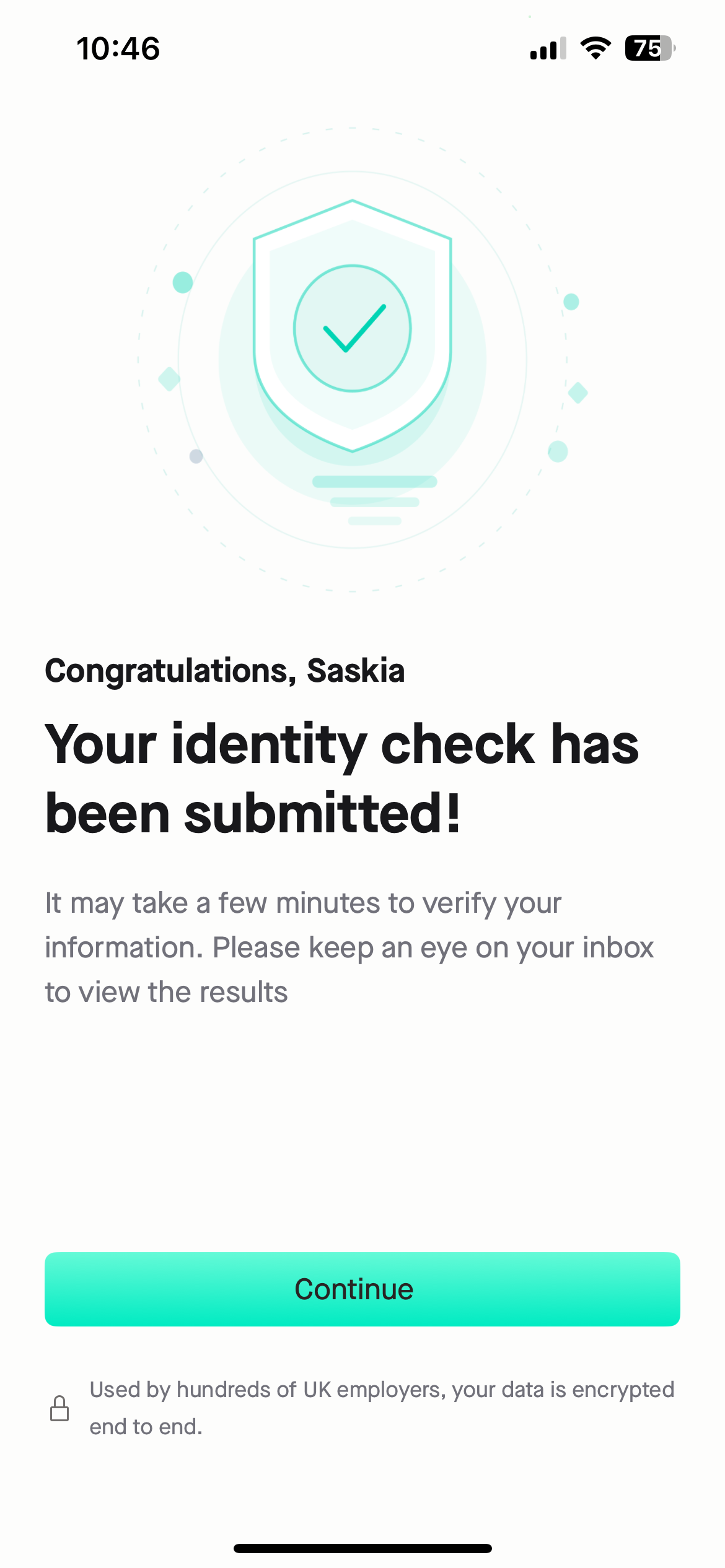
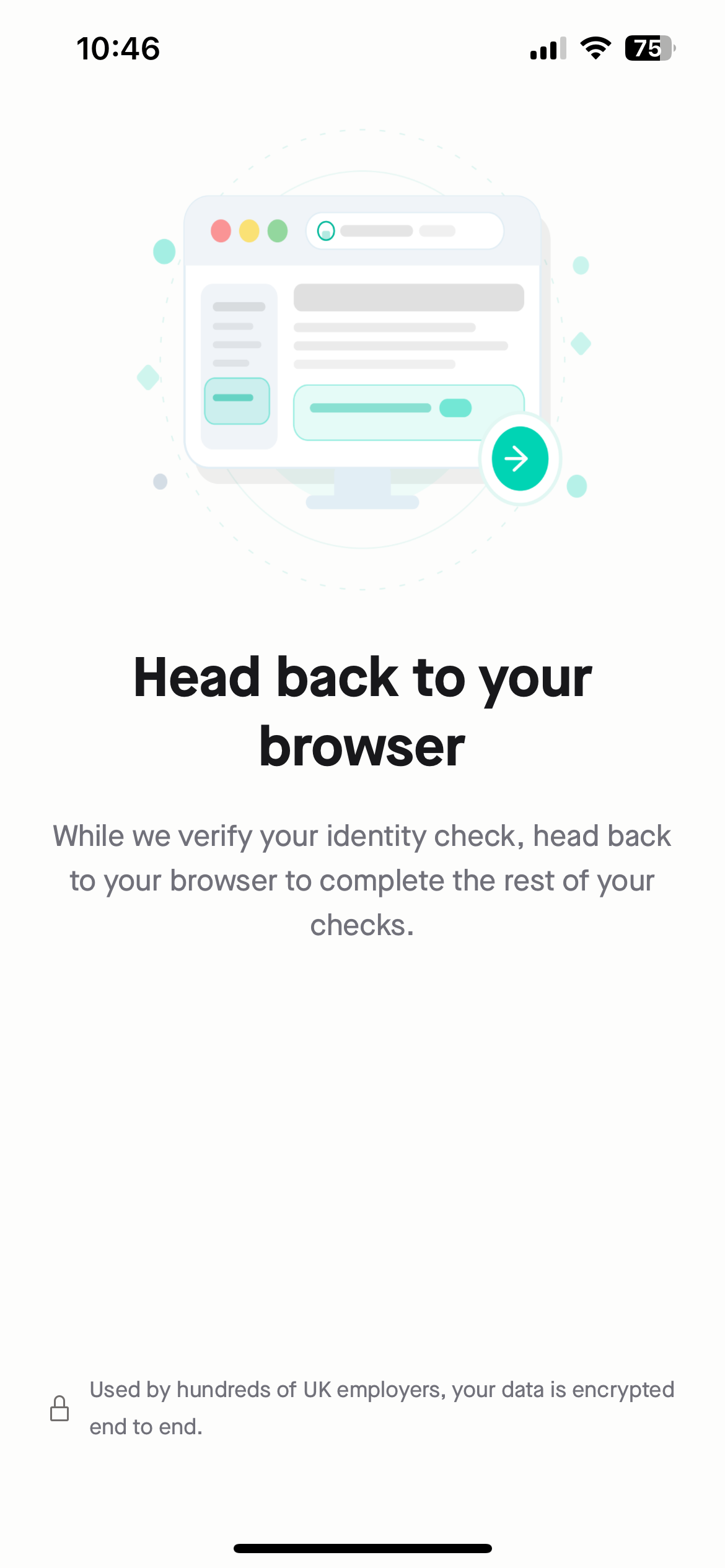
## Step 8: Submit and Head Back to Your Browser
Once your video's uploaded, you'll see a confirmation that your identity check has been submitted. Head back to your browser or computer to finish any remaining steps in your background check.
## What Happens Next
Every identity check ends in one of two outcomes: **clear**, or **manual review**.
If something needs a second look — for example, a document didn't upload clearly — they'll usually just ask you to resubmit it. If there's a question about your identity itself rather than the photo quality, your check moves straight to manual review, and your employer will be in touch if we need anything else from you.
Verification can take anywhere from a few minutes to longer if it's sent for manual review — see [What "Pending Identity Check Result" Means](https://help.zincwork.com/article/b9bfdec6-what-pending-identity-check-result-means) if you're checking on progress. Once the verification is done, you will be notified via email of the result.
## Other Ways to Verify Your Identity
The steps above cover the fastest route: a biometric passport plus an NFC-capable phone. If that doesn't apply to you, here's what to expect instead.
### If You Have a Biometric Passport but No NFC-Capable Phone
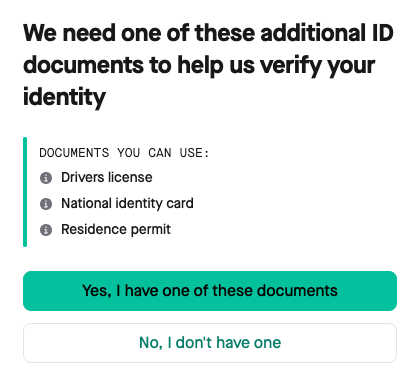
After you select **No, my phone doesn't have this**, Zinc asks for one more accepted document in addition to your passport — a driving licence, national identity card, or residence permit. Select **Yes, I have one of these documents** to continue, or **No, I don't have one** if you can't provide any of them.
Continue to "Photographing Your Documents and Taking a Selfie" below.
### If You Don't Have a Biometric Passport
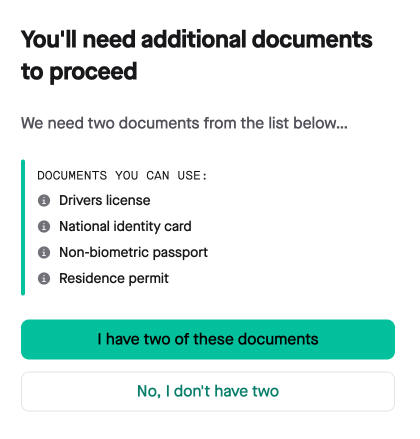
Zinc asks for two accepted documents instead — from a driving licence, national identity card, non-biometric passport, or residence permit. Select **I have two of these documents** to continue, or **No, I don't have two** if you can't provide two. If you cannot provide two documents, you will need to complete manual identity verification with your employer.
See "Photographing Your Documents and Taking a Selfie" below for more guidance on this process.
### Photographing Your Documents and Taking a Selfie
Both routes above lead to the same document photo and selfie process. Select **Start verification** to begin.
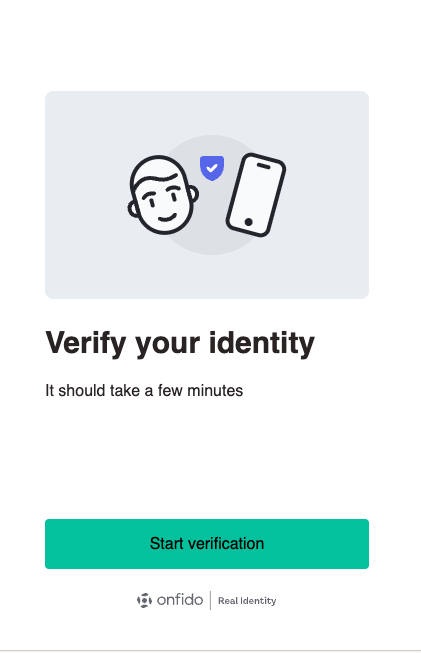
1. Select **Get secure link** to generate a QR code. Scan it with your phone's camera, or copy the link to text or email to yourself.


2. On your phone, select the country that issued your document, then choose the specific document type from the provided list.

3. Review the instructions on how to take a photo of your document. Then press **Continue**, then **Allow** when you're asked for camera access.


4. Position your document inside the frame and take the photo. Review it, then select **Upload** — or **Redo** if it's not clear enough.


5. If you're providing a driving licence, national ID card, or residence permit, you'll be asked to photograph the back of the card too. Follow the same steps.

6. Repeat these above steps for any additional documents requested.
7. For your selfie, position your face in the frame. Turn your head slowly to both sides when prompted — this confirms you're a real person, not a photo. **Make sure you are presentable as your employer will see this selfie video.**

8. Head back to your browser or computer. You'll see a confirmation that your identity check has been submitted.

### If You're Completing a DBS Basic or Right to Work Only Check
These checks need a lower level of verification. A valid UK or Irish passport just needs a live photo and a facial motion scan. Without one, another accepted document (a foreign passport, driving licence, or national ID card) plus a facial motion scan will do instead — the document photo and selfie steps work the same way as above.
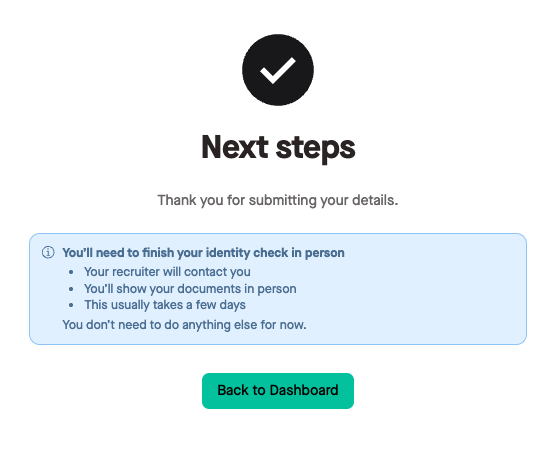
### If You Can't Provide Any of These Documents or Two Documents
You'll be routed to manual verification automatically, so your check is never stuck for lack of the right documents. This takes longer, but it doesn't stop your application moving forward.
If you have questions about your specific check, contact our Support Team.