For the complete documentation index, see llms.txt
For the complete documentation index, see llms.txt
Understanding a Candidate's Report – Key Elements and Interpretation
You've sent out your first check and all the checks have come back — congrats! Now that you have a candidate report, here is a detailed guide to help you understand it and make the best hiring decisions with Zinc.
## Report Overview
<iframe width="560" height="315" src="https://www.youtube.com/embed/DC7yOpGRB6o?si=cMWbTbKMPIIY5wMa" title="YouTube video player" frameborder="0" allow="accelerometer; autoplay; clipboard-write; encrypted-media; gyroscope; picture-in-picture; web-share" referrerpolicy="strict-origin-when-cross-origin" allowfullscreen></iframe>
At the top of the candidate report, you will find several key elements:
- The candidate's full name and email address displayed prominently at the top.
- The package name with the number of completed checks inside the package.
- The comments section where you can view all comments or add new ones.
- The status banner at the very top indicating the current request status of the candidate's checks.
- The **View check progress** button.
- The **Download report** button.

The coloured banner at the top of the page shows the current overall check request status for the candidate. For detailed information on the various status types, see the [Status Definitions](https://help.zincwork.com/hc/hm54ky7yrc/folder/3eab760c-status-definitions) folder.
Below the candidate's name, you will see their email address and underneath that, the package name along with how many checks have been completed in that package.

The **Comments** section allows you to click **View all comments** to expand it and read or write comments. These comments are date- and time-stamped, which is useful for imposter checks or marking which member of your team has reviewed what. All comments are included in the downloadable PDF report.
Learn more in [How to Use the Comments Section on a Candidate's Report](https://help.zincwork.com/hc/hm54ky7yrc/article/a7f39f7b-how-to-use-the-comments-section-on-a-candidates-report).

Next to the package name, the **View check progress** button gives you a quick overview of the candidate's checks. It shows the current overall request status, any checks flagged for review, and those that are cleared. The package name also appears at the bottom of this panel.

The **Download report** button lets you download a PDF copy of the current report you are viewing. This downloadable report includes all checks fully displayed and the comments section.
If it's within 120 days of completing an identity check or right to work check, the sensitive documents used — such as identity documents or selfies — are also included in the downloadable report for your records.
## Specific Checks Overview
Below this top section, you will find all the individual checks that have been conducted or are in progress for the candidate.
Each check has its own section. If a reference check was selected, it will appear near the top under "**Candidate First Name's Timeline**".
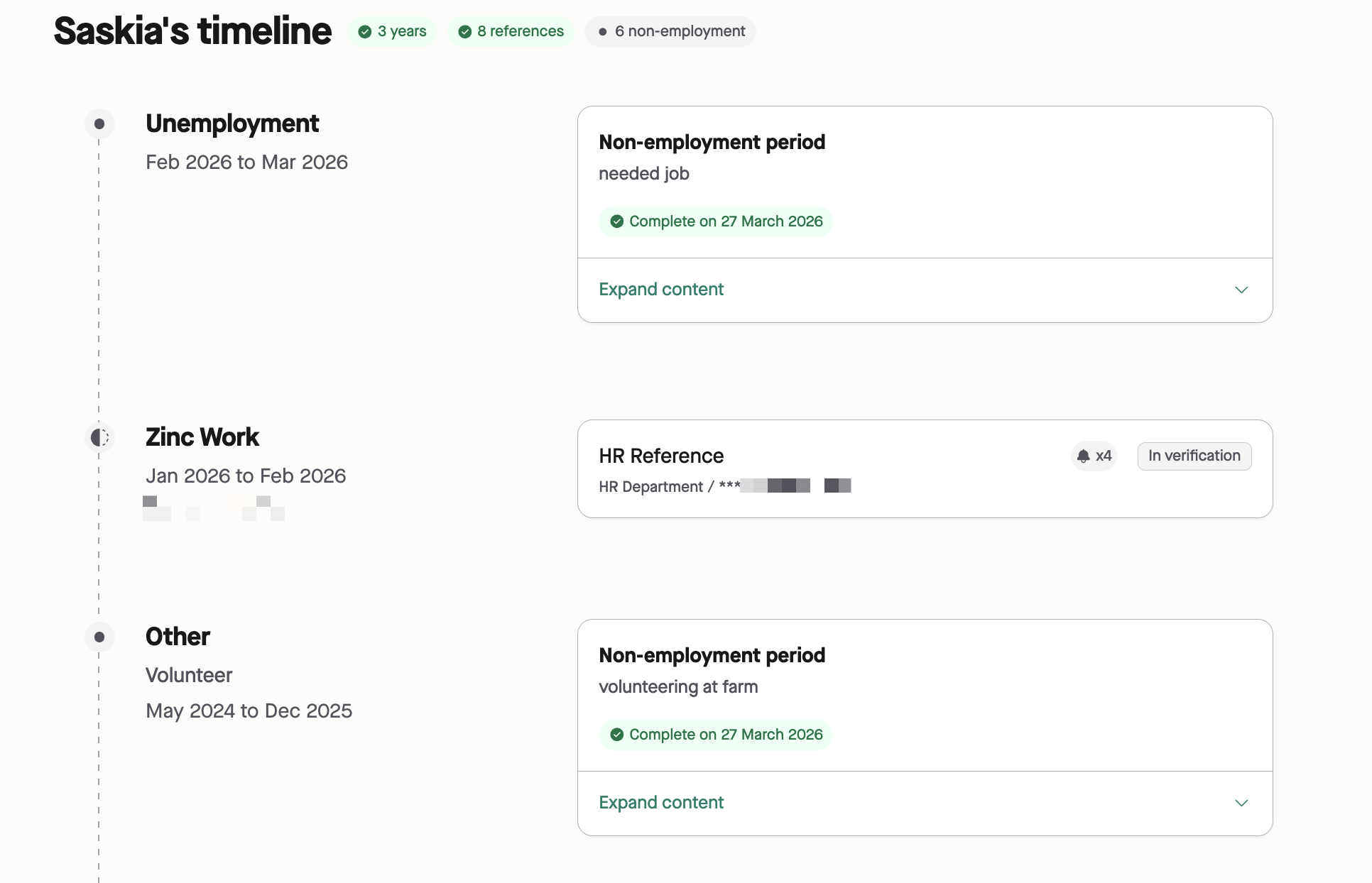
To view more details of a check, click the **downward arrow** or **Expand content** to open it. To close it, click **Hide content** at the bottom of the check section.
### Reference Checks
Next to the candidate's timeline heading, you may see an **EV Name Matched** (green) or **EV Name Mismatch** (pink) badge. This shows whether the name used to submit an Employment Verification matches the name submitted for the candidate on the request. Hovering over the badge shows both names being compared.
This indicator is separate from the check and reference statuses covered below — it does not change a check or reference to **Consider**, and it does not send you an email. It's a visual flag only, to support your review of the report.
If CV checks are also enabled on this package, next to the candidate's timeline, it will also show **View CV** and **Download CV** links next to the CV Check Summary showing the result and completion date. Select Expand content on that card to see the full comparison between the CV, the candidate's input, and the referee's response.
For reference checks, provided references or non-employment periods are displayed in order starting from the newest start date going to the oldest.
The type of reference collected (such as Employment Verification) will be displayed at the top of each reference box. Below that, you will see the referee or source (e.g., HMRC) in grey text.
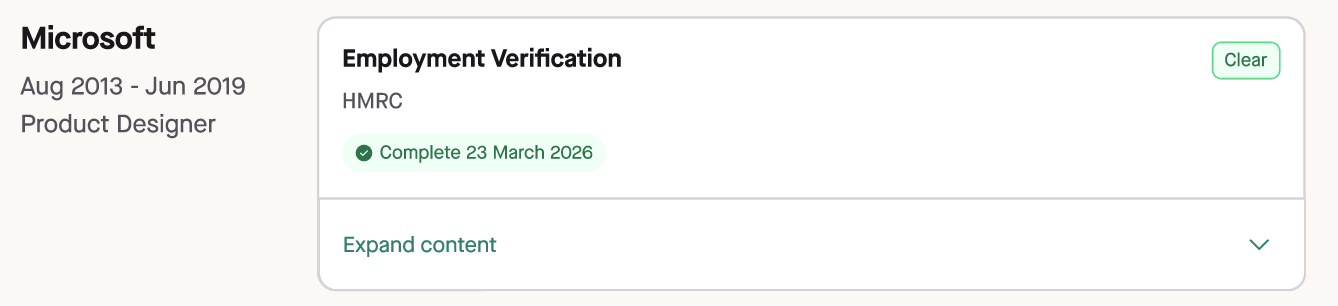
To understand the possible statuses shown for references, see the [Status Definitions](https://help.zincwork.com/hc/hm54ky7rj/folder/3eab760c-status-definitions) folder.
If there are any mismatches between what the candidate provided and what the referee stated, these will appear within the full reference details. For example, if the candidate's stated dates differ from the referee's, the mismatched information will be displayed.
Note that Zinc allows a 30-day grace period on reference start and end dates. For example, if the candidate provided a start date of January 2026 but the actual start date was December 2025, the reference will still be marked as clear with no mismatch.

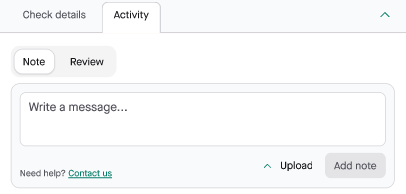
Each reference card also includes an **Activity** tab alongside the **Check details** tab. The Check details tab shows the referee's responses, and — if a referee responded via PDF/Word and was processed by Zinc — their original document. If the document couldn't be fully processed you will see a **Full details not provided** badge next to the **Consider** result. The Activity tab shows a timeline of automated chasers, status changes, and any notes or review actions recorded by your team for that specific reference. You can add notes, attach documents, and mark references as reviewed directly from this tab.See [Adding Notes and Reviewing References on a Candidate Report](https://help.zincwork.com/hc/hm54ky7yrc/article/1af6858a-adding-notes-and-reviewing-references-on-a-candidate-report) for detailed guidance.
### Right to Work Checks
For right to work checks, the report shows the type of document the candidate used. It also informs you of any next steps required to complete the check.
If you're within 120 days of the completion date of the check, the candidate's document and selfie used for verification are visible within this section. You can download and review these documents as needed.

## Need More Help?
In the lower right-hand corner of the report, you will see an icon representing chat support.

Clicking this icon opens a chat function where you can type a question and receive immediate answers to any queries about the report or hiring process.
Now that you understand how to read a candidate's report, you can confidently review all the information Zinc provides to make informed hiring decisions.