For the complete documentation index, see llms.txt
For the complete documentation index, see llms.txt
How to Set Up a Custom Upload Self Certification Check
## Custom upload set up
On package set up or the package editor, you will need to toggle **on** the self-certification check.

When you create a package, you will only see the I-9 Form option but **if you need a custom upload, you can only do this by editing the package once the package is created**.

1. Select your desired package on the [**Packages**](https://app.zincwork.com/packages) page.

2. Select **Custom document upload**.
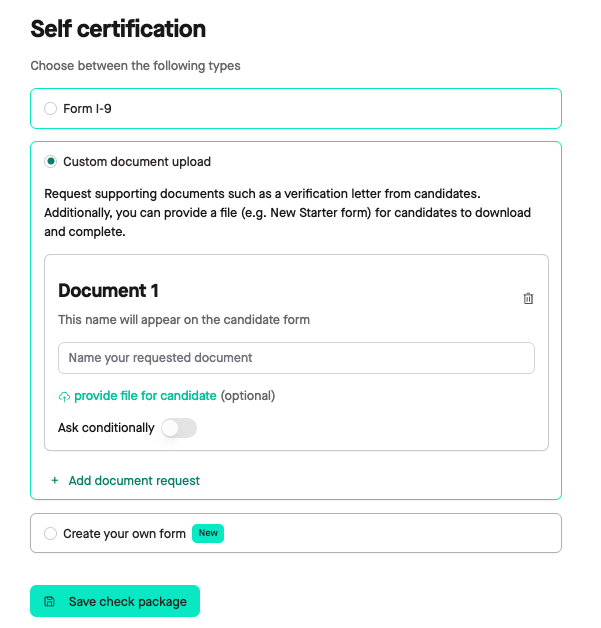
Depending on what you want to do, you can follow the guidance that works best for your situation.
## Provide a document for a candidate to complete
### Step one: Name your document
We first need to name our document on the line indicated. In this case, we are providing a New Starter form.

### Step two: Upload your document
Now, we need to upload our document by clicking **provide file for candidate.** We recommend providing either a PDF or PNG file that's less than 5MB.

Once uploaded, you will see a green **Uploaded status** to show it has successfully uploaded.

### Step three: Repeat or save your package
You can repeat this process 2 more times to have multiple documents for your candidate to complete by clicking **+Add document request** and once completed click **Save check package** at the bottom of the package editor.
Now you can request this check to be completed and your candidates will see the below. They will be asked to download the document, complete it, and then upload it to complete the check. This question will be mandatory for the candidate to complete.

Once completed, you will find this on the report under **Self certification** with the document available for your review.

## Requesting a candidate to provide a document
### Step one: Name your document
We first need to name our document on the line indicated. In this case, we are asking candidates to provide their last payslip from their most recent role.

### Step two: Repeat or save your package
You can repeat this process 2 more times to have candidates provide multiple documents by clicking **+ Add document request**. Once completed, click **Save check package** at the bottom of the package editor.
Now you can request this check to be completed and your candidates will see the below. They will be asked to upload the document requested to complete the check.
Please note: this option does allow candidates to select if they cannot provide this document. **There is not an option to make this mandatory.**

Once completed, you will find this on the report under **Self certification** with the document available (if provided) and how the candidate answered.

## Requesting a candidate to provide a document conditionally
This option is great if you need to ask for a specific document if a candidate answers a question as a yes or no answer.
### Step one: Name your document
We first need to name our document on the line indicated. In this case, we are asking candidates to provide their driving license.

### Step two: Add conditions
First, toggle **on** Ask conditionally.

Now, add your conditions. For this example, we want to ask a candidate to provide a HGV driving license if they select **Yes** to the question.

### Step three: Repeat or save your package
You can repeat this process 2 more times to have candidates provide multiple documents with a question if they say yes or no by clicking **+Add document request**

Once completed, click **Save check package** at the bottom of the package editor.
Now you can request this check to be completed and your candidates will see the below. They will be asked to upload the document requested when they answer **Yes** to complete the check.
If they select **No** in this example, they will not be asked to upload a document.
Please note: this option does allow candidates to select if they cannot provide this document. **There is not an option to make this mandatory.**


Once completed, you will find this on the report under **Self certification** with the document available and how the candidate answered.

## Good to know
- There is a 3 question limit on custom uploads
- Editing the package won't change the document uploads for any already requested requests-once a check is sent, the document upload information cannot be changed