For the complete documentation index, see llms.txt
For the complete documentation index, see llms.txt
How to Add a New Referee in Your Reference Requests
Here's how to add a referee to your reference check, and how to use the note field to give them everything they need to complete it quickly.
Follow the steps below to add an HR, professional or regulatory reference. To add a character reference instead, see [How Do I Add a Character Reference?](https://help.zincwork.com/hc/hm54ky7yrc/article/d8b5c312-how-do-i-add-a-character-reference).
## Step One: Confirm Your Details and Select References
1. Sign in to your requested checks at [Zinc](https://app.zincwork.com/). If you are on **Profile**, select **View check progress → Submit checks** to return to the submission page. Complete **Confirm your details** if prompted.
2. Select **References**.
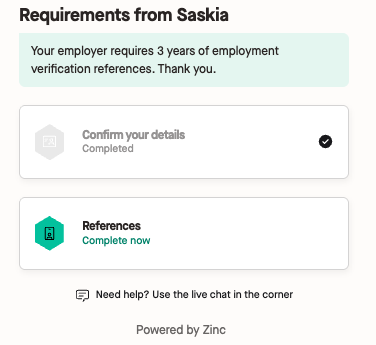
If the **References** box appears grey, select **Add more** instead.
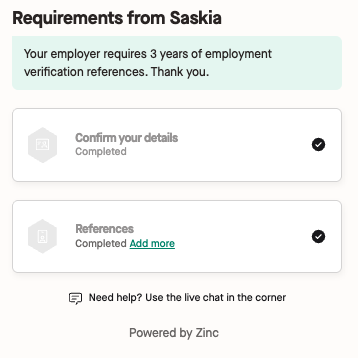
If you haven't added any references yet, you may need to complete one reference type first, such as **Employment Verification**, before you can move on to another.
Once that's done, you can add further referees by selecting **Add more** or going straight into the relevant reference section.
If your employer has asked for more than one type of reference, make sure you request each referee under the right section — for example, add a regulatory reference for a previous care role under **Regulatory** if that's what the role requires. This ensures your referee gets the correct request and answers the questions specific to that job role.
#### Can I Still Add a Referee if My Reference Check Is Already Marked Complete?
Yes. Select **Add more** in the **References** box to add another referee to the same request, even after it's marked complete. Adding a referee does not change or remove an existing completed reference.
## Step Two: Add Your Referee's Details
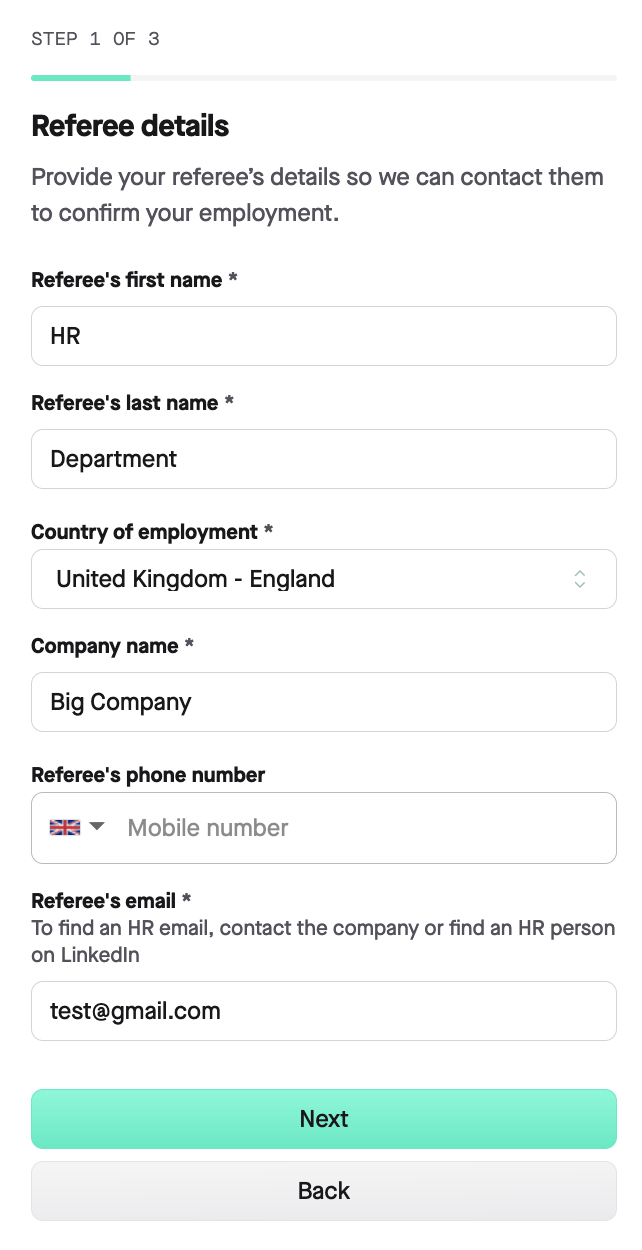
Once you've clicked **References**, it takes you to the submission page, which has three parts: **Referee Details**, **Your Details**, and **Confirm and Request**.
### Referee Details
1. **Referee's first name** — if you don't know their name, enter "HR" as the first name and "Department" as the last name.
2. **Referee's last name.**
3. **Country of employment.**
4. **Company name**— this will be the name of the company that you worked at together even if they've left.
5. **Referee's mobile phone number** (optional).
6. **Referee's email** — required, as this is how we contact your referee. If you don't have this to hand, try contacting the company directly or finding an HR contact on LinkedIn.
### Your Details
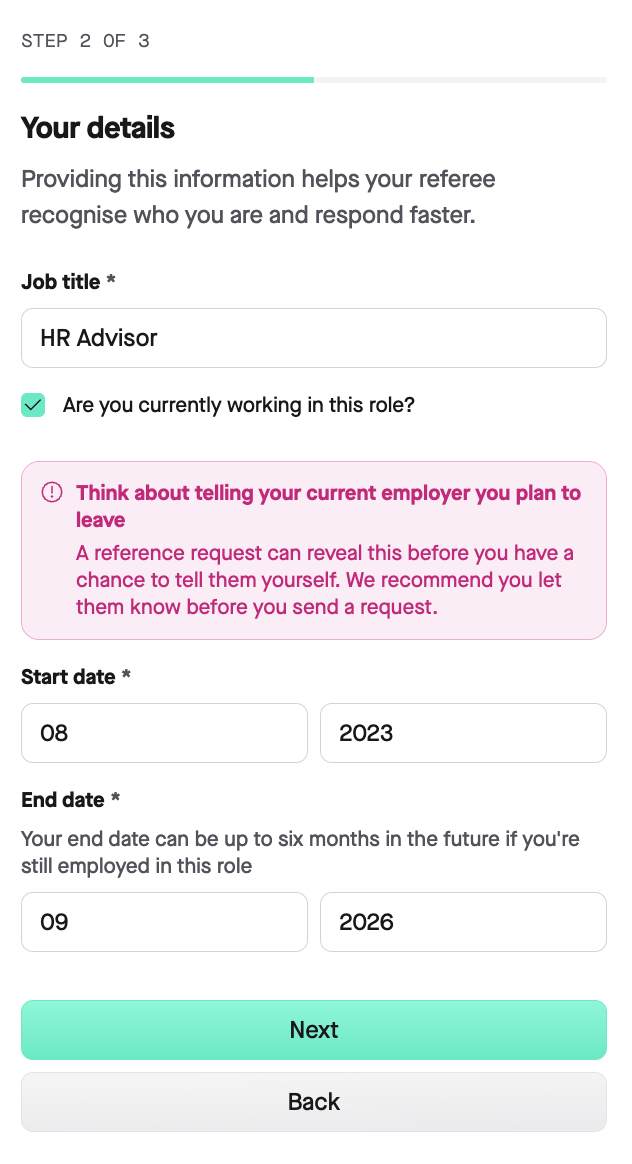
Enter the details of the employment this referee will confirm. This is separate from the **Confirm your details** section for your personal information.
1. **Job title** — your job title at this organisation.
2. Tick whether **you're currently working in this role**.
- If you are, you'll see a reminder to tell your current employer you're planning to leave before you send the request — a reference request can reveal this to them before you've had the chance to say so yourself.
3. **Start date** and **end date** — use your actual employment dates. If you are still in the role, your end date can be up to six months in the future.
### Confirm and Request
Once your details are in, you'll reach the final step:
1. Add your **digital signature** by typing your name.
2. Optionally, **add a note for your referee**.
3. Click **Request Reference**.
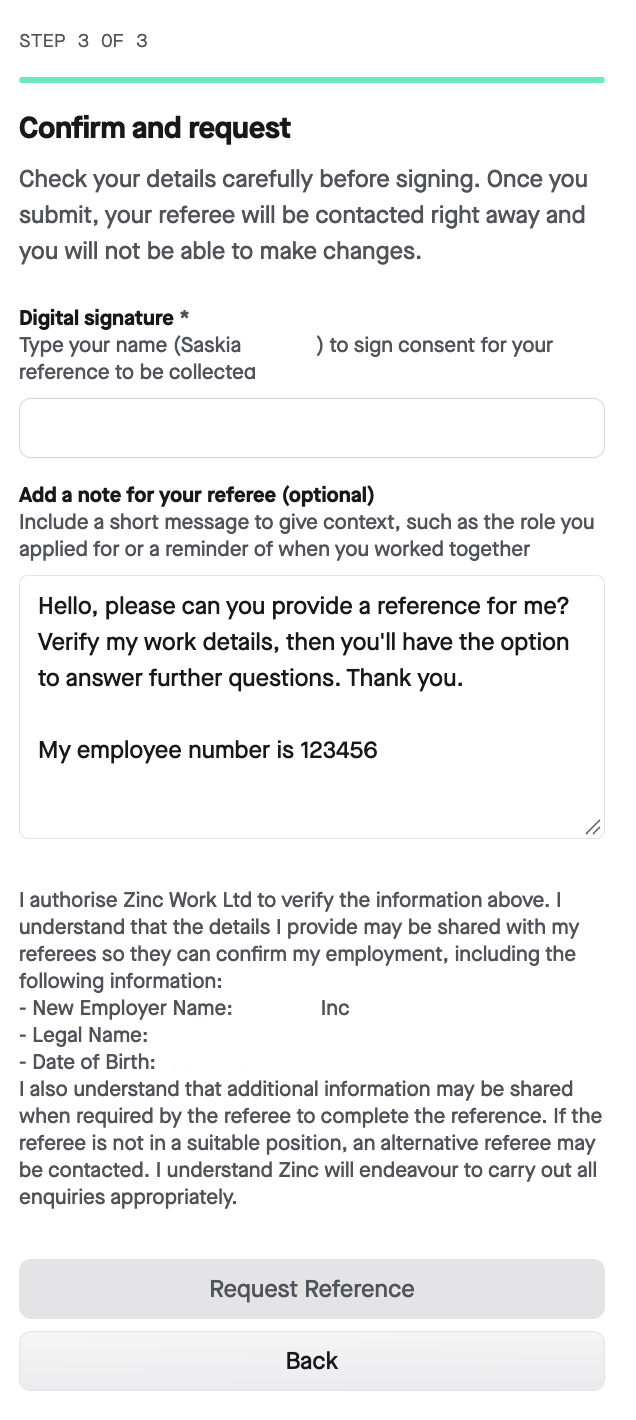
Check everything carefully before you submit — once you send the request, your referee is contacted immediately and you won't be able to make changes. They'll receive up to five reminders if they haven't responded.
### Use the Note to Help Your Referee Complete the Request Faster
The **note for your referee** is an optional free-text field on the final step. Zinc suggests using it for things like the role you applied for or a reminder of when you worked together — but it's also the best place to hand over anything else that will help your referee find your record and respond without needing to chase you or your recruiter for more information first.
This is especially useful for:
- **Your notice period**, if your referee needs this confirmed as part of the reference.
- **Your employee, staff, or payroll number**, so your referee can look up your record straight away.
- **Your National Insurance (NI) number** or other identifying number, if your former employer's HR system needs this to locate you.
- **Your line manager's name**, if it's different from the person named as your referee.
- **Your department or team**, particularly if you worked somewhere with a large or shared HR function.
- **Your previous name** if you were known by another name at the time of employment.
For example:
> "Hi, thanks for agreeing to provide this reference — I applied for the Customer Success Advisor role. My employee number is 123456 and my last line manager was Jane Smith in the Support team."
Large organisations often can't locate a former employee from a name alone. Adding these details to the note means your referee has what they need from the moment they receive the request, rather than pausing to track it down or getting in touch with you directly — which is one of the most common reasons a reference request stalls and runs through its reminder chases instead of being completed straight away.
Remember: once you submit the request, you can't edit the note, so it's worth taking a moment to add these details before you sign.
### If You Don't Have All the Details Yet
You don't need to finish adding your referees in one sitting. You can close the page and come back later once you have everything you need.
### Common Questions
#### Can I Provide Only a Mobile Number Instead of an Email Address?
No. An email address is mandatory, as it's our primary method of contacting your referee — without one, we can't reach them.
You can optionally add a mobile number as well. We'll use this to send your referee an SMS notification about the request. For compliance reasons, we don't collect references over the phone.
#### Why Wasn't I Asked for a Referee Email Address?
If you're completing your reference check through the **instant employment verification** flow, the system may not ask for a referee email address, because this route doesn't require contact details for your previous employers.
If instant verification isn't available or suitable for your check, you can use the fallback option to provide traditional reference details instead, including a referee email address.
---
If you need to update or change a referee's details after you've already sent the request, see [How to Change Your Referee's Phone Number or Email Address After Sending a Reference Request](https://help.zincwork.com/article/eacd5a04-how-to-change-your-referees-phone-number-or-email-address-after-sending-a-reference-request).