For the complete documentation index, see llms.txt
For the complete documentation index, see llms.txt
Adding Notes and Reviewing References on a Candidate Report
You can now add notes, attach documents, and mark references as reviewed directly on each reference card in a candidate report. This creates an audit trail at the reference level, separate from any notes you add at the overall report level.
Everything you add appears in the downloaded PDF report automatically.
---
## Where to find the notes and review options
Open a candidate report and expand a reference card. You will see two tabs: **Check Content** and **Activity**. 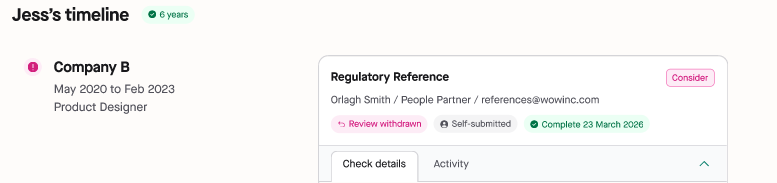
**Check Content** shows the referee's responses — the questions asked and the answers given.
**Activity** shows a timeline of everything that has happened on this reference: automated chasers sent to the referee, status changes, and any notes or review actions your team has recorded. Within the Activity tab, you will find two options: **Note** and **Review**.
---
## How to add a note to a reference
1. Expand the reference card on the candidate report.
2. Select the **Activity** tab.
3. Select **Note**.
4. Type your note. You can record anything relevant. For example, that you have spoken to the referee directly or reviewed safeguarding content.
5. To attach a document, select **Upload** and add your file. Accepted formats: JPEG, PNG, PDF. Maximum file size: 5MB.
6. Select **Add note**.
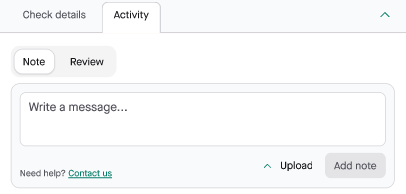
The note is saved immediately. It appears in the Activity timeline with your name and a timestamp.
**Notes cannot be edited or deleted after saving.** This is by design — it ensures your audit record is reliable for compliance purposes.
---
## How to attach a document to a reference
You can attach a document when adding a note (see above). Examples of documents you might attach include a scanned reference letter or any evidence gathered outside the Zinc platform. 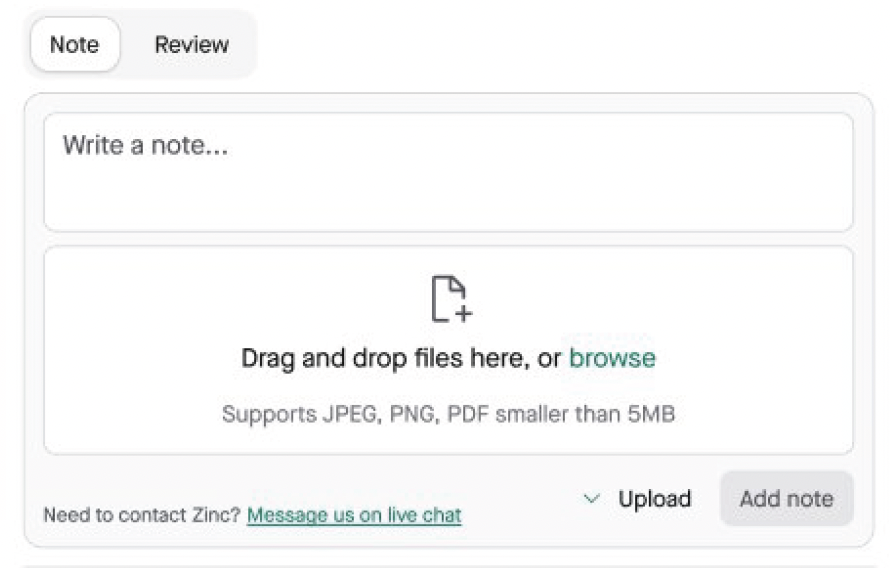
Accepted formats: JPEG, PNG, PDF. Maximum file size: 5MB.
---
## How to mark a reference as reviewed
Marking a reference as reviewed records that a member of your team has examined this reference and is satisfied with it. The reviewed status is separate from the system result Zinc assigns automatically (Clear, Consider, etc.). It has no effect on the criteria, reference ordering, or report status.
1. Expand the reference card on the candidate report.
2. Select the **Activity** tab.
3. Select **Review**.
4. Select **Mark as reviewed**.
5. Add a note explaining what you have confirmed. For example, that you have verified the referee's identity, authenticated the source, or reviewed safeguarding content. A note is required.
6. Click **Mark reviewed**.
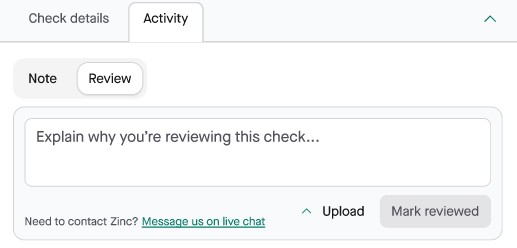
A green **Reviewed** badge appears on the collapsed reference card. Other members of your team can see this badge without opening the card.
---
## How to withdraw a reviewed status from a reference
If you need to re-examine a reference after marking it as reviewed:
1. Expand the reference card on the candidate report.
2. Select the **Activity** tab.
3. Select **Review**.
4. Select **Withdraw review**.
5. Enter a reason for the withdrawal. A reason is required.
6. Click **Withdraw review**.
The withdrawal is recorded in the Activity timeline and the green **Reviewed** badge is removed and replaced with a pink **Review withdrawn** badge. 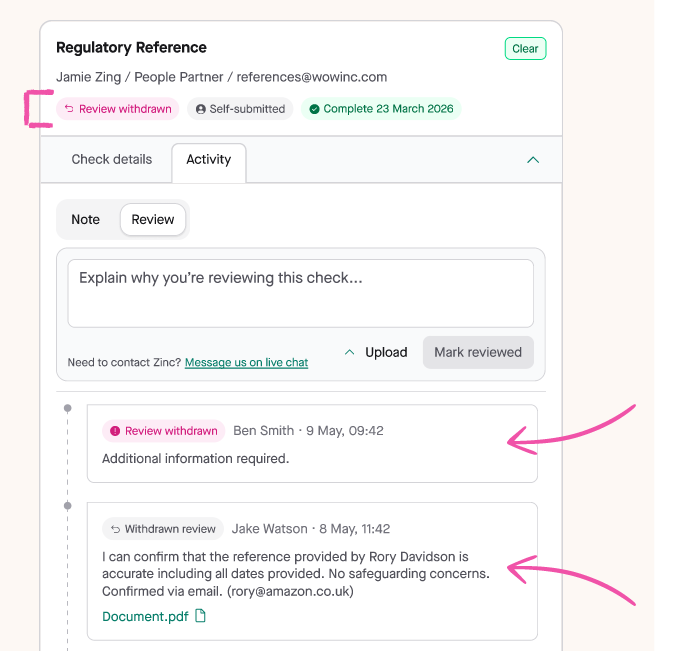
If you withdraw a review that a different team member originally set, that person receives an email notification. If you withdraw your own review, no email is sent.
**Adding reviews or withdrawing reviews cannot be edited or deleted.** When a recruiter withdraws a review, a new record is added to the activity. The original is always preserved.
---
## What happens to a reviewed reference if the reference status changes
Reference statuses can change after you have already marked a reference as reviewed. For example, you might review a reference while it is still in verification — you have spoken to the referee offline and confirmed details. Later, when the referee submits their response through Zinc, the status updates to Clear or Consider.
When this happens, Zinc sends you an email notification so you are aware of the change.
**Your reviewed status is not automatically removed.** Zinc will not clear or reset it when a reference status changes. You decide whether to look at the reference again and update your notes.
---
## What appears in the downloaded PDF report
The Activity tab content — notes, attached documents, review actions, withdrawal records, and automated timeline events — is included in full in the downloaded PDF.
In the PDF, the tabbed layout is replaced with a vertical layout: the referee's responses appear first, followed by the complete Activity timeline below. Document attachments appear as links within the timeline.
---
## Quick reference
| **Task** | **Steps** |
|---|---|
| Add a note to a reference | Expand card → Activity tab → Note → write note → Add note |
| Attach a document to a reference | Expand card → Activity tab → Note → Upload → Add note |
| Mark a reference as reviewed | Expand card → Activity tab → Review → Mark as reviewed (note required) |
| Withdraw a reviewed status | Expand card → Activity tab → Review → Withdraw review (reason required) |
| Check whether a reference has been reviewed | Look for the green Reviewed badge on the collapsed card |
| See if a note or review appears in the PDF | Download the report — Activity content is included automatically |