For the complete documentation index, see llms.txt
For the complete documentation index, see llms.txt
ow To See Background Check Results for a Candidate in Workday ATS
To access background check results in Workday, follow these steps:
## Finding the Overall Result
1. Open the candidate's profile in Workday Recruiting.
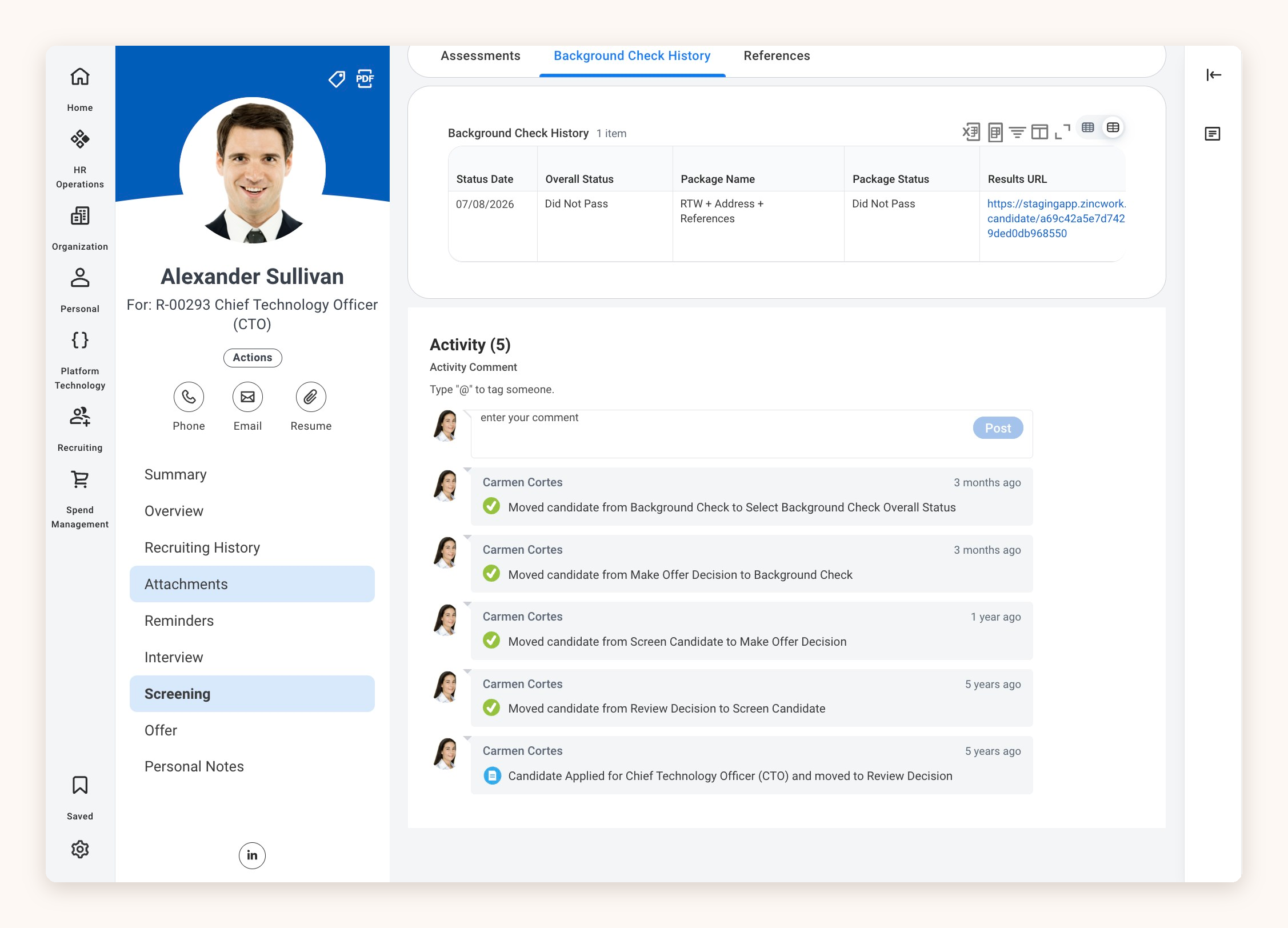
2. Select **Screening** in the left-hand menu.
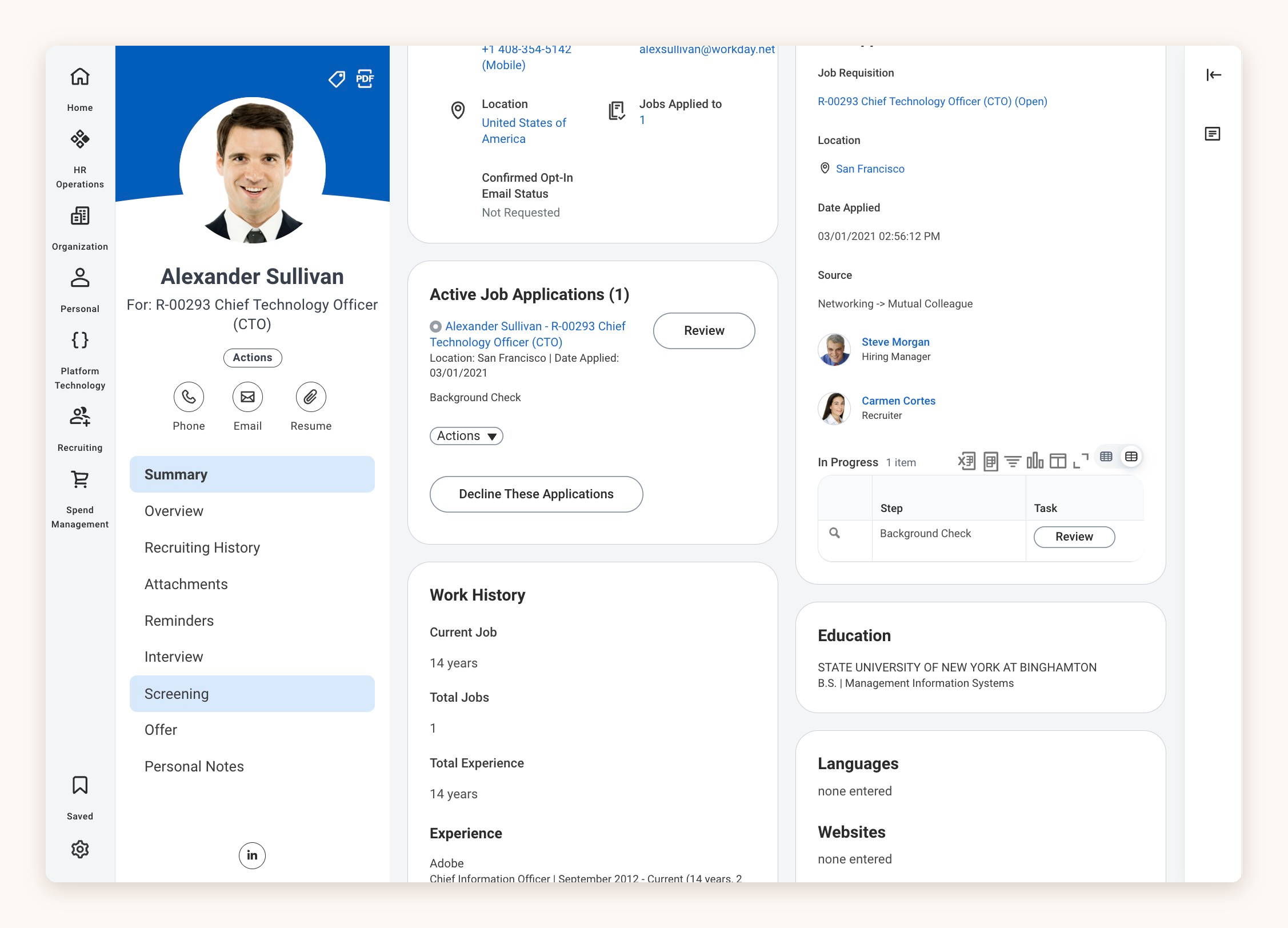
3. Click the **Background Check History** tab.
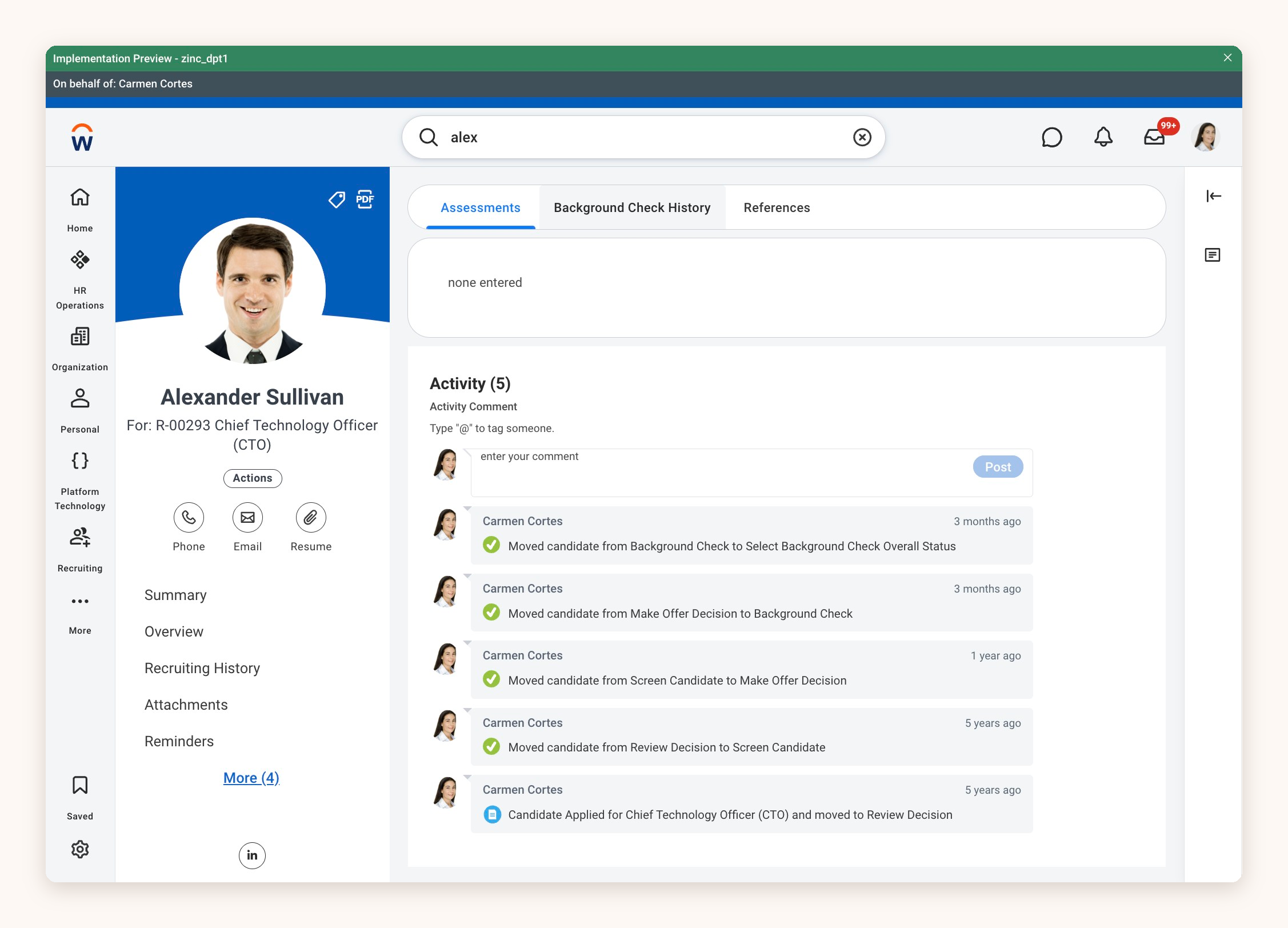
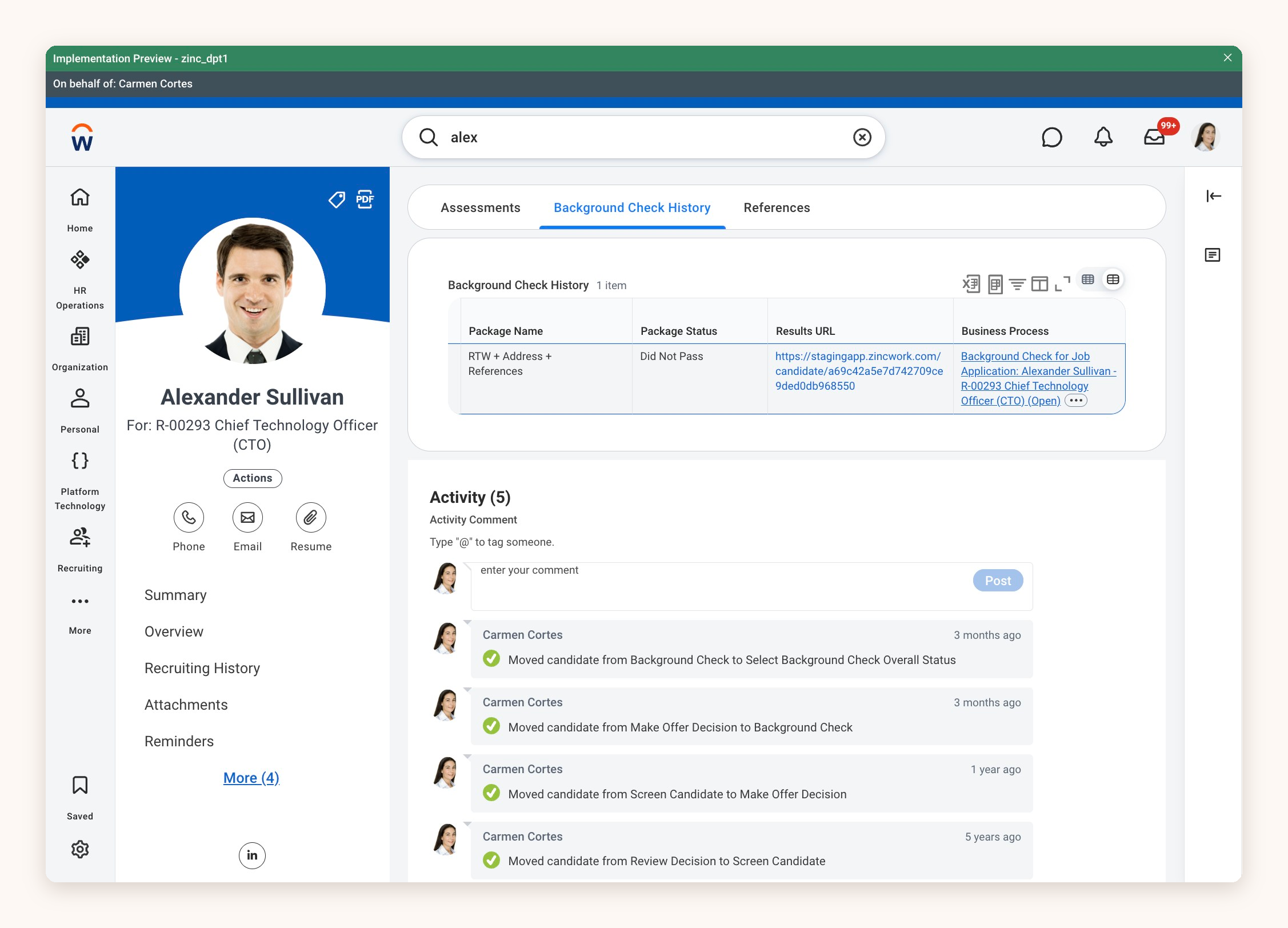
4. Look through the table to see every background check package run for this candidate, along with its overall status. The **Results URL** links to the full Zinc web report.
## Seeing the Individual Checks
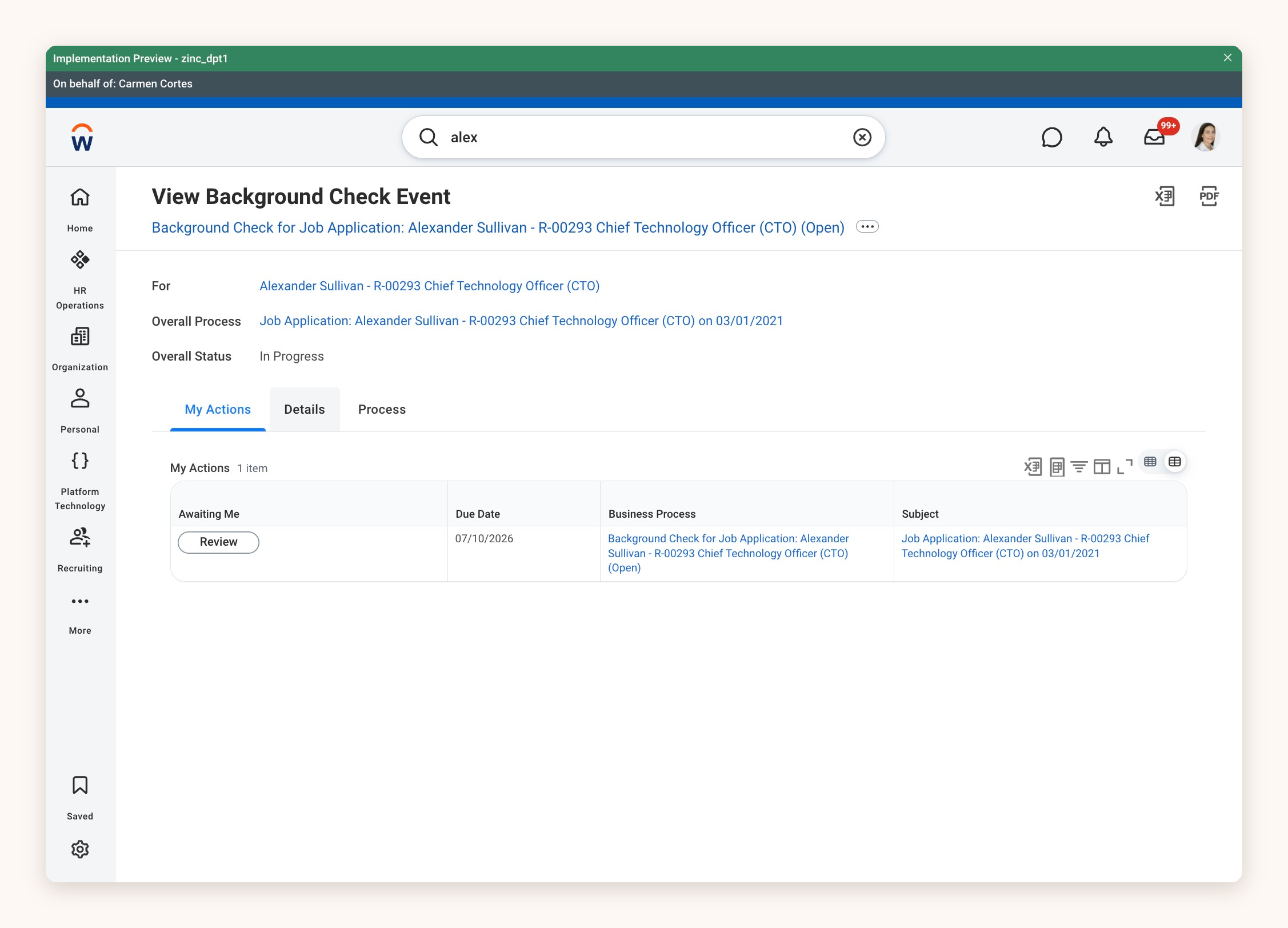
5. In the **Business Process** column, click the link for the background check you want to look at.
6. On the **View Background Check Event** page, select the **Details** tab. Here you'll find a summary of the overall background check, and a table showing the status of each individual check in the package.
## Opening the Report PDF
7. Go back to the candidate's profile and select **Attachments** in the left-hand menu.
8. Under **Recruiter Application Attachments,** click the report. It's the PDF with the category **Background Check** Report.
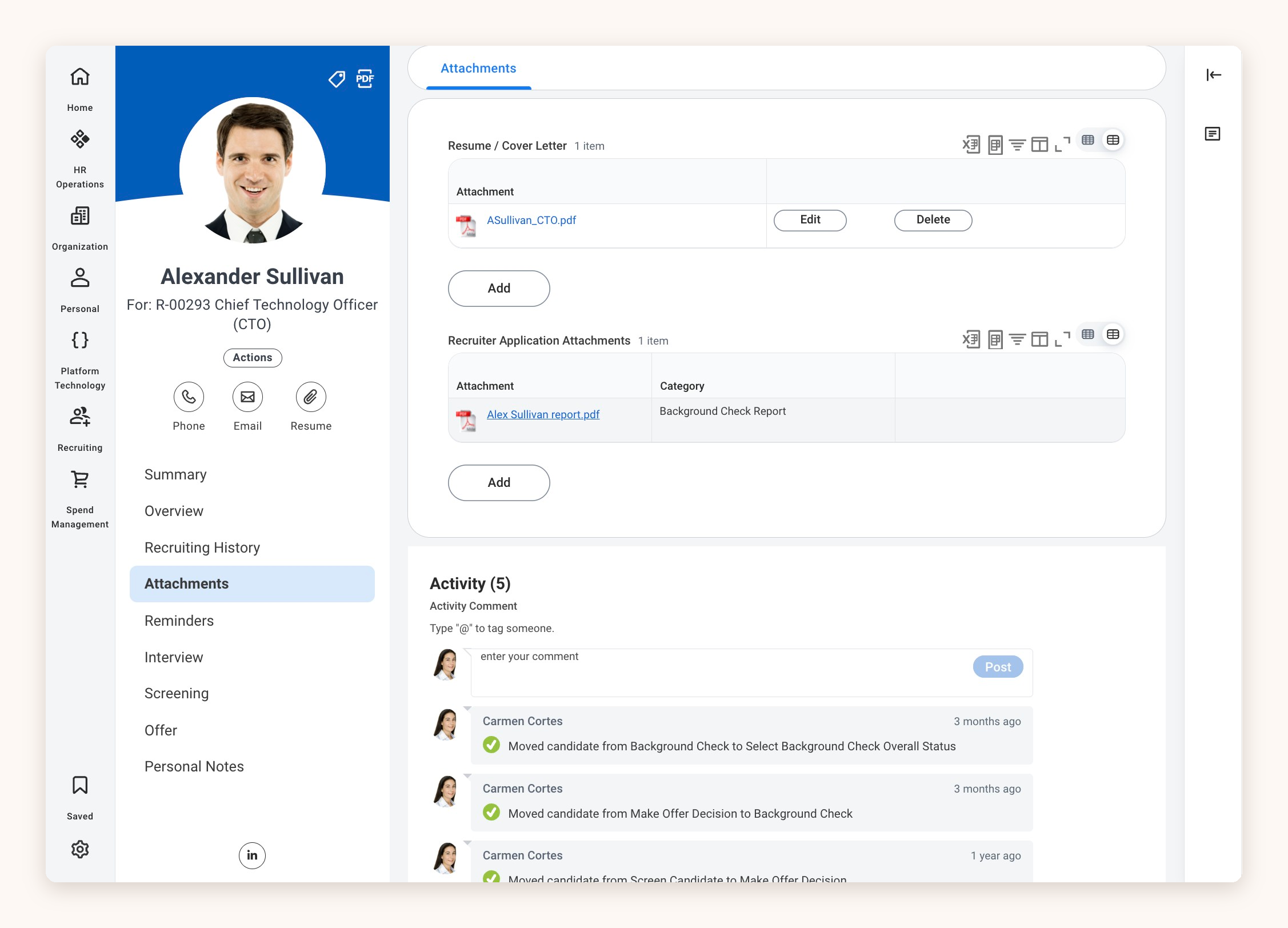
If you chose to have them returned, any **Qualification or Right to Work documents** appear on this page too.
## FAQs
### Where do I find any additional data?
If you've asked Zinc to send back additional data, you'll find it on the candidate's profile under **Overview,** on the **Additional Data** tab.
### What if the candidate has become an employee?
If a candidate becomes an employee before their check finishes, the completed PDF returns to their original candidate profile rather than the new employee profile.